How to Delete a Policy Level
Steps
-
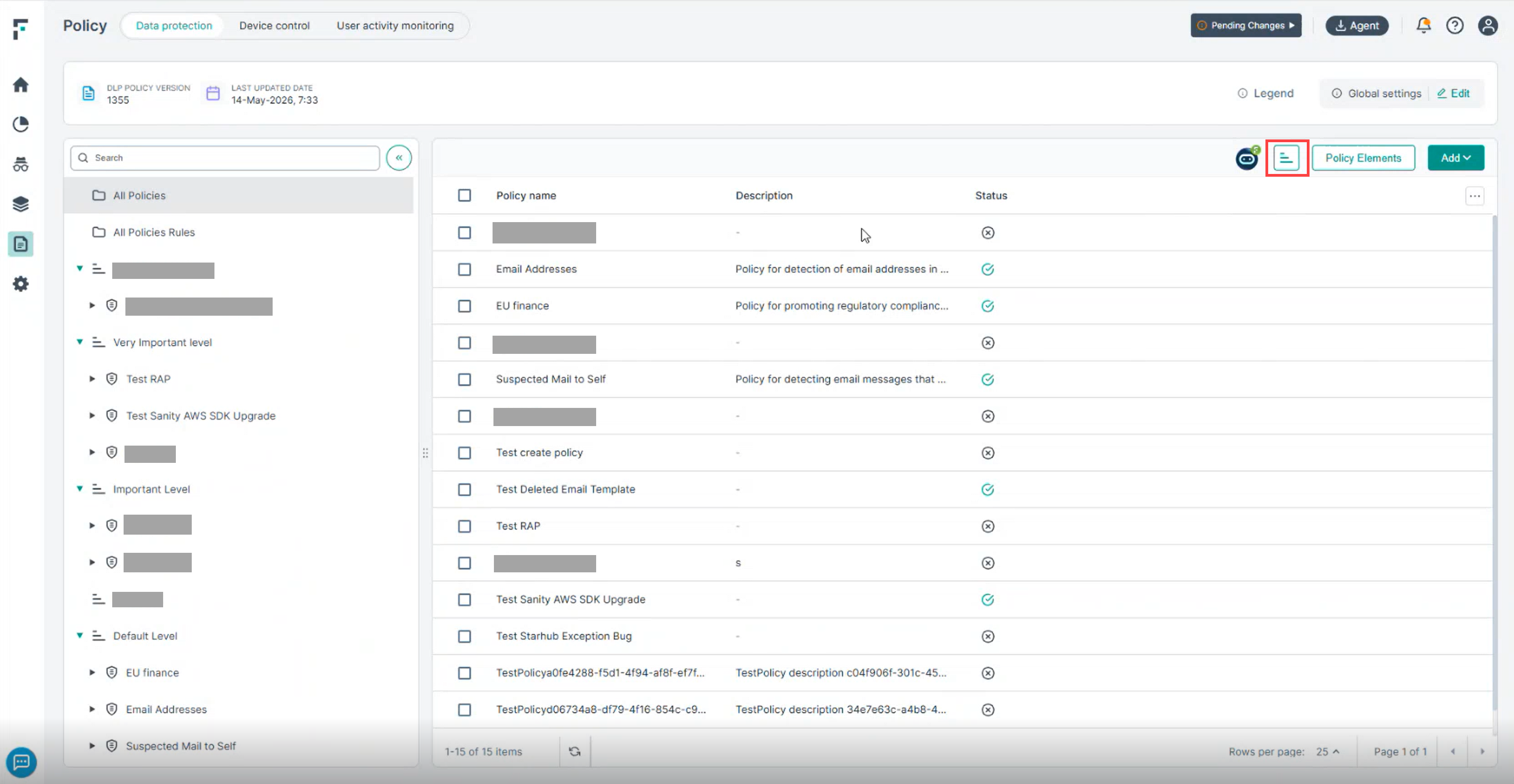
Navigate to the Policy and click on Manage policy levels, as shown below.
-
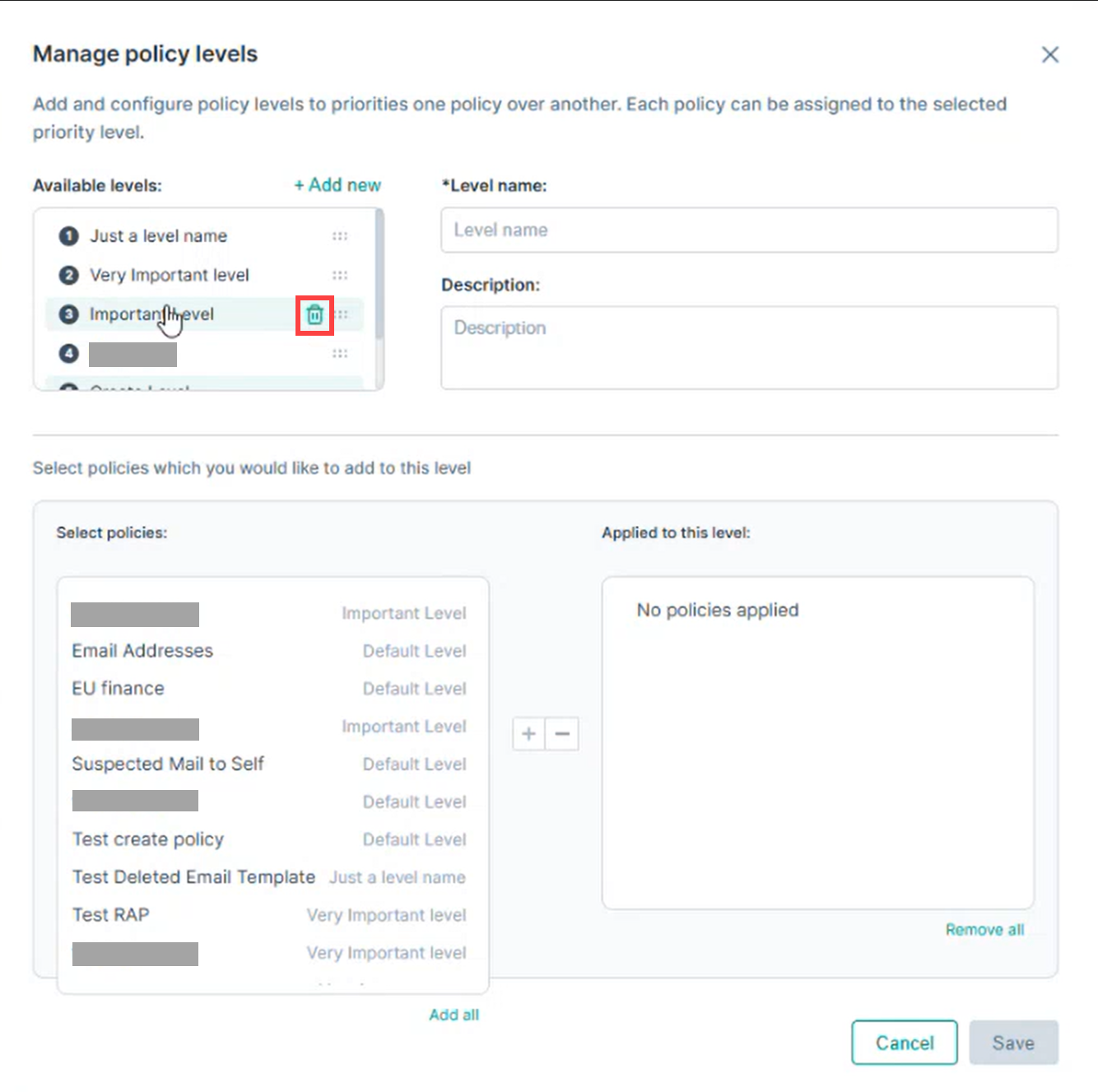
Hover over the level and click the Delete icon that appears.
-
From the “Move policies to” drop down, select the level where the associated policies should be moved (for example, Default Level).
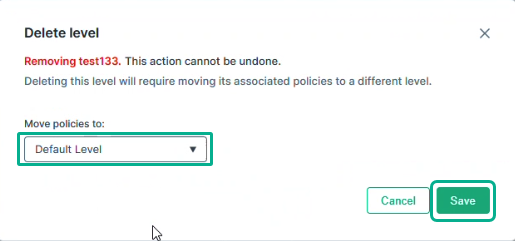 Note: The assigned policies will be moved to another level before deletion. They will not be deleted.
 -
Click Save to confirm the deletion.