Applying Realm Roles to Users
Overview
This section explains how to assign existing Realm Roles to users in the Keycloak Admin Console for the DSPM platform. The system uses Role-Based Access Control (RBAC). Each user receives one or more roles that define what parts of the application they can access. Roles are configured as Realm Roles, meaning they apply globally across the realm.
Prerequisites
- You have administrator access to the Keycloak Admin Console.
- Users exist in the realm or have been imported from the identity provider.
- The RBAC model for the DSPM platform is enabled and understood.
If roles are missing, contact the system administrator responsible for Keycloak configuration.
Available Roles
| Role | Abbreviation | Use Case |
|---|---|---|
| Super Administrator | AD | Administrator with access to all pages. |
| System Administrator | SA | IT administrator responsible for tenant configuration, user imports, and RBAC. |
| Policy Manager | PM | Configure policies and qualify/assign incidents. |
| Incident Manager | IM | Access reports, incident details, and workflow. Manages incident handling |
| Auditor | AU | Read-only access to reports and system data. |
Role Assignment Strategy
- Direct Role Assignment: Roles are assigned directly to a user.Use this when:
- Olny a few users exist
- Roles are temporary
- Testing or debugging access
- Group-Based Assignment (Recommended): Roles are assigned to groups, and users are added to those groups.Advantages:
- Easier user management
- Consistent permissions
- Faster onboarding
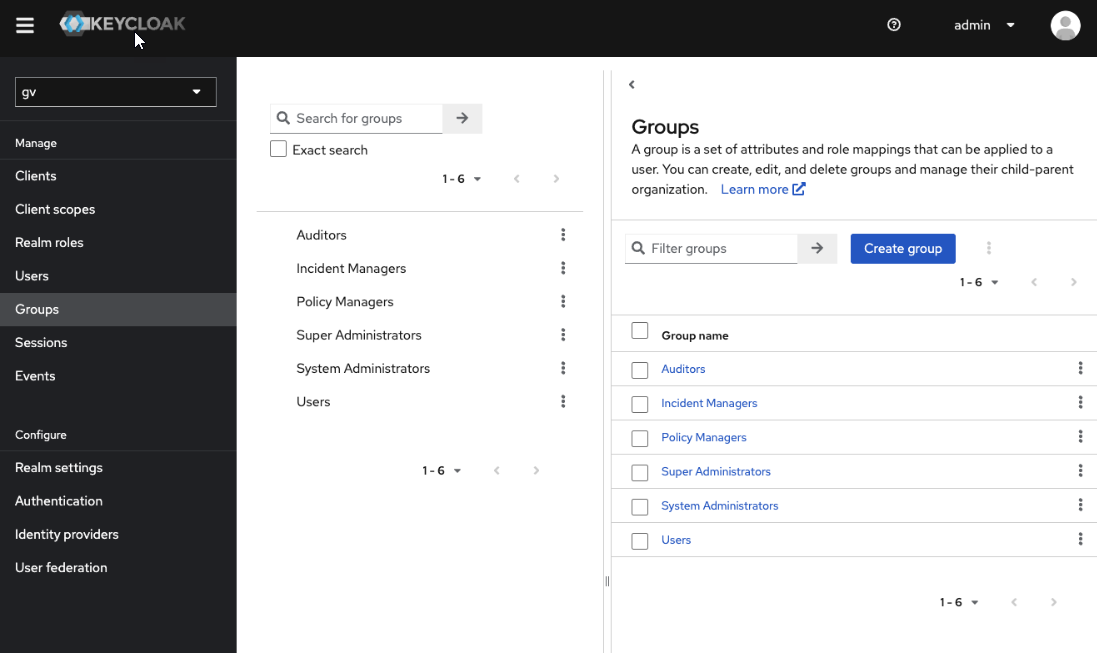
Example group structure:Groups ├── Super Administrators ├── System Administrators ├── Policy Managers ├── Incident Managers └── Auditors
Each group receives the corresponding realm role.
Assigning Roles Using Groups (Recommended)
- Open the Admin Console
- Log in to the Keycloak Admin Console.
- Select the correct Realm.
- Navigate to Groups.
Check the following groups:
- Add Users to Groups
- Navigate to Users.
- Select the user.
- Click Groups tab.
- Search and select groups. Click Join.
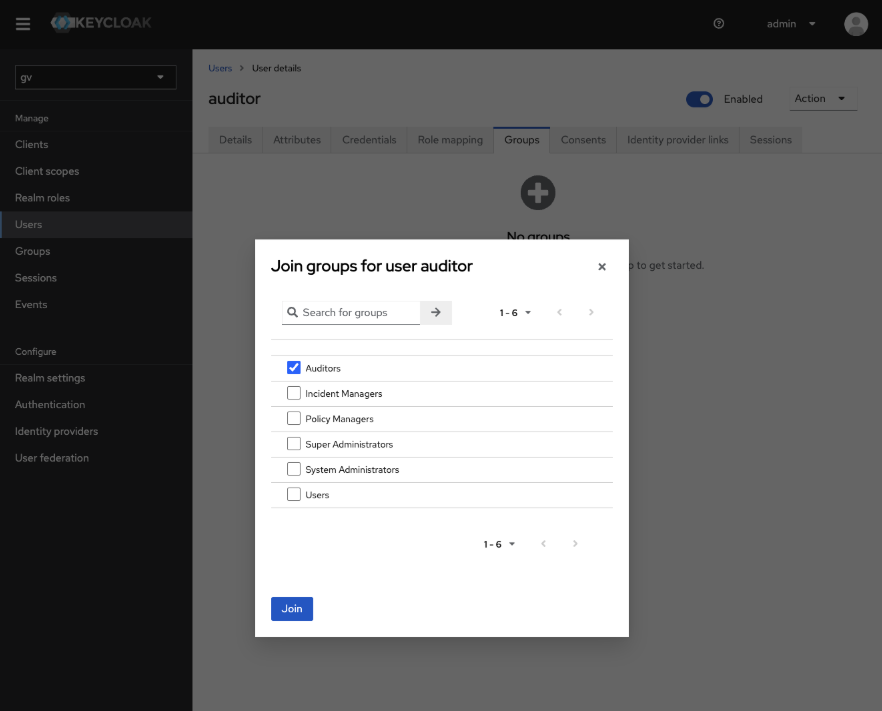
The user will automatically inherit the group role.
Role Assignment - Examples
| User | Group | Assigned Role |
|---|---|---|
| Alice | Super Administrators | Admin |
| Bob | System Administrators | System Administrator |
| Maria | Policy Managers | Policy Manager |
| David | Incident Managers | Incident Manager |
| Eva | Auditors | Auditor |
Security Considerations
Follow these security guidelines when assigning roles:
-
Only a limited number of users should have Super Administrator privileges.
-
Avoid assigning multiple high-privilege roles to the same user unless necessary.
-
Remove roles immediately when users change responsibilities.
-
Periodically review role assignments for compliance.
Regular audits of role assignments are recommended.
Verifying Assigned Roles
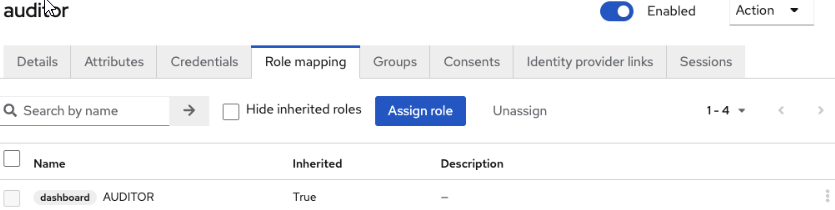
- Click Users.
- Select the user.
- Click Role mapping.
| Role | Access Level |
|---|---|
| Super Administrator | Full platform access |
| System Administrator | Tenant configuration, user management, RBAC |
| Policy Manager | Policy configuration and incident qualification |
| Incident Manager | Incident handling and reporting |
| Auditor | Read-only access |
Future: Departmental Segmentation
- Policy Manager
- Incident Manager
Policy Managers
 ├── Finance
 ├── HR
└── IT- group membership
- user attributes
- application-level permissions
Troubleshooting
- User Cannot Access a FeatureVerify:
- The correct role is assigned to the user.
- The role appears under Role mapping in the user profile.
- The user has logged out and logged in again.
- Role Not VisibleCheck:
- The role exists under Realm Roles.
- The administrator has sufficient permissions to assign roles.
- Permissions Still MissingIn some cases the application caches authorization data. Ask the user to:
- log out
- clear session
- log in again
Best Practices
- Use Groups Instead of Direct Roles: Group-based assignment simplifies administration.
- Limit Super Administrator Access: Only a minimal number of users should have this role.
- Assign One Primary Role Per User: Multiple roles should only be used when required.
- Periodically Review Access: Administrators should regularly review role assignments.