Forensic replication to your Amazon S3 bucket
Forensic replication copies the forensic evidence captured for each alert to an Amazon S3 bucket that you own, so that you control where the evidence resides and how long it is kept.
Forensic evidence can include the files involved in a violation and the sensitive content that triggered the rule. Many organizations need this evidence to stay within their own data boundary, where they control access, encryption, retention, and legal hold. With forensic replication, evidence is copied to your S3 bucket, and you can limit how long Forcepoint keeps its own copy.
What is replicated
When Forensics is selected in the Amazon Replication Service, the forensic evidence for each new alert is copied to your bucket automatically. For each alert, Forcepoint writes three parts:
| Folder | Contents |
|---|---|
artifact |
The captured files, such as the file that the user tried to upload or send. |
metadata |
Information about the evidence and the alert it belongs to. |
sensitive |
The sensitive content that was detected. |
Evidence is written to your bucket in a readable format. Protecting it with your own encryption, access policies, and retention rules is your responsibility.
Only evidence for alerts created after forensic replication is enabled is copied. Evidence for earlier alerts stays in Forcepoint Cloud and remains available for download in the portal.
Folder structure
Forcepoint writes to the following locations in your bucket:
| Path | Contents |
|---|---|
<tenant ID>/forensics/<alert ID>/<evidence ID>/ |
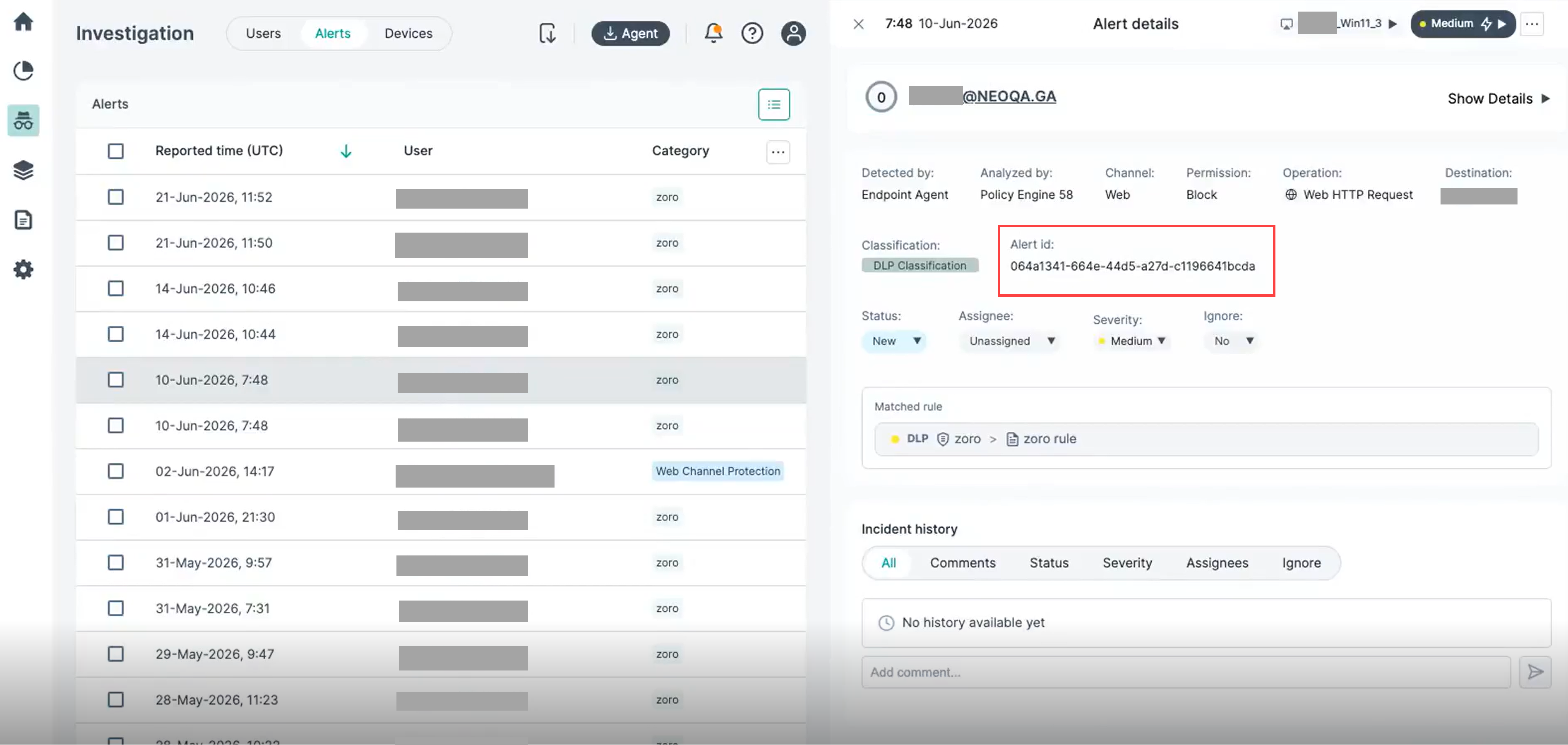
The evidence for one alert, in artifact, metadata, and sensitive folders. The <alert ID> folder name matches the
Alert id shown in the alert details in the portal. |
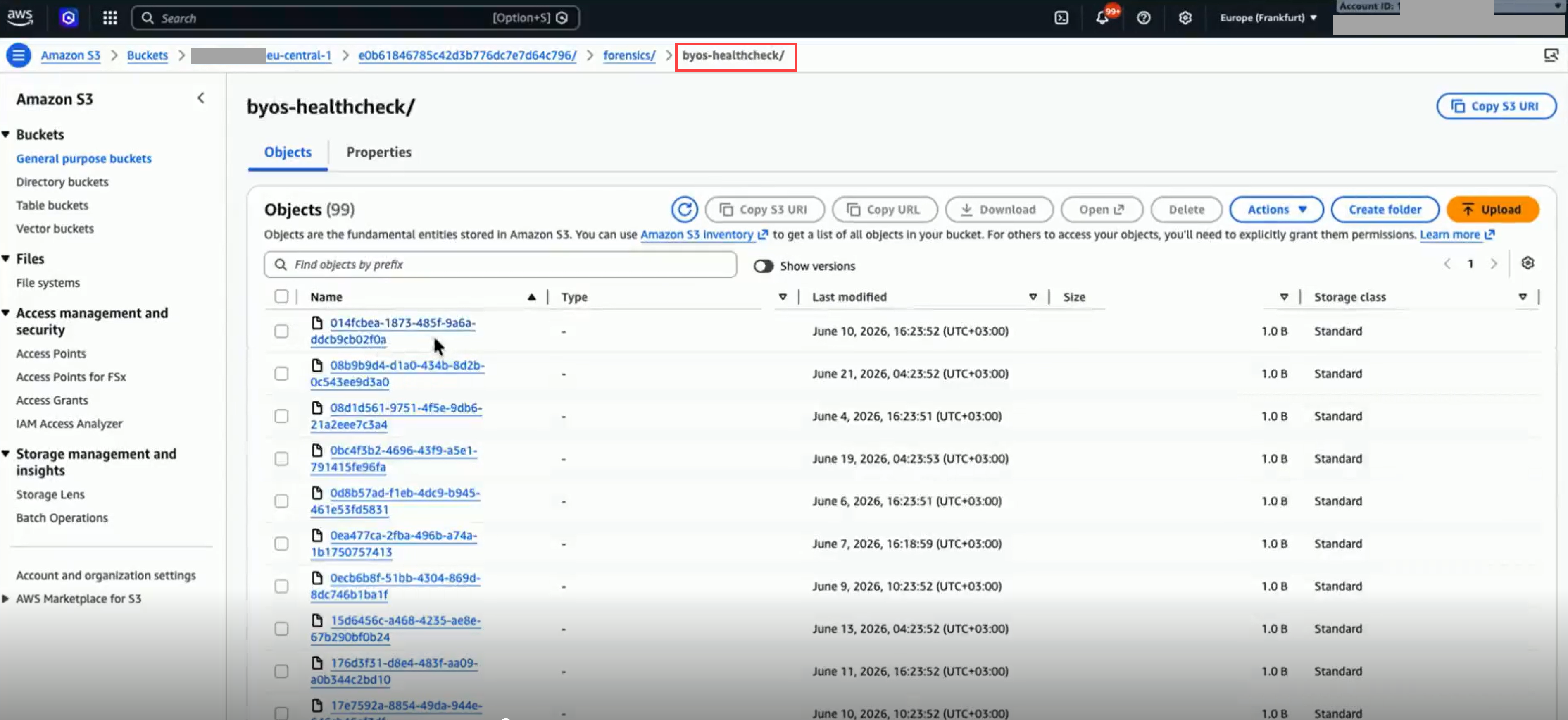
<tenant ID>/forensics/byos-healthcheck/ |
Small test objects that Forcepoint writes to confirm that it can still write to your bucket. You can ignore or delete these objects. |
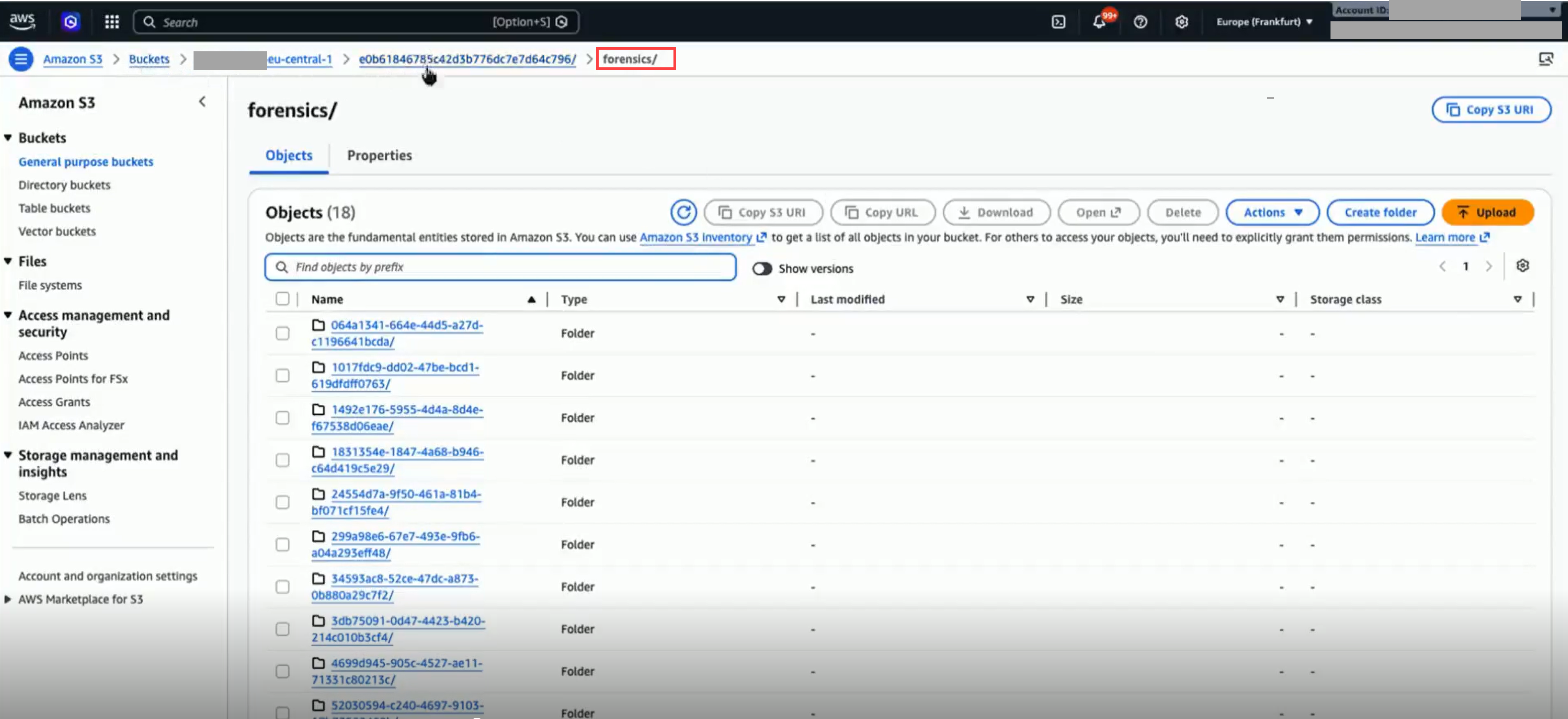
In your bucket, the forensics folder contains one subfolder for each alert as shown below:
The subfolder name matches the Alert id shown in the alert details in the portal as shown below:
Validation and health checks
When you activate the service, Forcepoint validates that it can write to your bucket. After that, it checks again every 6
hours by writing a test object to the byos-healthcheck folder. If a check fails, the Forensics Replication Status changes to
Failed.
Automatic recovery
If evidence cannot be copied to your bucket, for example because the bucket policy was removed, the evidence is kept in Forcepoint Cloud and the copy is retried automatically every hour. After you correct the problem, the next retry copies the evidence to your bucket and the status returns to Running. You do not need to take any other action.
Retention of the Forcepoint copy
Forcepoint keeps its own copy of forensic evidence for 30 days by default. You can shorten this to between 1 and 30 days with the Forensic Data Retention Period setting. When the period ends, Forcepoint deletes its copy. The copy in your bucket is not affected.
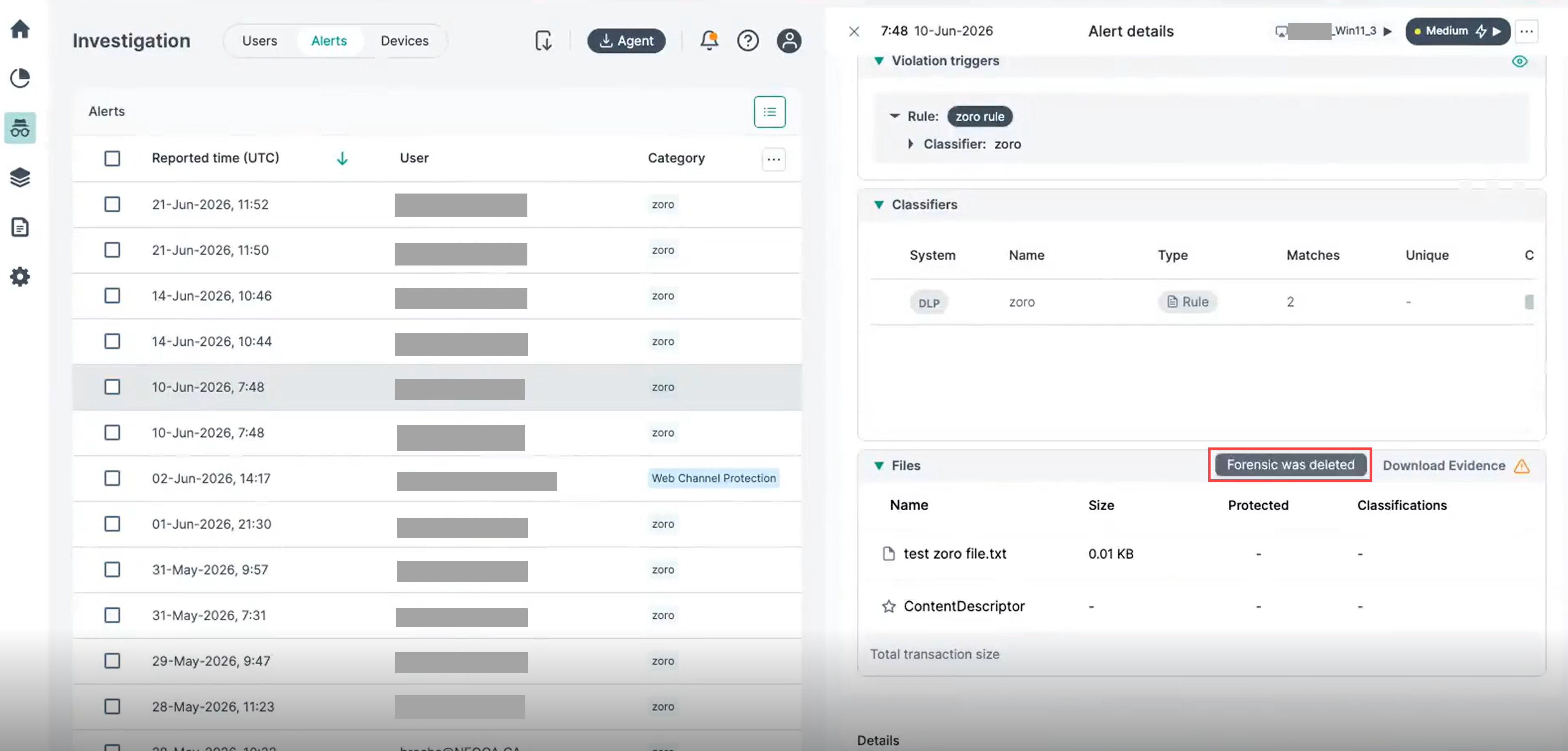
After Forcepoint's copy is deleted, the alert is still displayed in the portal, but its evidence can no longer be downloaded there. In the alert details, hovering over Download Evidence displays Forensic was deleted. To access the evidence, open your bucket and go to the folder named with the alert's Alert id.
Stopping forensic replication
If you clear the Forensics check box, or disable the Replication Service toggle:
- New evidence is no longer copied to your bucket.
- Evidence that is already in your bucket is not removed.
- Copies that are in progress are completed.
- Your bucket configuration is kept. When you select Forensics again, or enable the toggle again, replication resumes without re-entering the bucket details.
Security
| Control | Description |
|---|---|
| Write-only access | The bucket policy allows Forcepoint to replicate objects into your bucket. It does not allow Forcepoint to read the evidence stored there. |
| Tenant isolation | Evidence held in Forcepoint Cloud is encrypted with keys unique to your tenant. Evidence from one tenant is never written to another tenant's bucket. |
| Administrator access only | Only administrators can configure forensic replication or change the retention period. |
| Customer control | You own the bucket and control its encryption, access policies, lifecycle rules, and legal hold. |