Bring your own storage (BYOS)
Bring your own storage (BYOS) lets you keep a copy of your Forcepoint Data Security Cloud | DLP data (alerts, events, audit logs, and forensic evidence) in cloud storage that you own and control. Replication to an Amazon S3 bucket is currently supported.
Forcepoint cannot read your storage. Forcepoint Data Security Cloud | DLP has no read access to your storage, so any feature that needs to read data from it is not available. After Forcepoint deletes its own copy, the data is available only in your storage.
Data in your storage is not encrypted. Forcepoint writes data to your storage unencrypted, so anyone with access to the storage can read it. This data can include sensitive content, such as forensic evidence. You are responsible for protecting your storage, including access controls, encryption at rest, network access, monitoring, and retention.
BYOS currently supports Amazon Web Services (AWS). Data is copied to your Amazon S3 bucket using AWS replication. Support for additional storage providers, such as Microsoft Azure and Google Cloud Platform (GCP), is planned for future releases. The behavior described in this topic applies to the currently supported provider unless stated otherwise.
Where to find BYOS
The Bring your own storage section is on the tab. After the service is configured, the section displays the following areas:
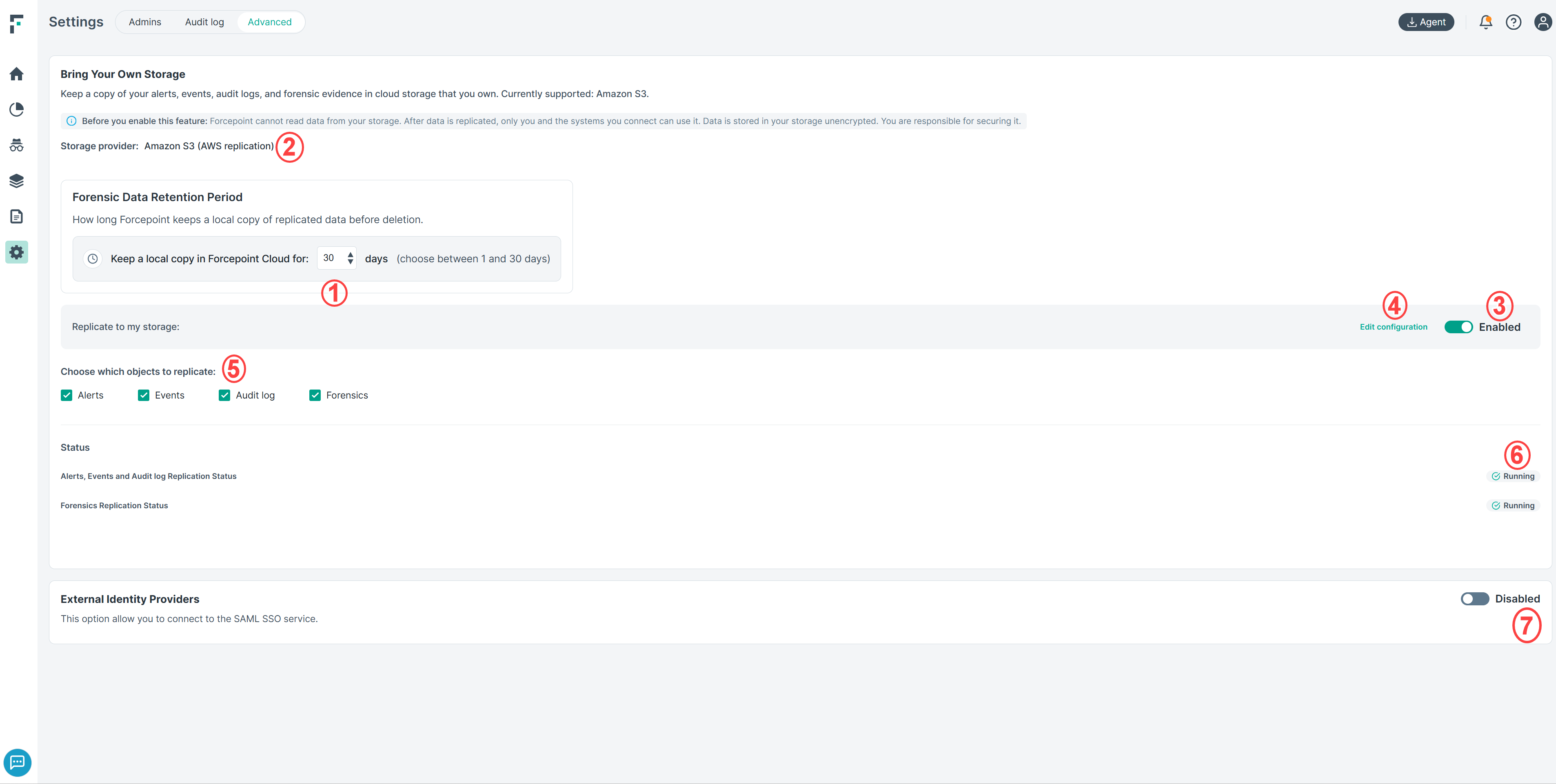
- Forensic Data Retention Period: Sets how many days Forcepoint keeps its own copy of forensic evidence after it is replicated to your storage. You can choose from 1 to 30 days. The default is 30 days. This area is displayed only when forensic replication is enabled.
- Storage provider: Shows the storage provider that is configured. Currently, this is Amazon S3 (AWS replication).
- Replication: Enables or disables replication to your storage. When it is disabled, no objects are replicated, including forensic evidence, and a warning is displayed
next to the toggle. When you enable it again, replication resumes for the selected objects.Note: Objects that are created while replication is disabled are not replicated when you enable it again. Only objects created after replication is enabled again are copied to your storage.
- Edit configuration: Opens the configuration wizard, where you can change the S3 bucket Amazon Resource Name (ARN) and AWS account ID.
- Choose which objects to replicate: Selects the objects to replicate. Each object is replicated independently, so you can select any combination of:
- Alerts
- Events
- Audit log
- Forensics: the forensic evidence captured for each alert (displayed only if forensic replication is available for your tenant)
- Status: Shows whether Forcepoint can replicate to your storage. There are two status rows:
- Alerts and Audit Log Replication Status: for alerts, events, and audit logs.
- Forensics Replication Status: for forensic evidence.
Each status row displays one of the following values:
Status Description Validation in progress Forcepoint is verifying that it can write to your storage. This can take up to 15 minutes. Unknown status The forensics status is not yet available, for example while the service is being validated. Running Replication is working. Failed Forcepoint cannot write to your storage, for example because the bucket policy was changed or removed. While the forensics status is Failed, the Forensics check box cannot be changed. Forcepoint keeps retrying failed forensic copies automatically. After you correct the problem, the status returns to Running. - External Identity Providers: Lets administrators sign in to the portal through a SAML identity provider using single sign-on (SSO). This option is disabled by default; enable it only if your organization uses SSO. For more information, see External Identity Providers.