Duplicate Policy and Copy Rule to Policy
Use this topic to duplicate a policy or a rule, or copy one or more rules into another existing policy.
Overview
This topic covers two related actions: Duplicate, which creates a full, independent copy of a policy or a rule, and Copy to policy, copies one or more rules — not the whole policy — into a different, existing policy.
Duplicate is available for both policies and rules, and can be applied to a single selected item or to multiple selected items at once. Copy to policy is available only for rules — again, a single rule or multiple selected rules. The two are easy to confuse since they can appear on the same row action menu — see the note below for the distinction.
Duplicate a policy
Duplicating creates a full, independent copy of the selected item(s). Duplicating a policy also copies all of its rules and exceptions. You can duplicate a single policy or rule using its row action menu, or select multiple policies or rules and duplicate them all at once.
- Navigate to .
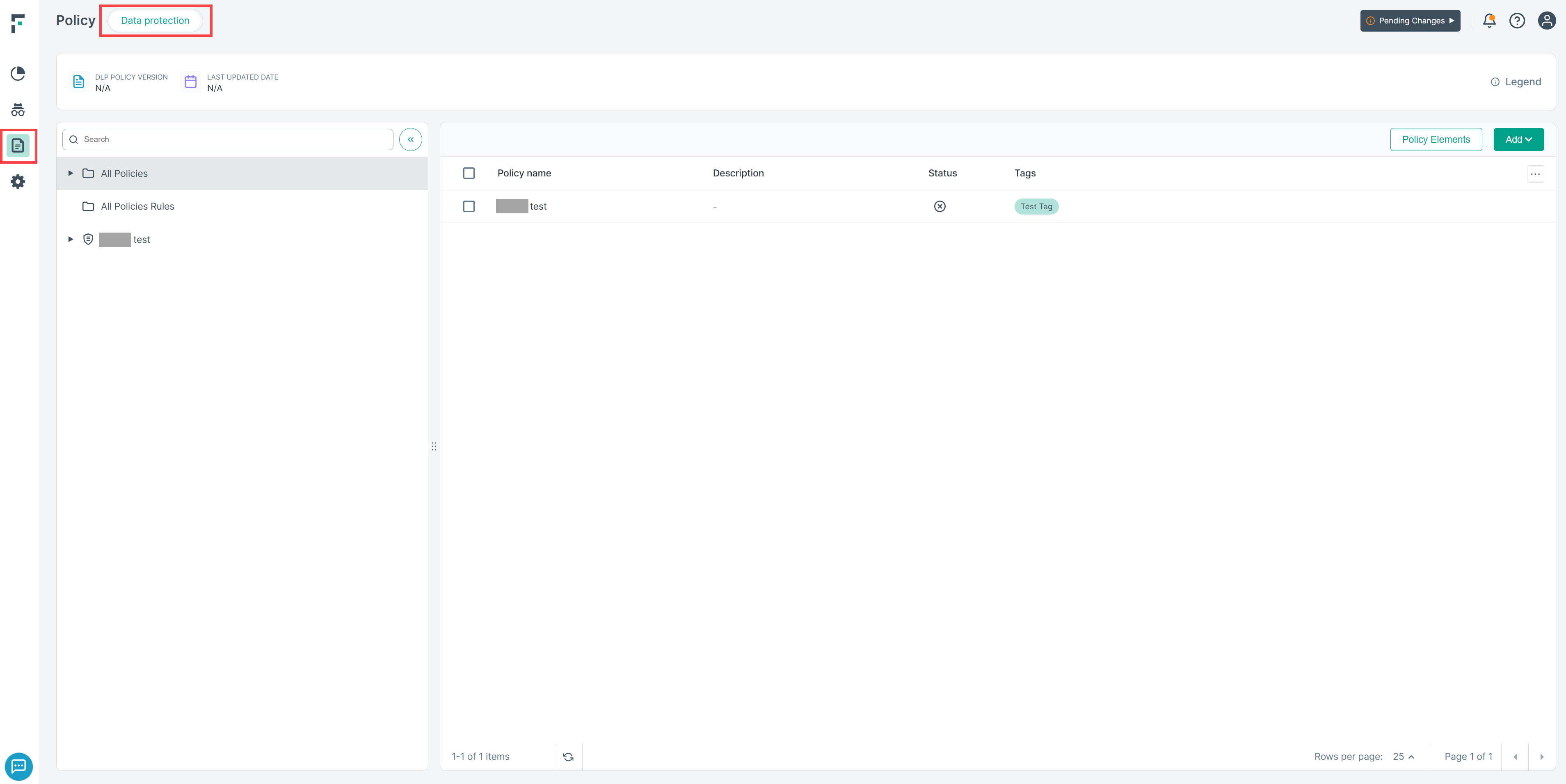
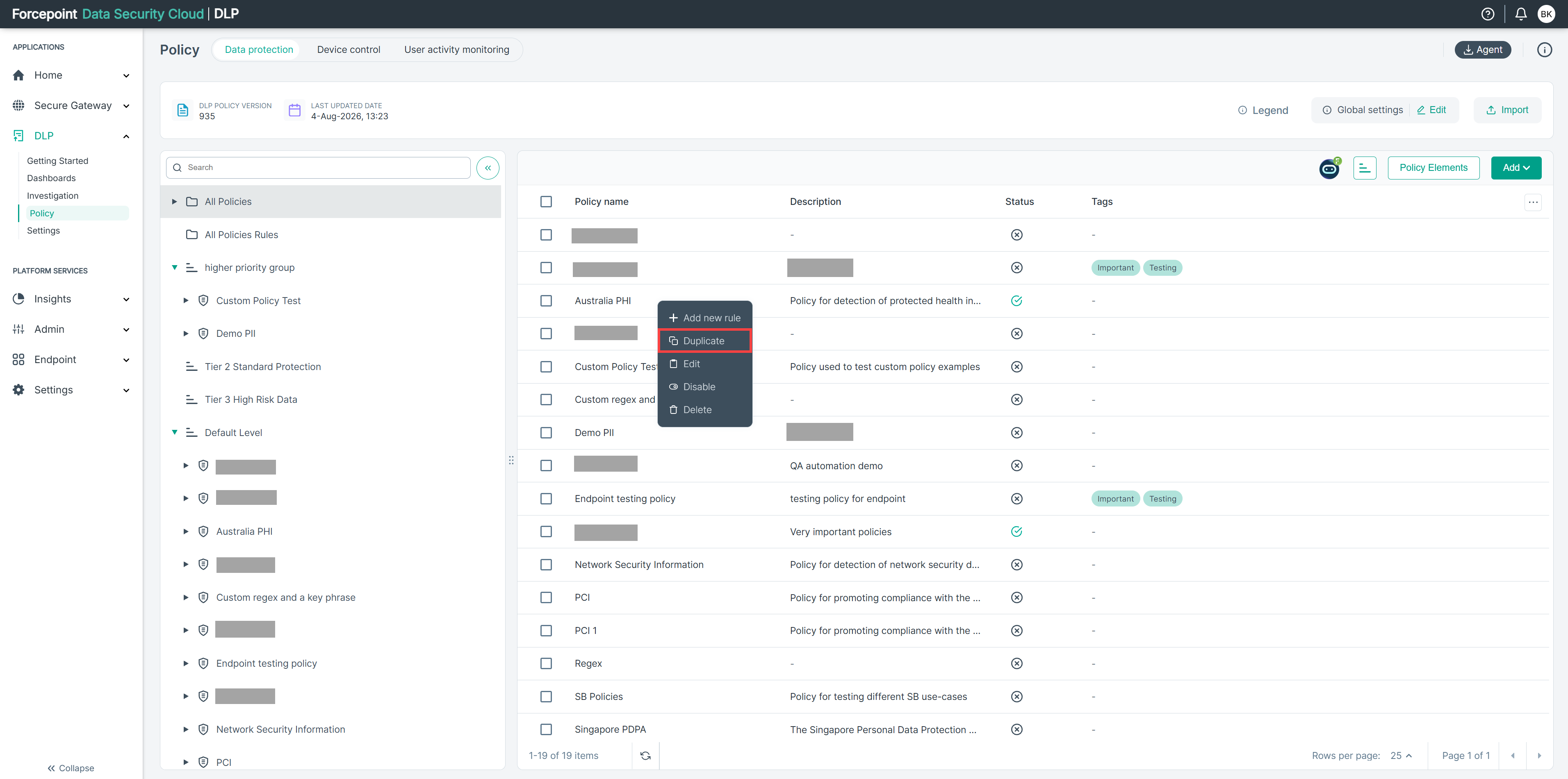
- Right-click the policy you want to duplicate.
- Select Duplicate.
- Click Duplicate again to confirm.
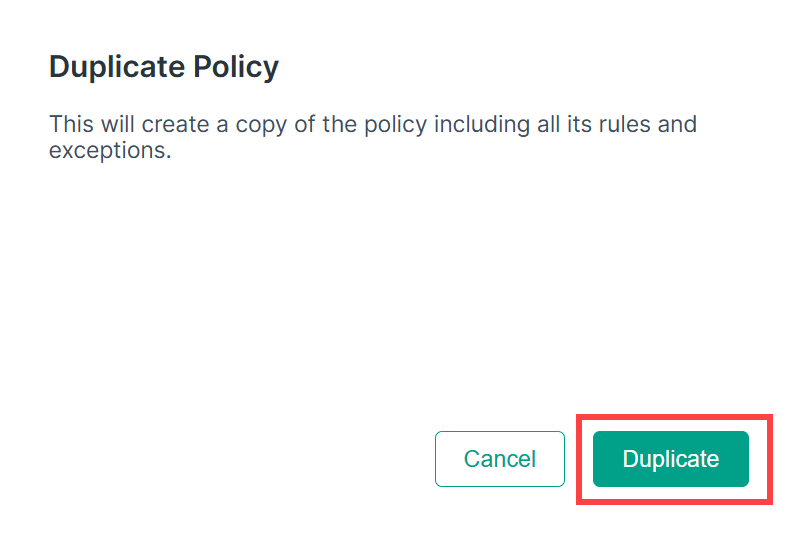
- A new policy is created containing the same rules and exceptions as the original. Rename and adjust the new policy as needed.
Duplicate a rule
- Navigate to .
- Open the policy that contains the rule, or select All Policies Rules to see rules across all policies.
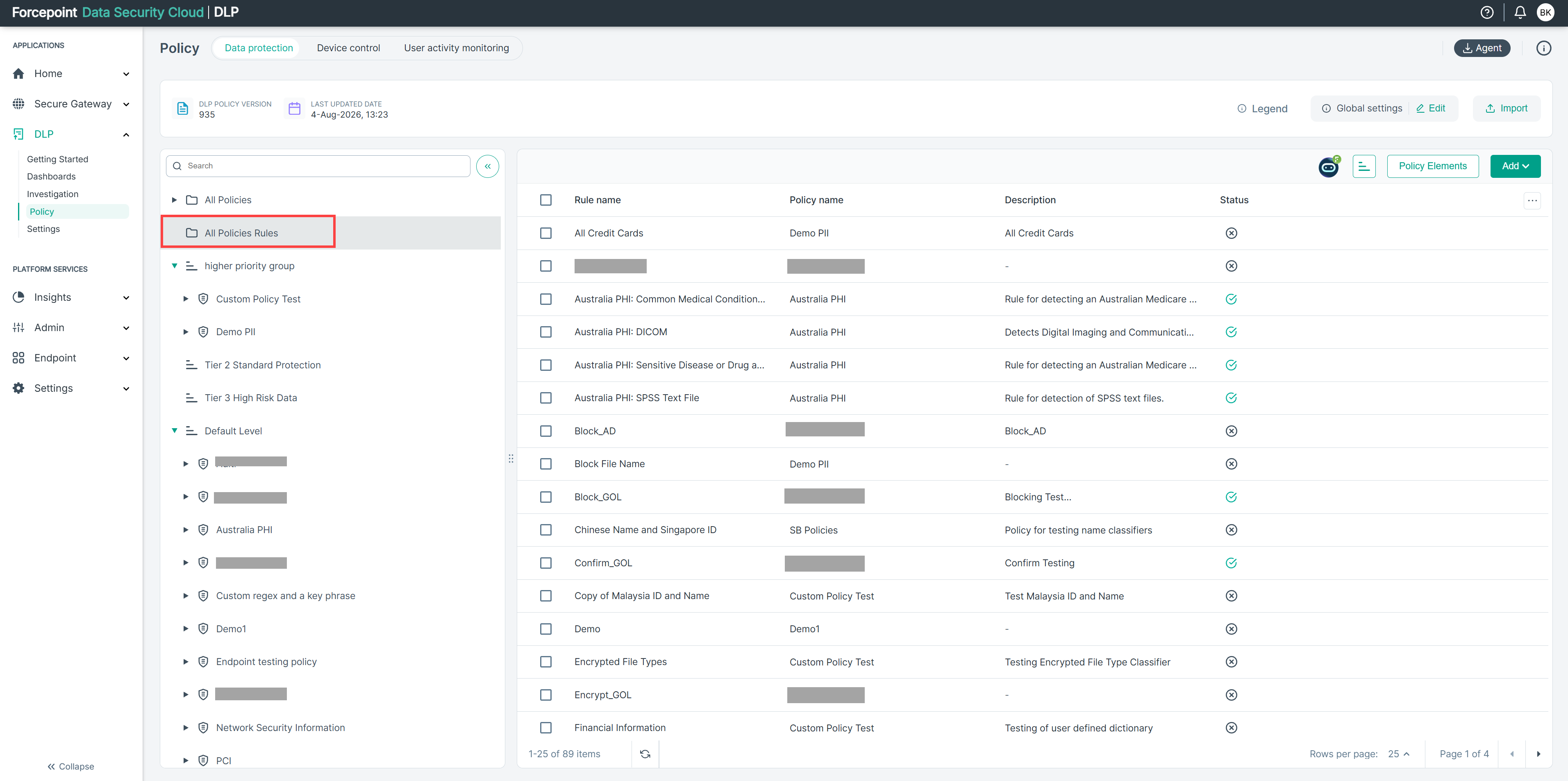
- Right-click the rule that you want to duplicate.
- Select Duplicate.
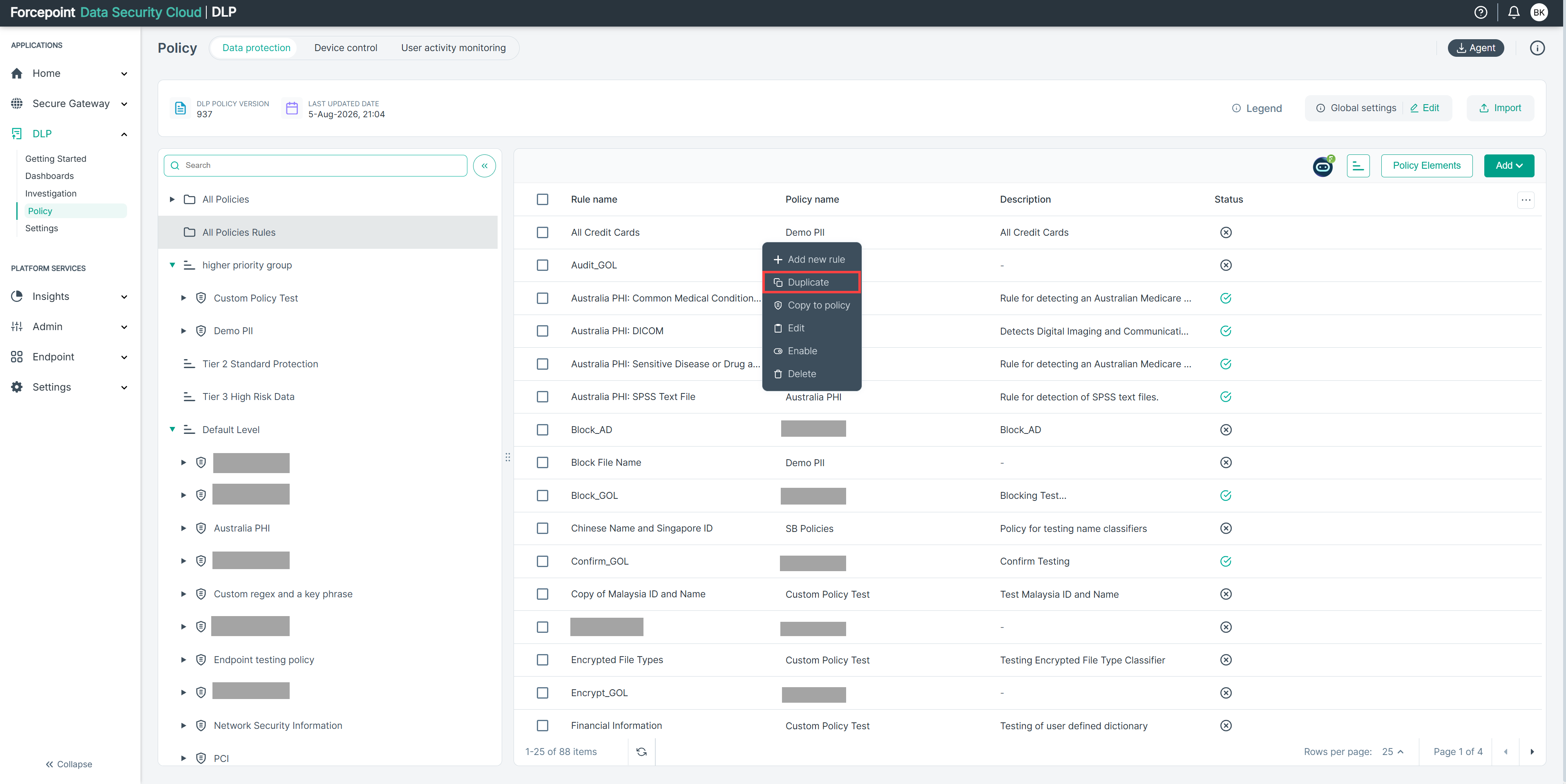
- A new rule is created as a copy of the original.
Copy a rule to another policy
Copy to policy copies a single rule — not the whole policy — into a different, existing policy. Use this when only one rule from a policy is relevant elsewhere.
- Navigate to .
- Open the policy that contains the rule, or select All Policies Rules to see rules across all policies.
- Right-click the rule (or open its row action menu).
- Select Copy to policy.
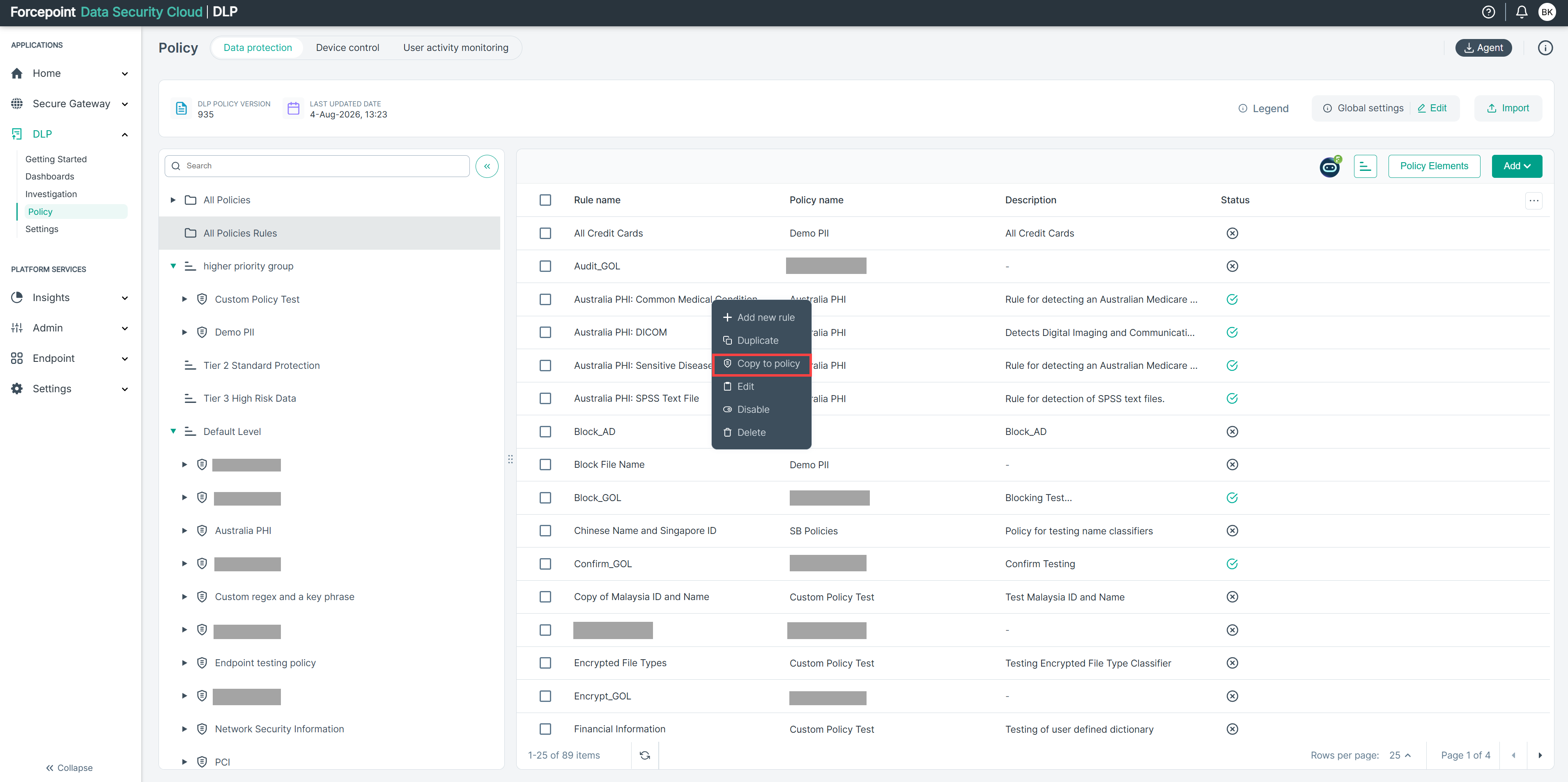
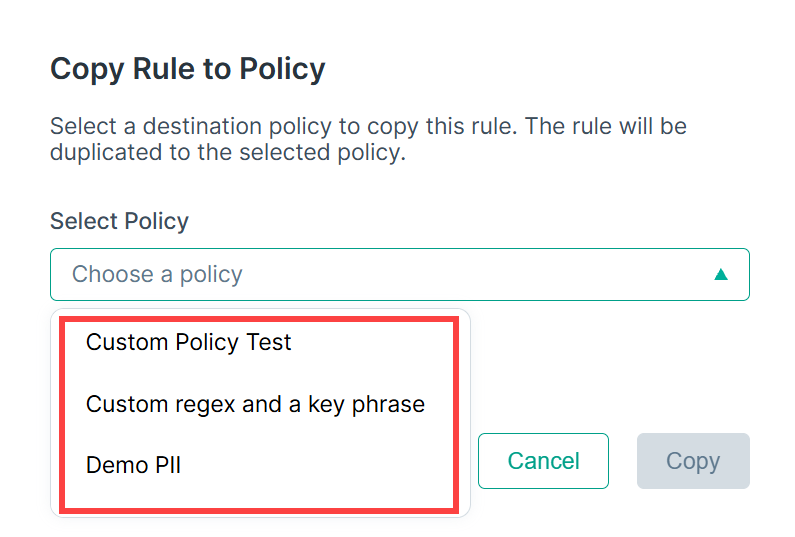
- Choose the destination policy from the list.
- Click Copy to confirm.
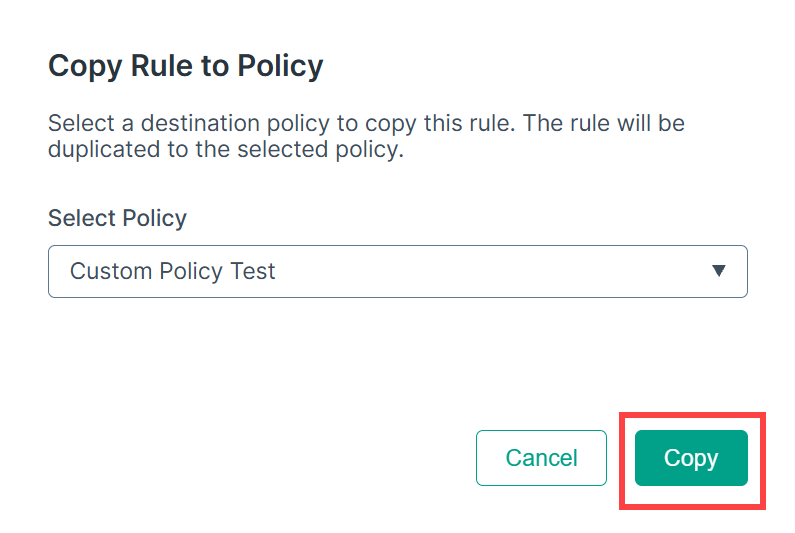
- The rule is added to the destination policy.