Bulk Policy and Rule Operations
Use this topic to review rules across your entire policy set and make the same change to several rules — or delete several policies or rules in a single action instead of one at a time.
Overview
The All Policies Rules view lists every rule from every policy in a single grid, with a Policy Name column so you can see which policy each rule belongs to.
Use this topic to review rules across your entire policy set and make the same change to several rules — or delete several policies or rules in a single action instead of one at a time.
Open the All Policies Rules view
- Navigate to .
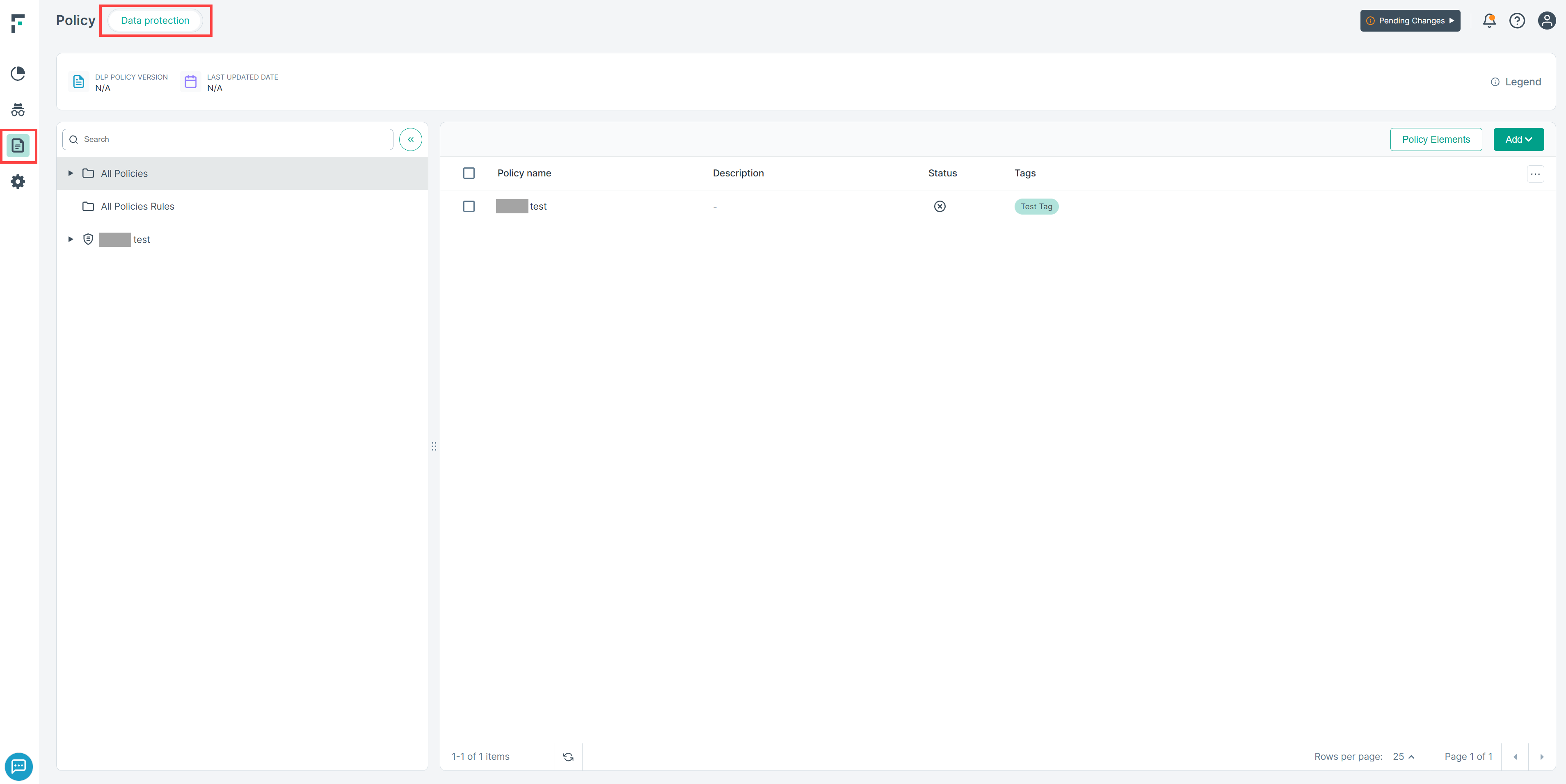
- In the left panel, select All Policies Rules.
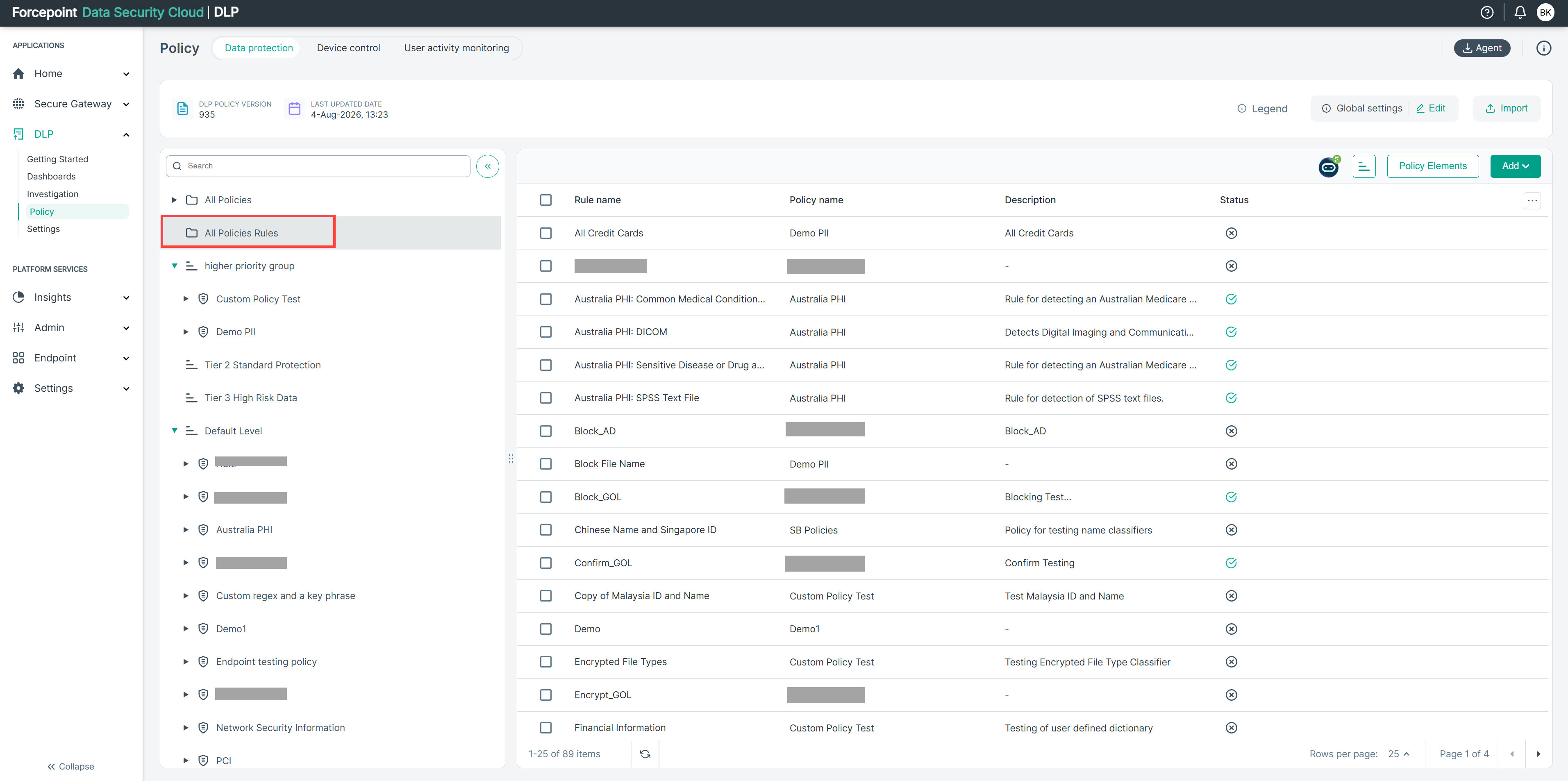
- The grid displays every rule, across all policies, with its parent policy name.
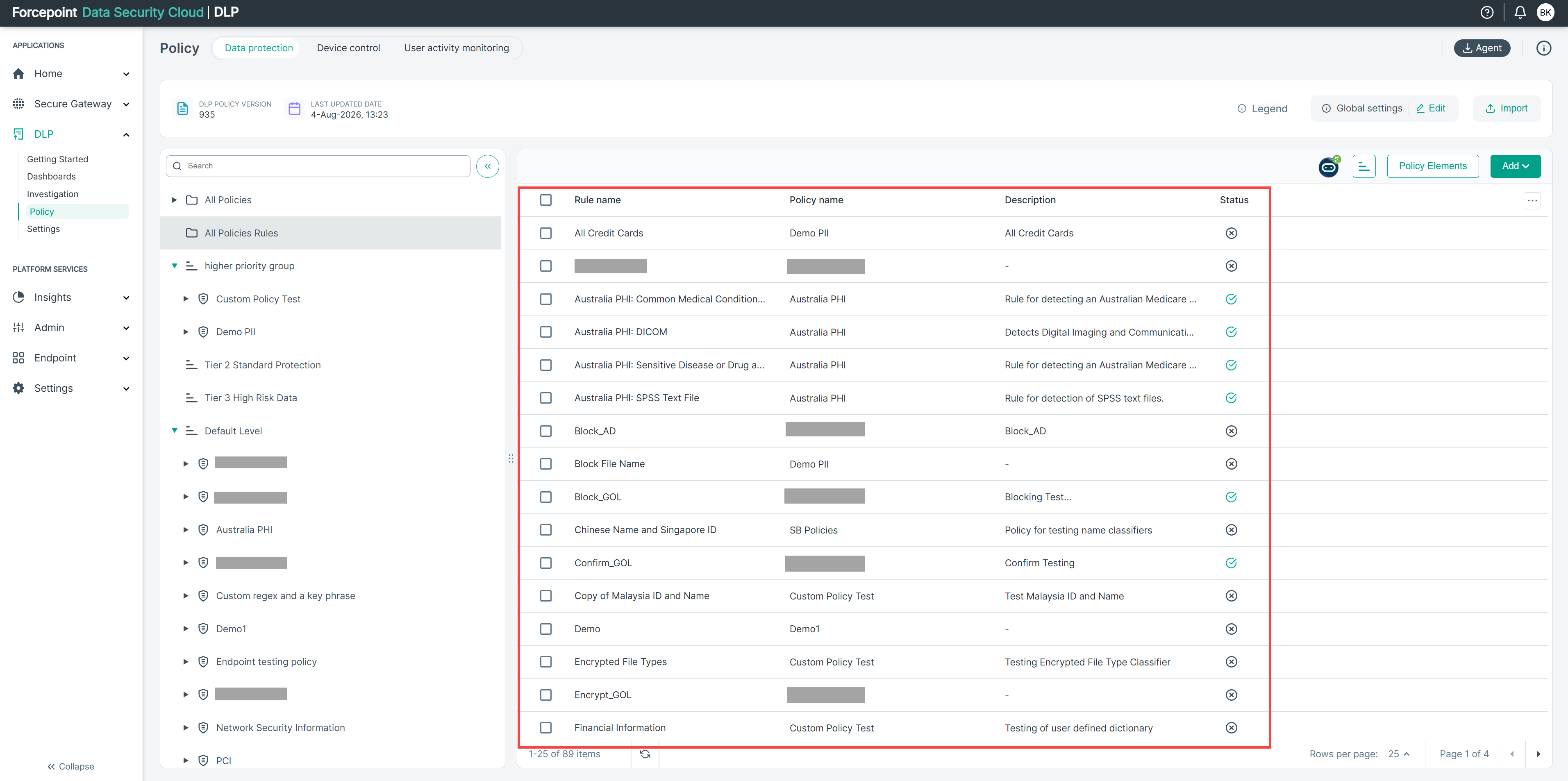
Bulk edit rules
- Open the All Policies Rules view.
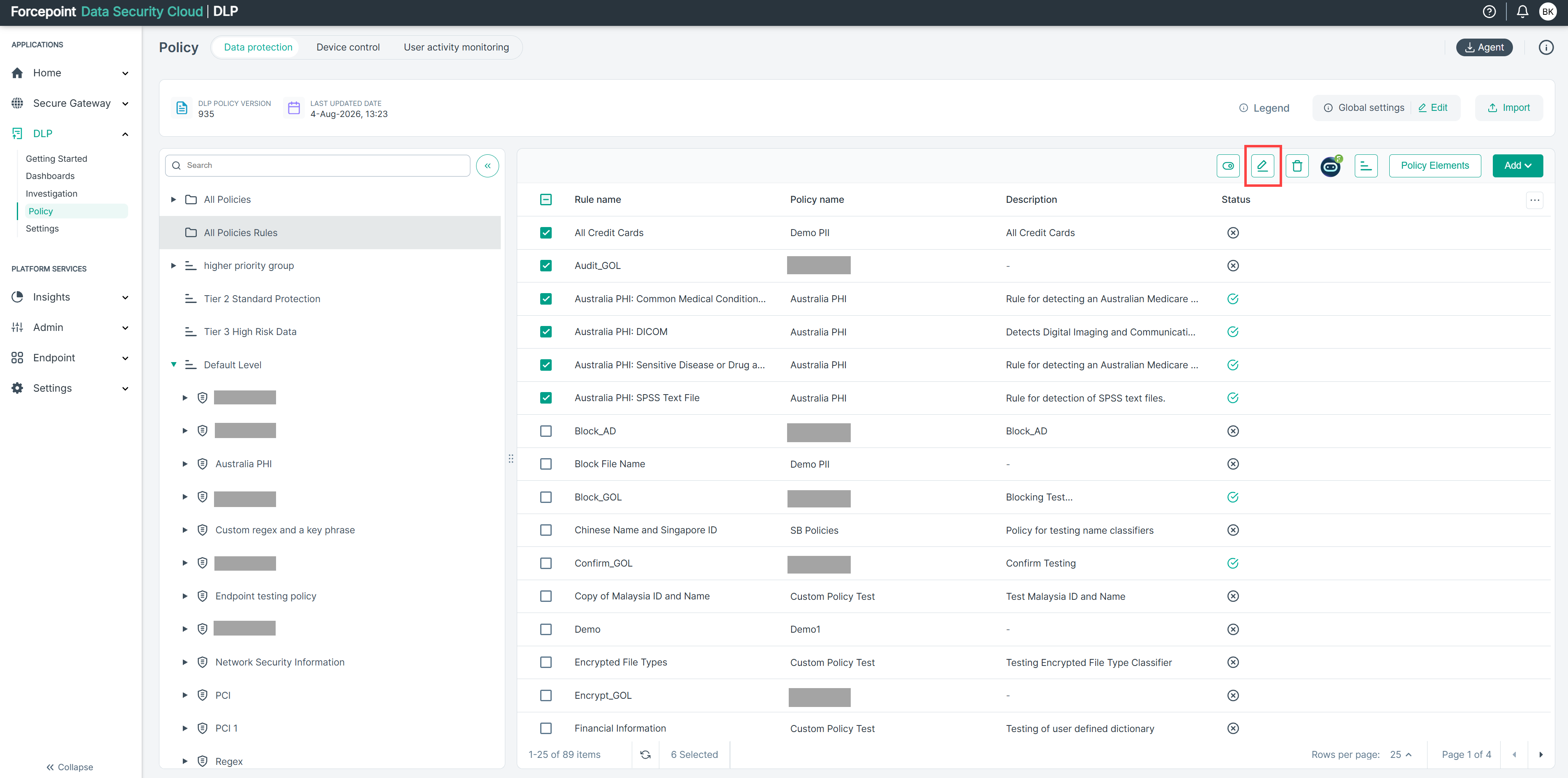
- Select the checkboxes for the rules you want to change. You can select rules that belong to different policies.
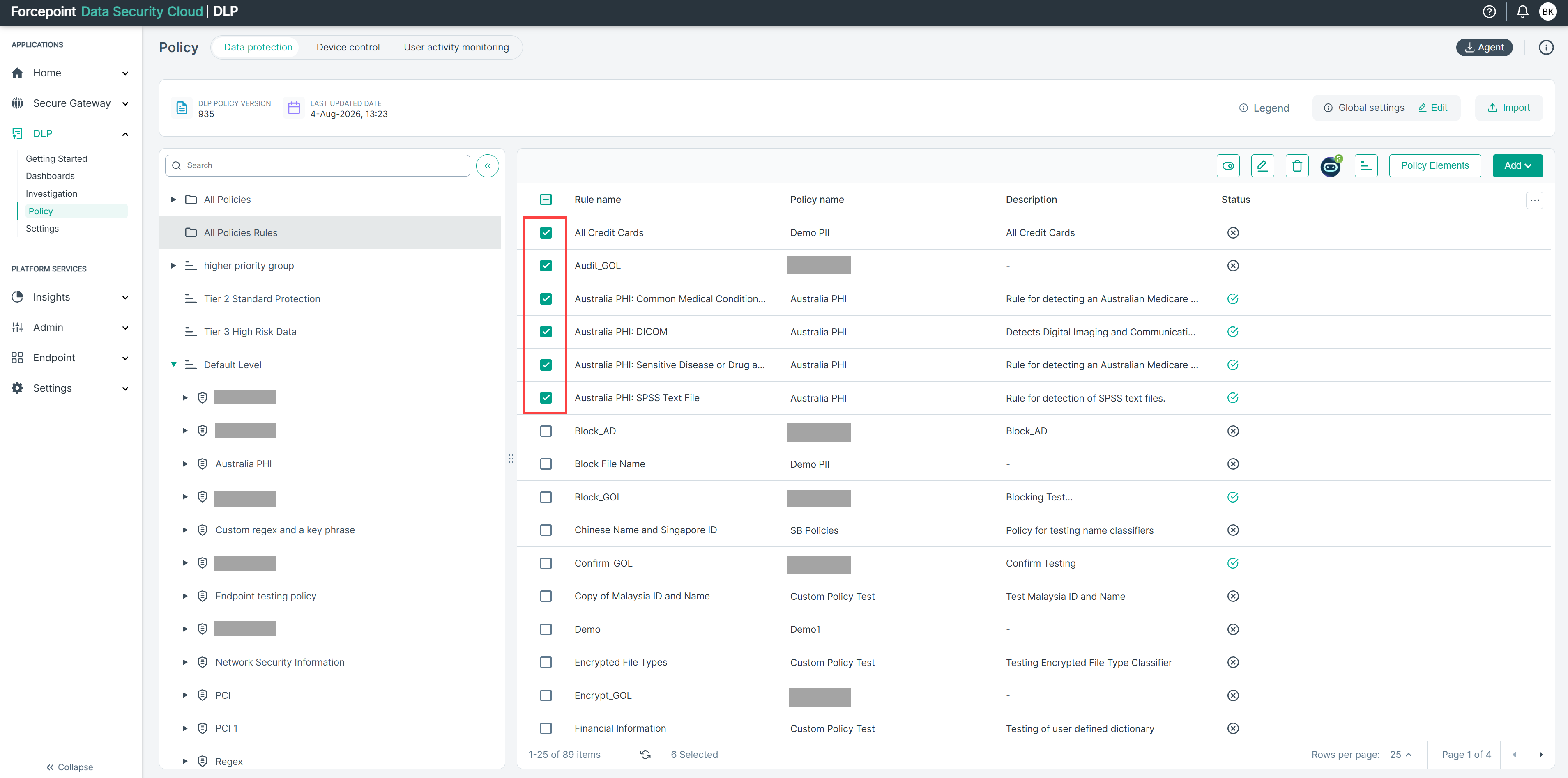
- In the toolbar above the list, click the edit (pencil) icon.
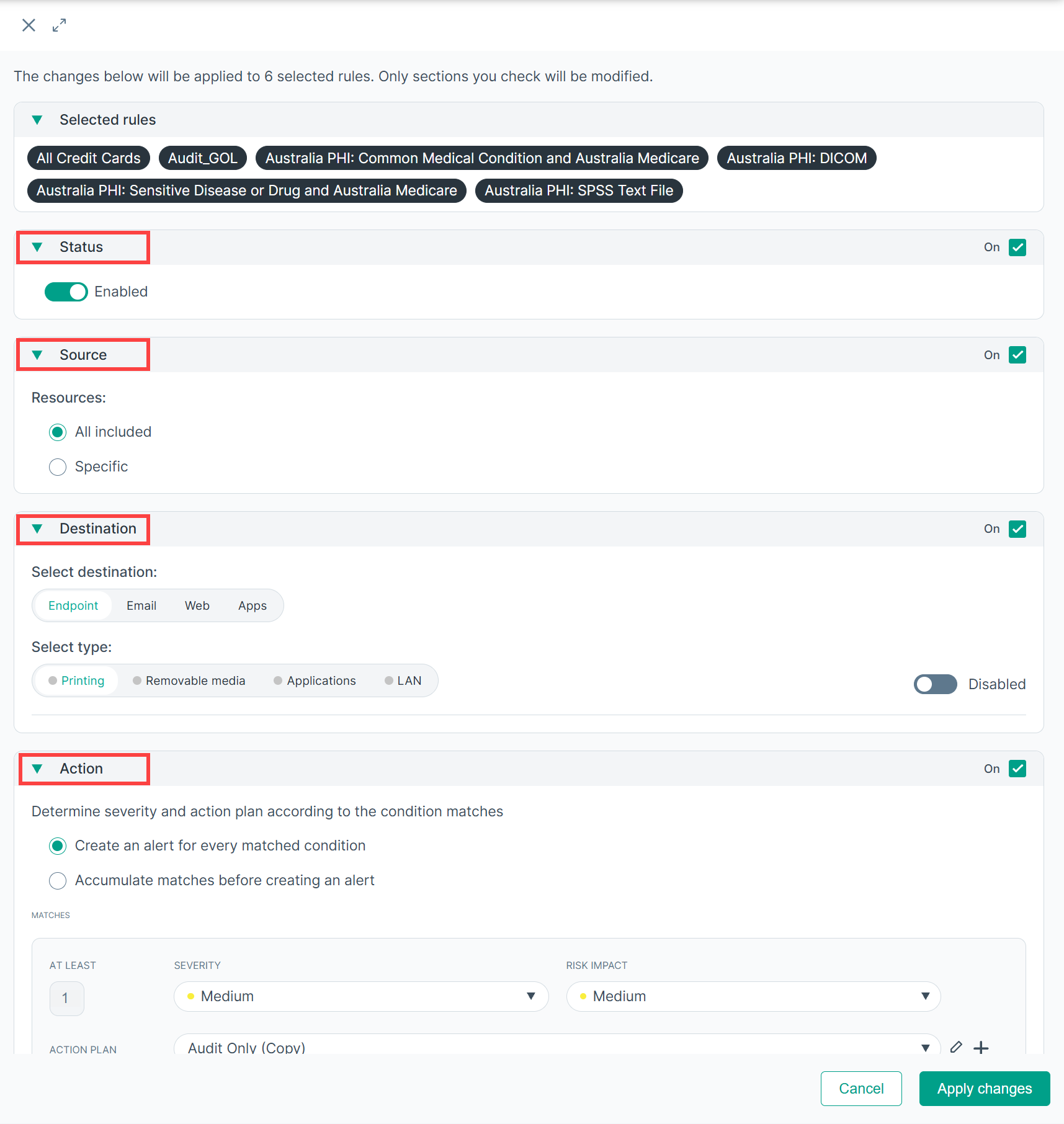
- In the bulk edit panel, turn on the On switch for each section you want to change — for example, Status, Source,
Destination, or Action — then set the values for that section. Only the sections switched On are applied to the selected rules.
- Click Apply changes.
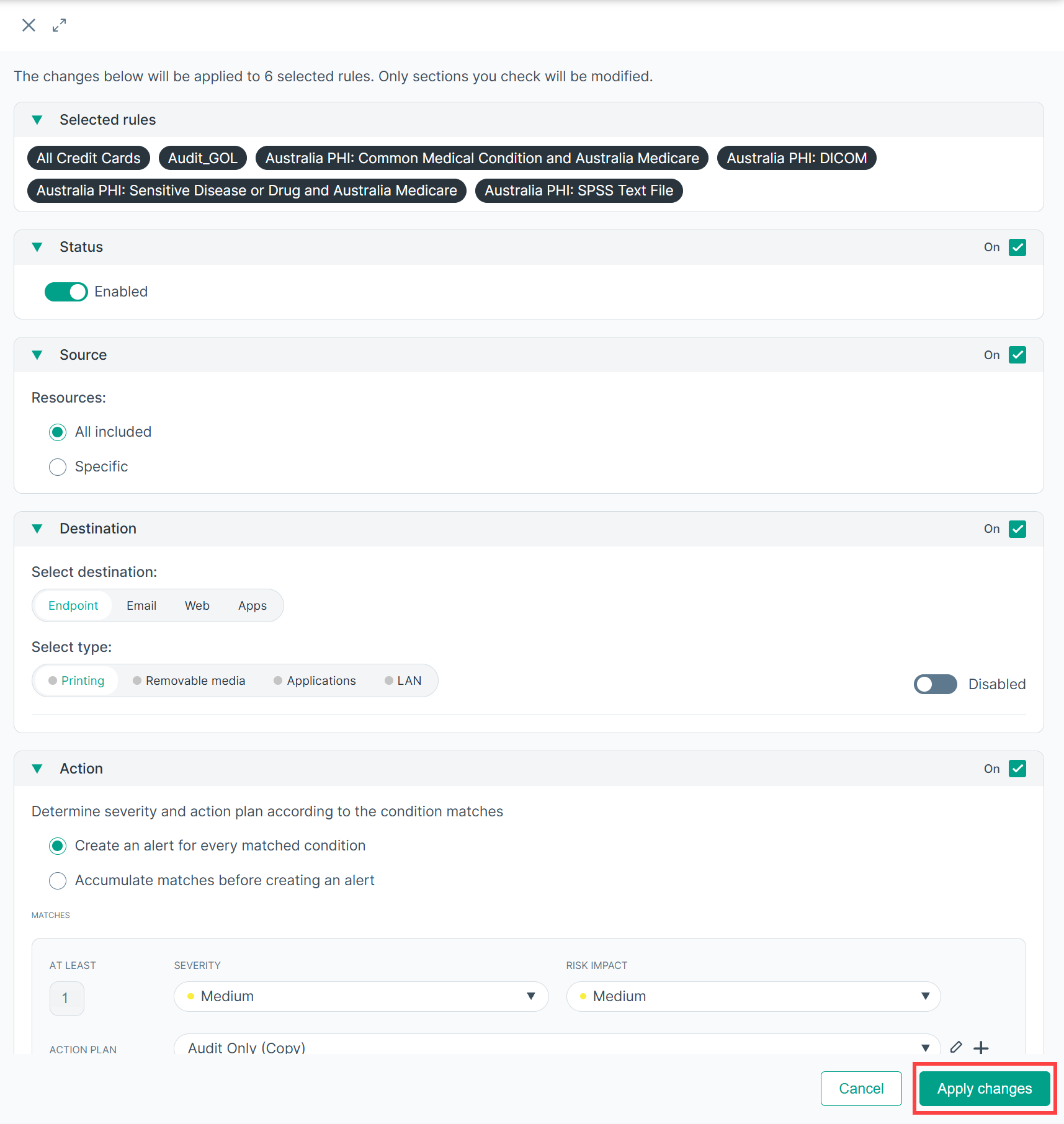
- All selected rules are updated at the same time. Review the change in the All Policies Rules view.
Bulk delete rules or policies
- Open the All Policies Rules view (or the All Policies view, for policies).
- Select the checkboxes for the rules (or policies) you want to remove.
- In the toolbar above the list, click the delete (trash) icon.
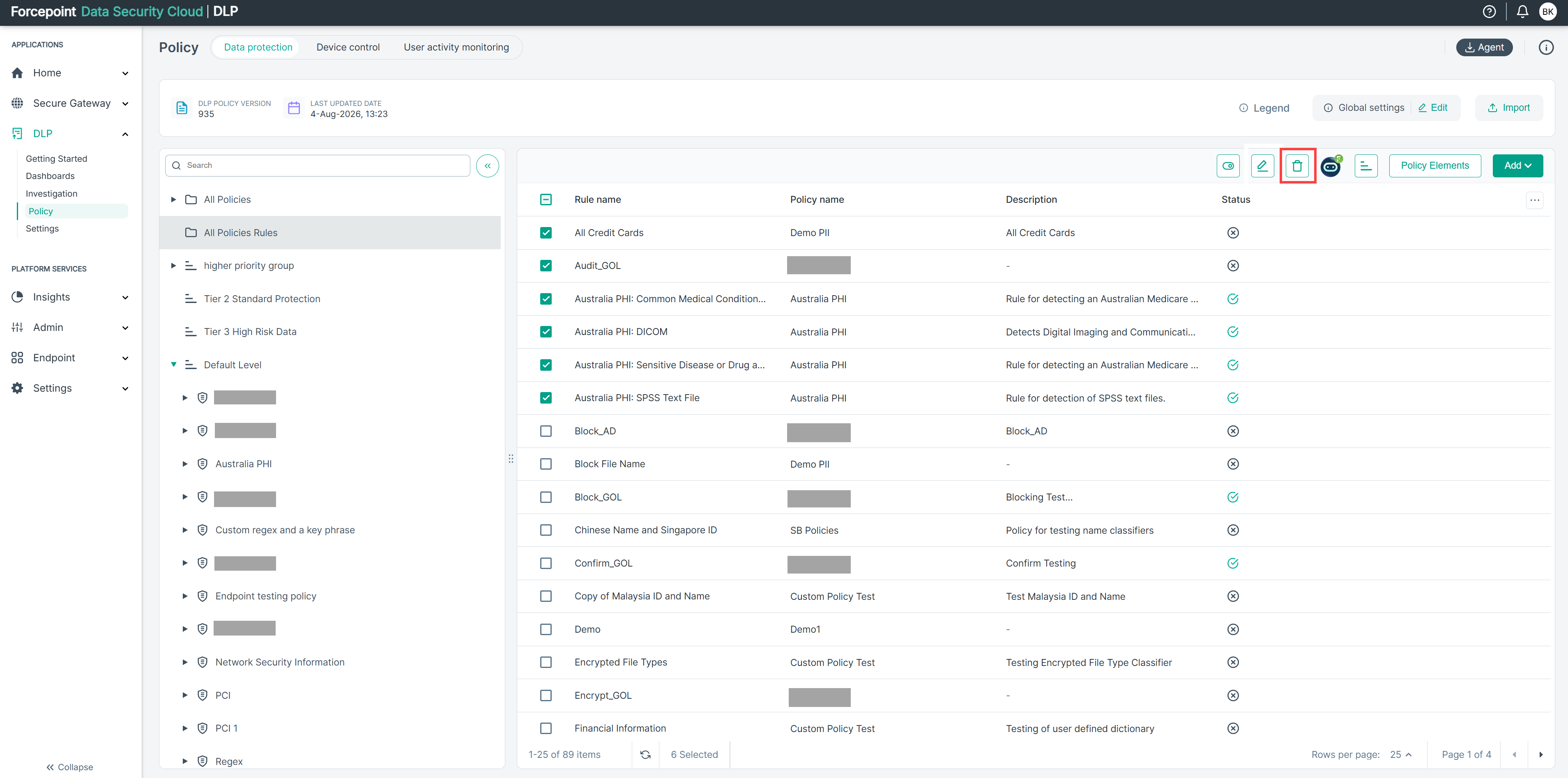
- In the confirmation dialog, select the I understand checkbox, then click OK. This action cannot be undone.
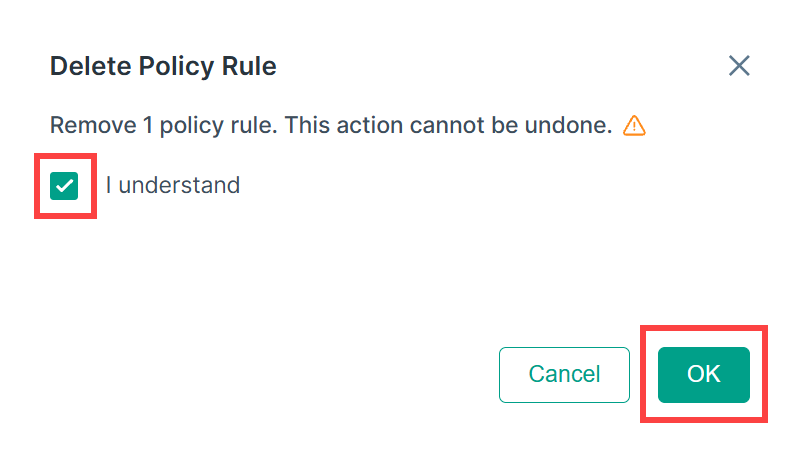
- The selected rules or policies are deleted.