Huawei
This section provides information about creating a user with policies, which is required for the DSPM product to connect to a customers' Huawei Cloud accounts.
Create a Policy
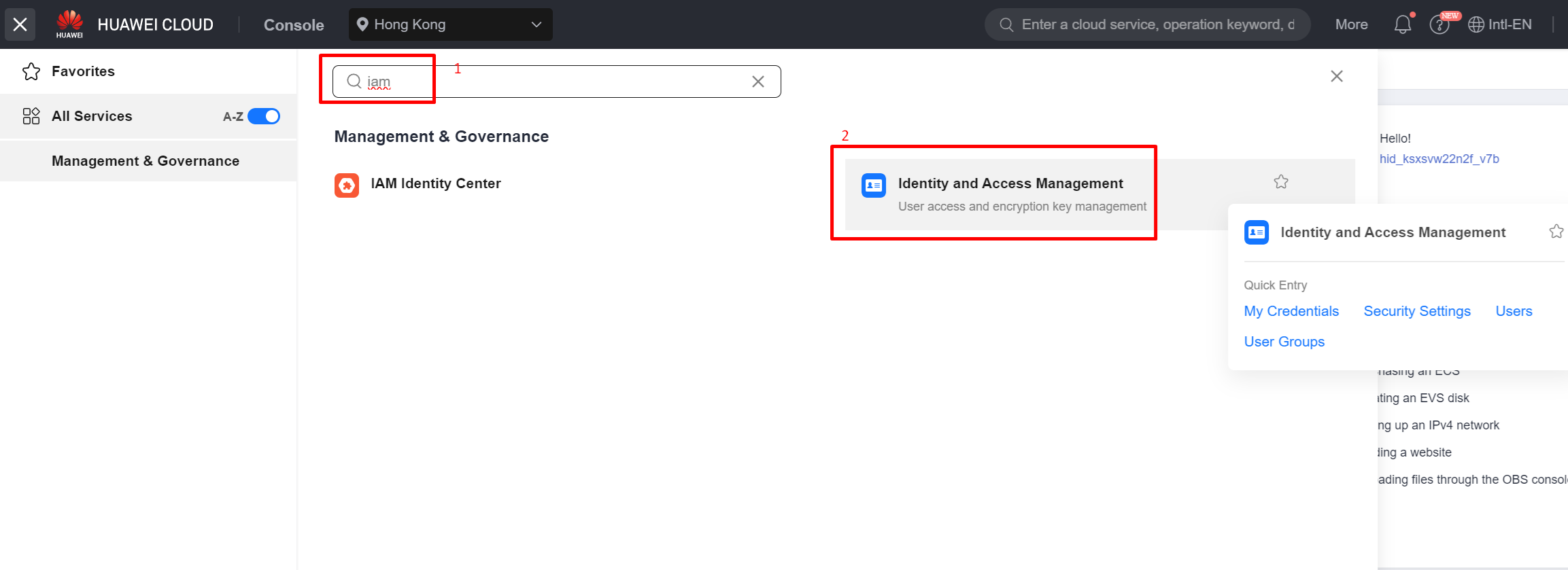
- Sign in to the Huawei Cloud Console and open the IAM console with an
appropriate admin-level account.
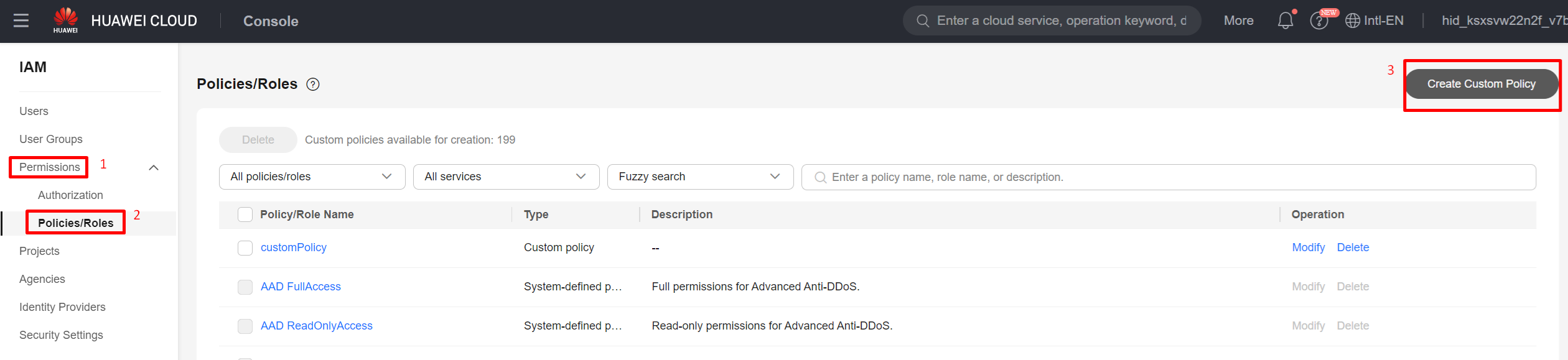
- In the navigation pane on the left, choose Permissions > Policies/Roles, and then choose Create Custom Policy in the
upper-right corner.
- In the Policy Content section, allow the following actions.
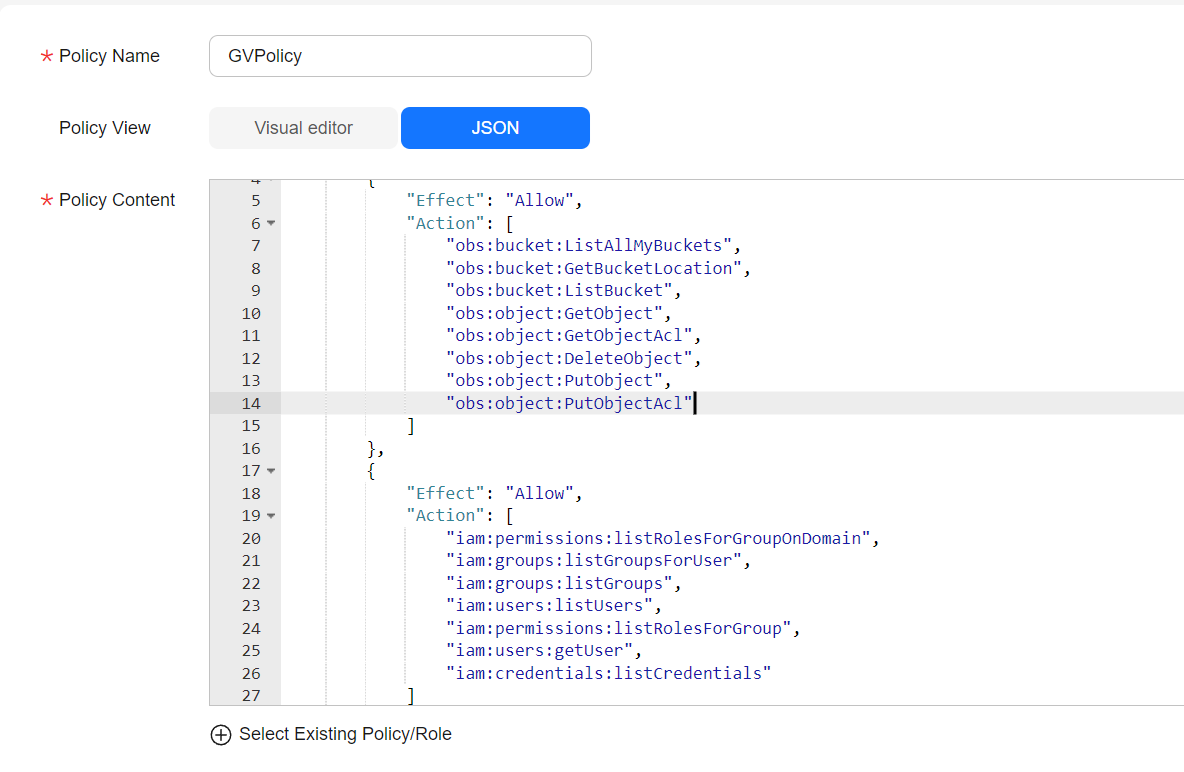
- In Actions allowed, choose the following actions to add to the policy.
-
For scanning
- Object Storage Service
obs:bucket:ListAllMyBucketsobs:bucket:GetBucketLocationobs:bucket:ListBucketobs:object:GetObjectobs:object:GetObjectAcl
- Identity and Access Management
iam:users:listUsersiam:users:getUseriam:groups:listGroupsForUseriam:groups:listGroupsiam:credentials:listCredentialsiam:permissions:listRolesForGroupiam:permissions:listRolesForGroupOnDomain
- Object Storage Service
-
For revoke permissions
- Object Storage Service
obs:object:PutObjectAcl
- Object Storage Service
-
For cloud tagging
- Object Storage Service
obs:object:PutObject
- Object Storage Service
-
For persistent tagging and move files
- Object Storage Service
obs:object:DeleteObjectobs:object:PutObject
- Object Storage Service
-
For scanning
Create a User Group
- In the navigation pane on the left, choose User Groups, and then choose Create User Group in the upper-right corner.

- On the displayed page, enter a user group name.
- Click OK.
Assigning Permissions to a User Group
- In the user group list, click Authorize in the row that contains the created user group.
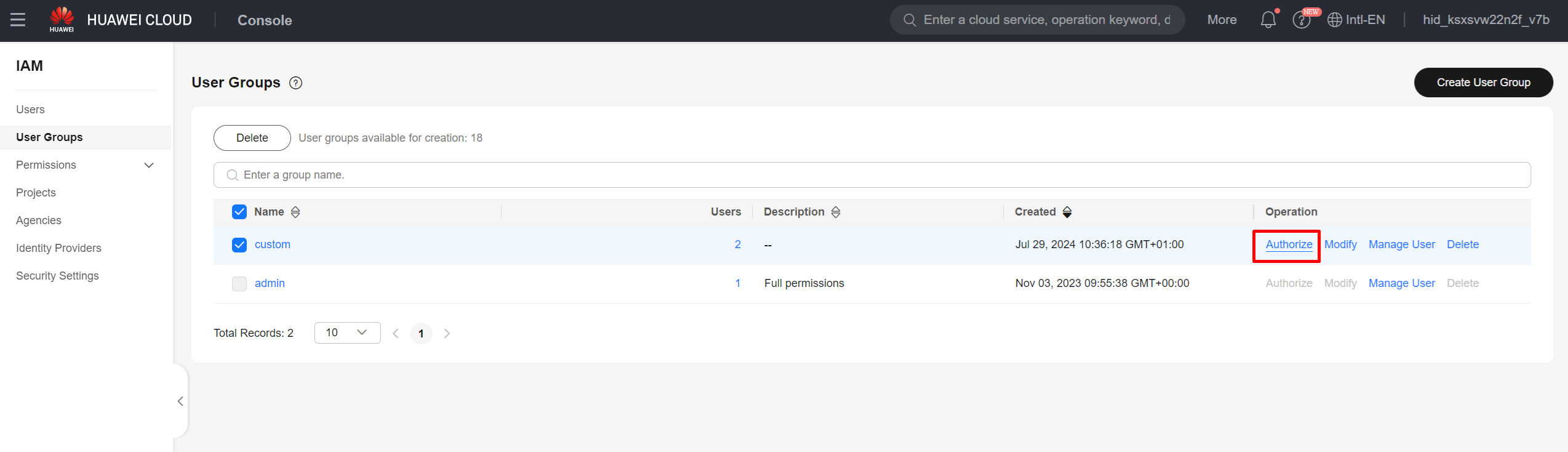
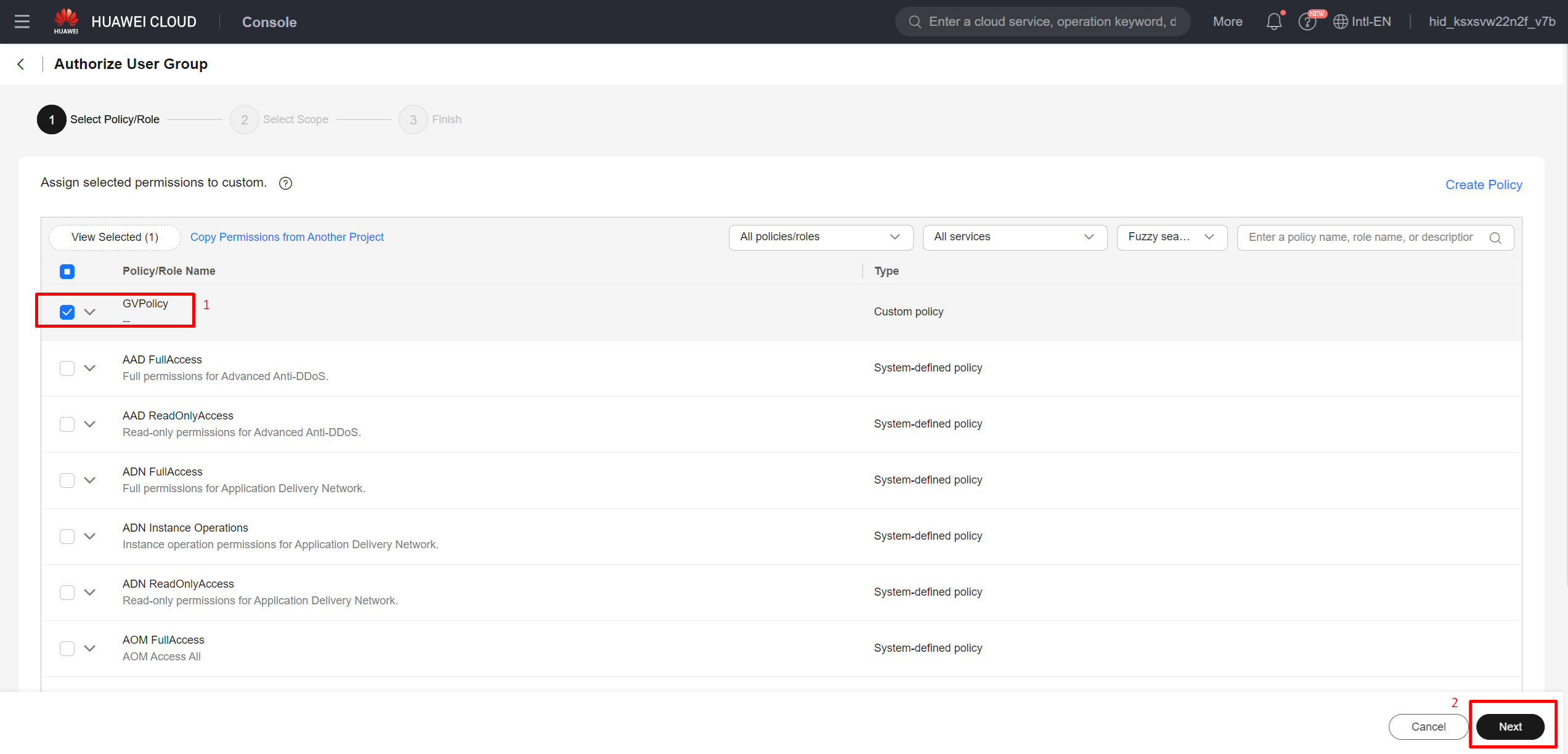
- On the Authorize User Group page, select the previously created policy to be assigned to the user group and click Next.
- Select All resources in the scope.
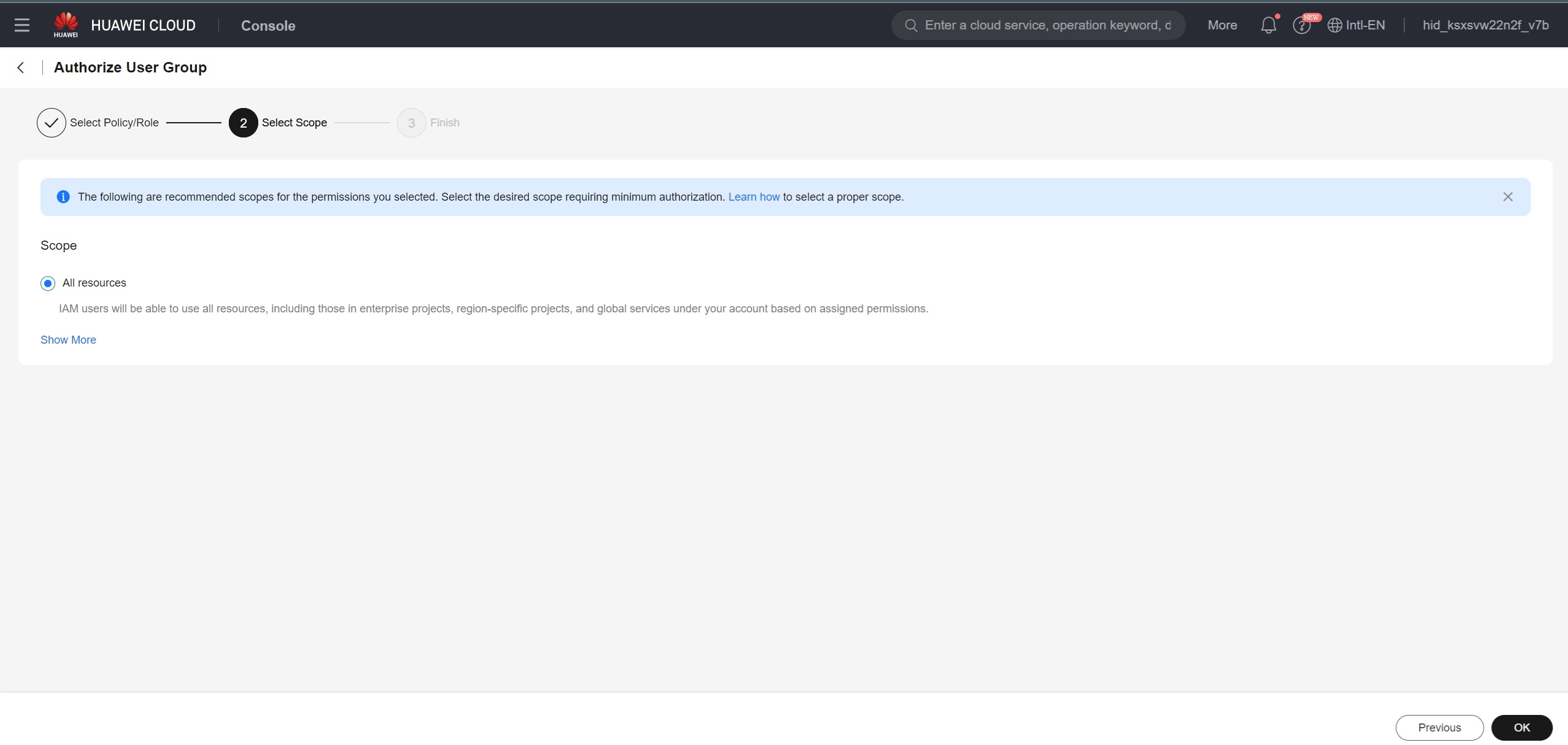
- Select OK.
Create a User
- In the navigation pane on the left, choose Users, and then choose Create User in the upper-right corner.

- On the Set User Details page, under User details, in User name, enter the name for the new user (for example, Huawei-connector-user) and select
Next.
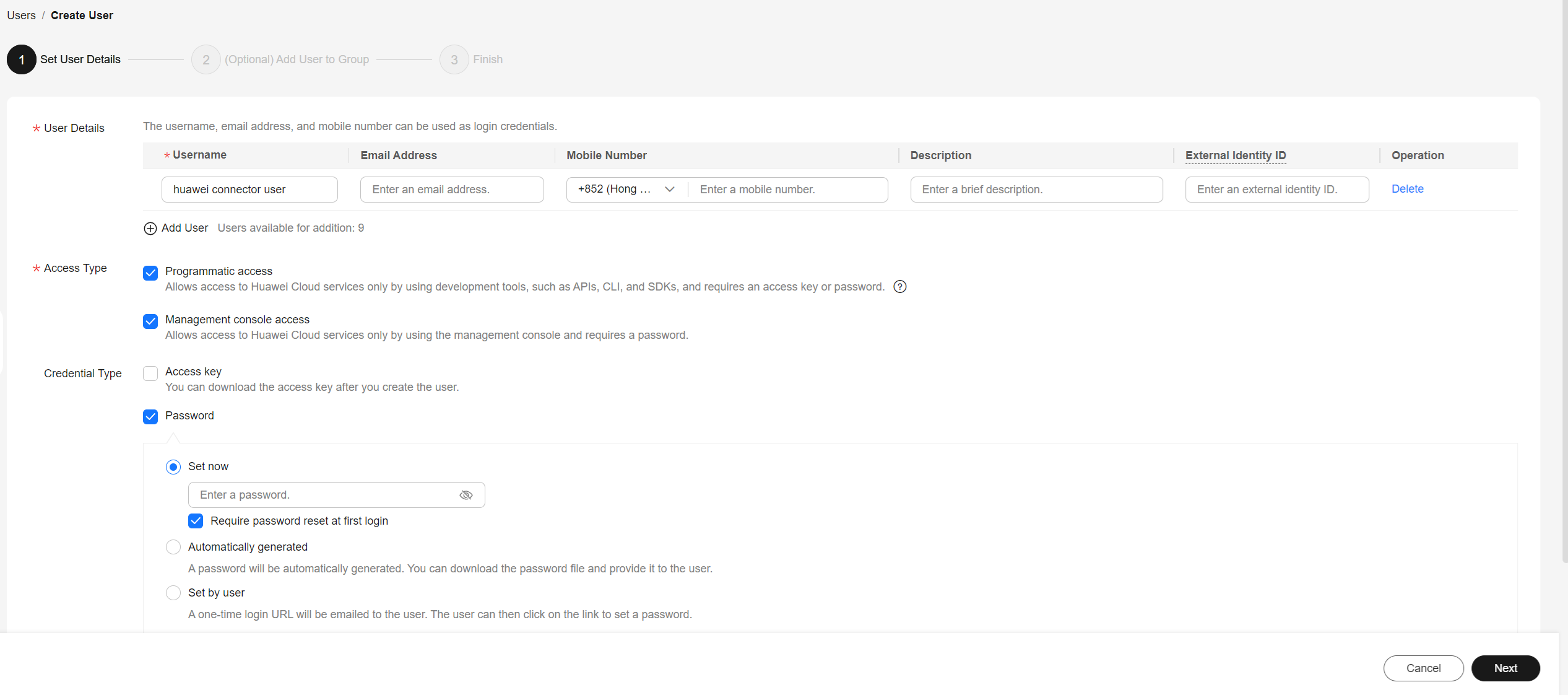
- Fill in the required fields and submit the changes.
- In the user list, click Authorize in the row that contains the created user.
- On the Authorize User page, select an authorization mode as Inherit permissions from user groups and select the previously created group.
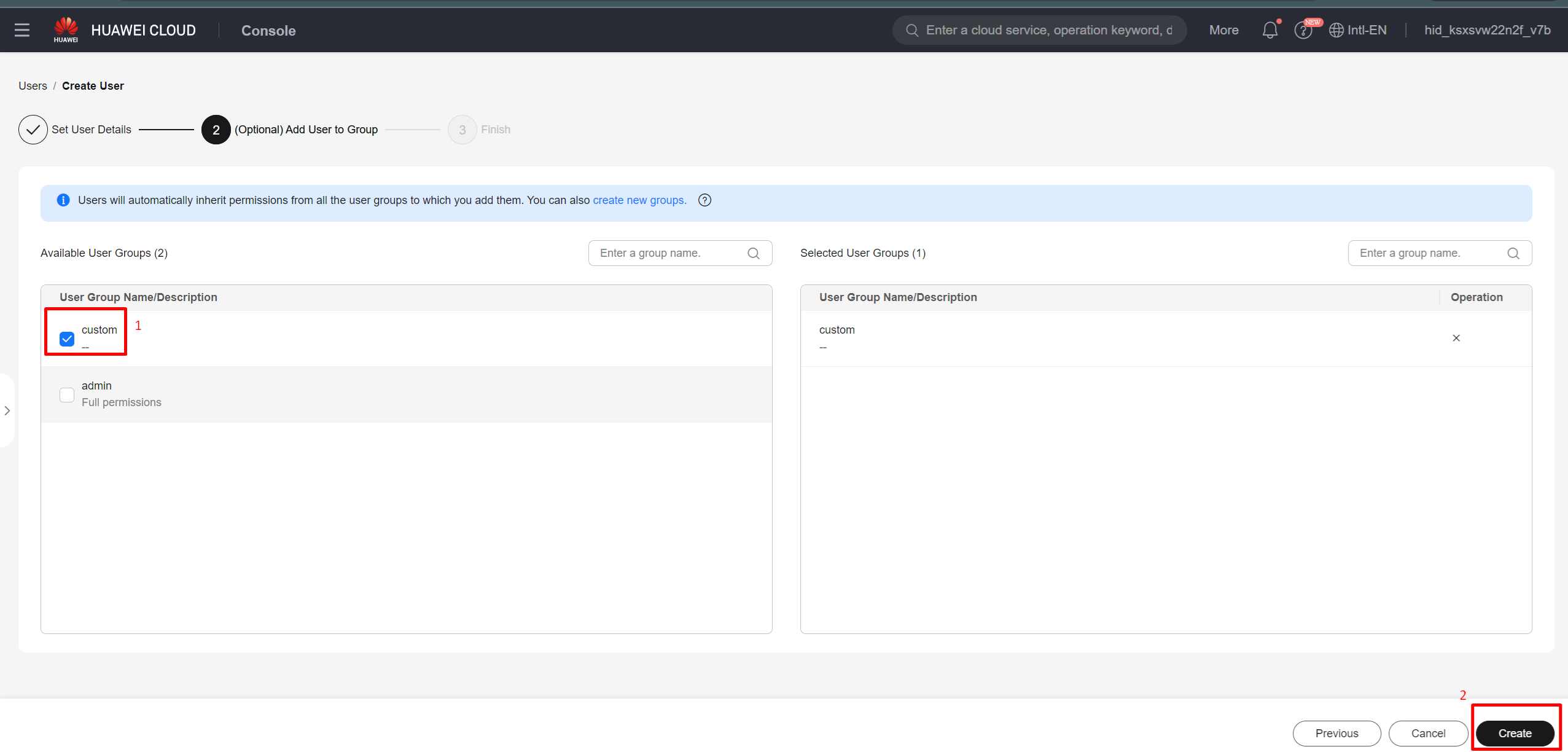
- Click OK.
Create Access Key
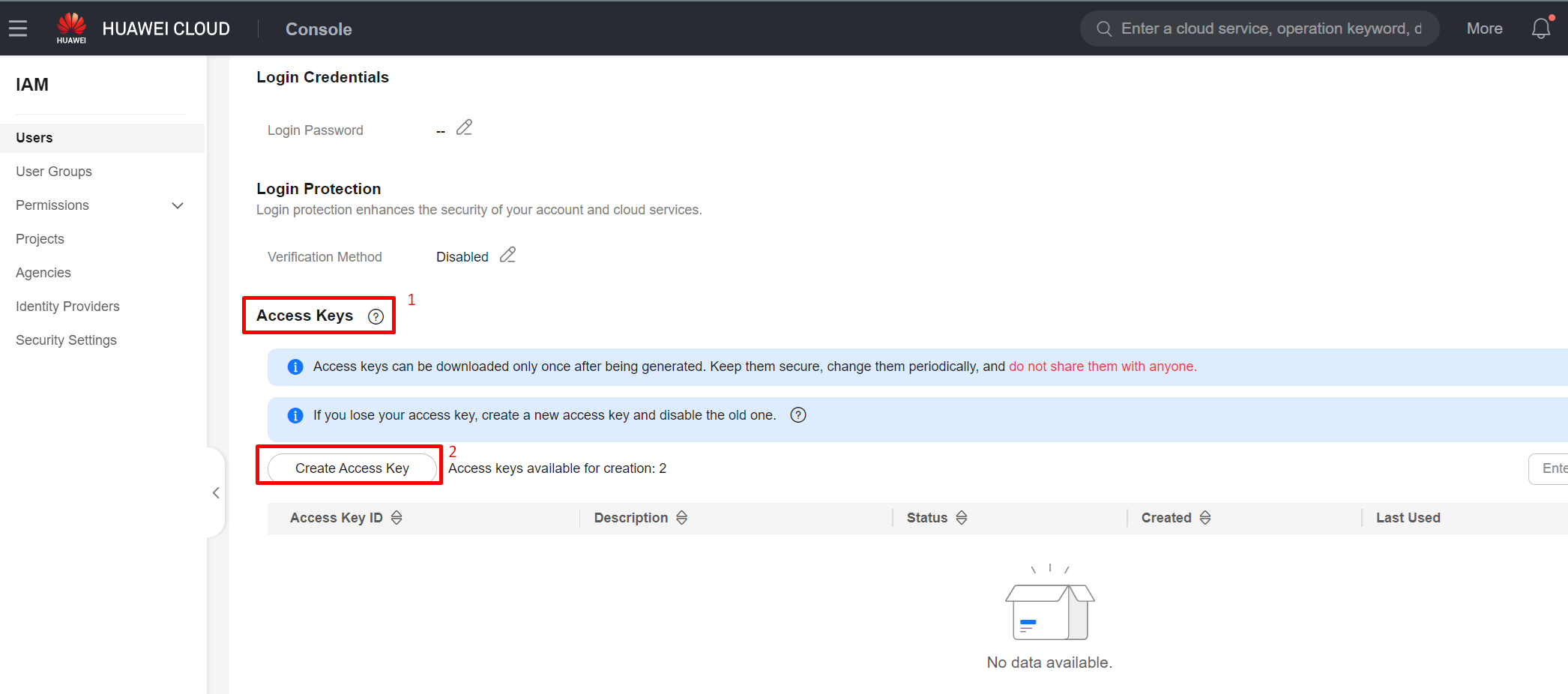
- Choose Security Settings in the row containing the IAM user, then scroll to the Access Keys section and click the Create Access
Key button.

- Give a meaningful description and click OK.
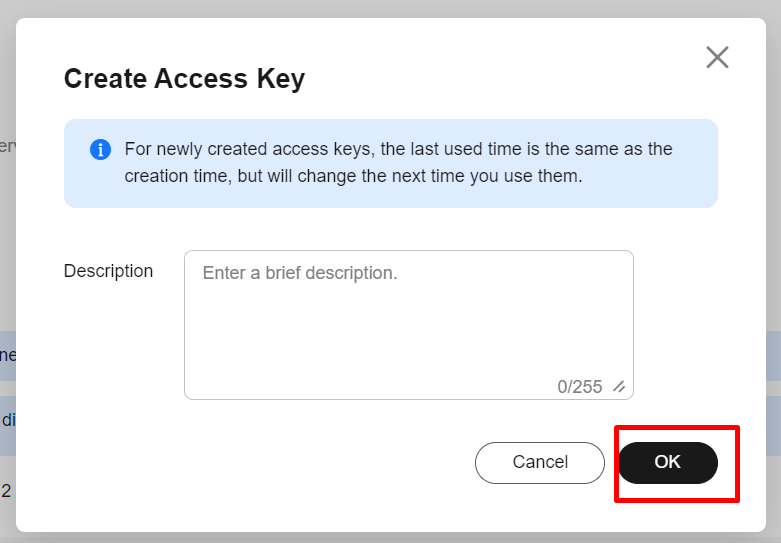 Note: Save the generated access key, as it cannot be viewed later.