Scan Analytics
- Post completion of a successful scan, to view the detailed scan analytics, navigate to . To view the scan history, click the icon
 . The following screen shot provides detailed
explanation of each fields:
. The following screen shot provides detailed
explanation of each fields: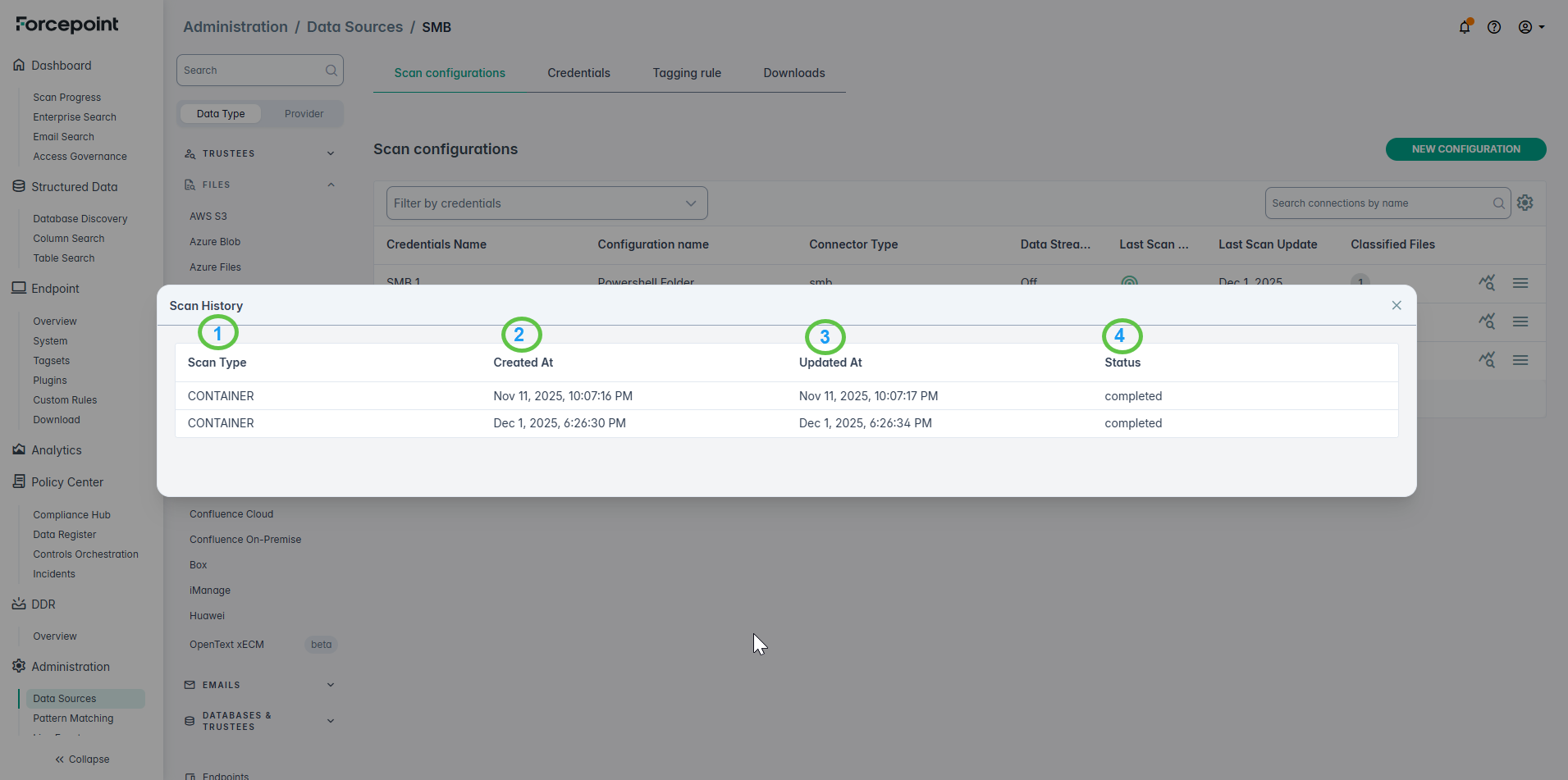
1 Scan type (Container = files. Trustees = users) 2 Displays the date and time the scan began. 3 Displays the date and time where the scan status changed. 4 Shows the current status of the scan's discovery stage. - To view the detailed analytics, click the scan analytics icon
 on the following screen: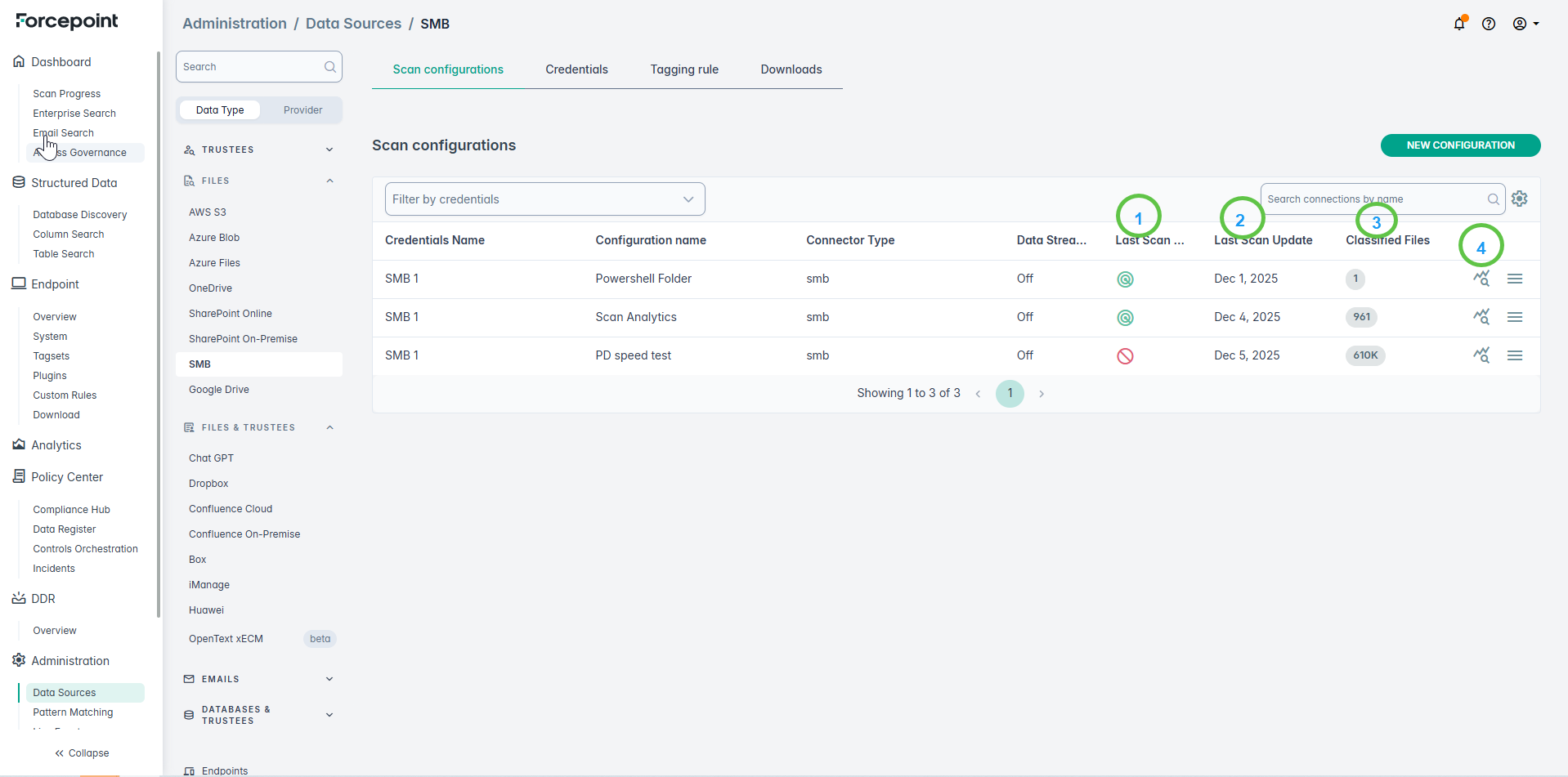
1 Discovery status of the most recent scan for this configuration 2 Date and time of last status update 3 Count of discovered files 4 Detailed scan analytics - The screen shot below explains the Scan Progress tab of the scan analytics sidebar:
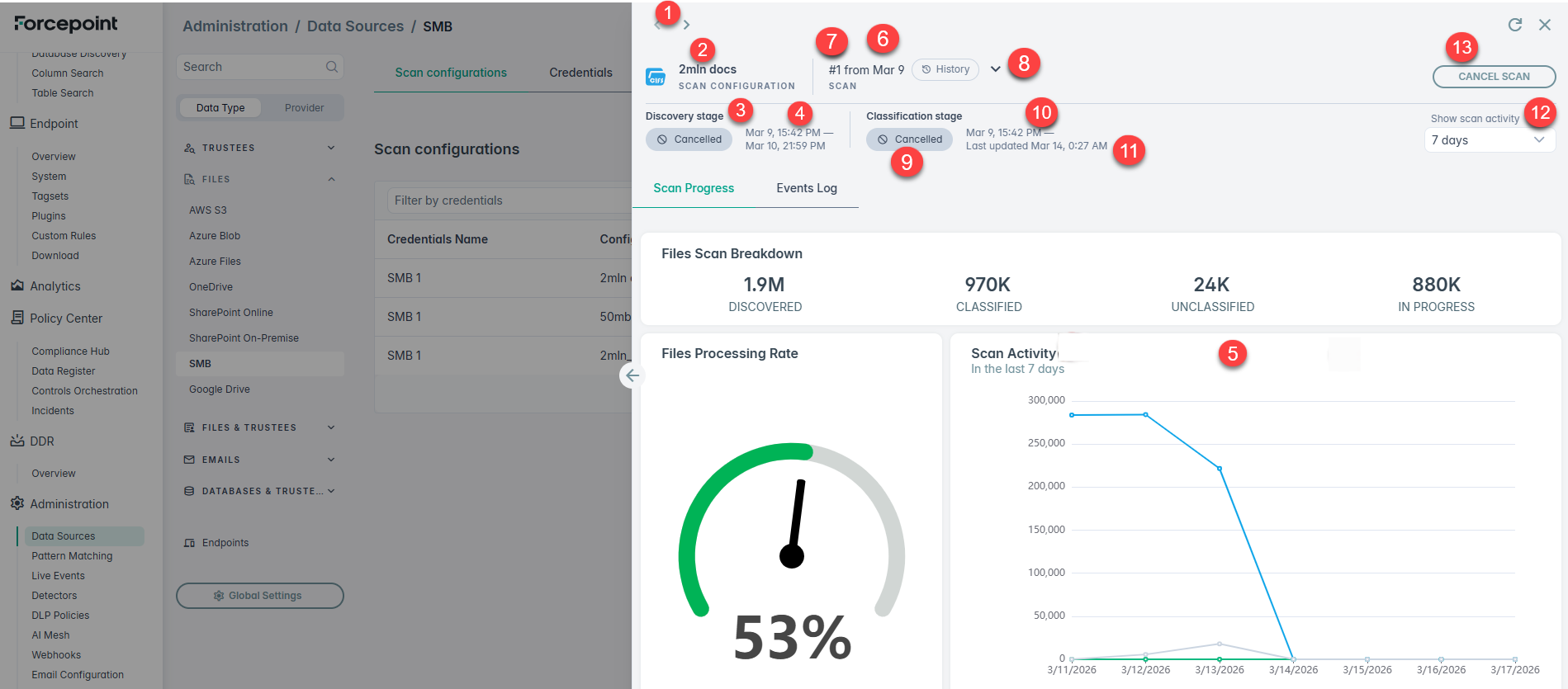
1 Selector of scan configurations for the data source 2 Scan configuration name 3 Discovery stage status 4 Date and time the last file was discovered 5 Aggregate metrics over the selected time interval 6 Date and time a scan is started 7 Scan number for the configuration 8 List of all scans for the selected scan configuration 9 Content classification status 10 Date and time the first file was classified 11 Date and time the last file was classified 12 Time interval for the chart 13 Cancel currently selected scan and classification will be stopped for the rest of the files. Note: If you cancel a scan before classification finishes, files that were not yet classified can remain Pending. No action is needed unless the status does not change after a later scan. - Under Unclassified by Reason, click any bar to see the files that were not classified in the selected scan. Unclassified files fall into two groups, and each file is labeled with its
specific reason:
- Filtered Out: the file was intentionally skipped, for example because it exceeds the size limit.
- Not Classified: an error occurred while the file was being classified.
The Unclassified counts match the counts in Enterprise Search and in scan reports.
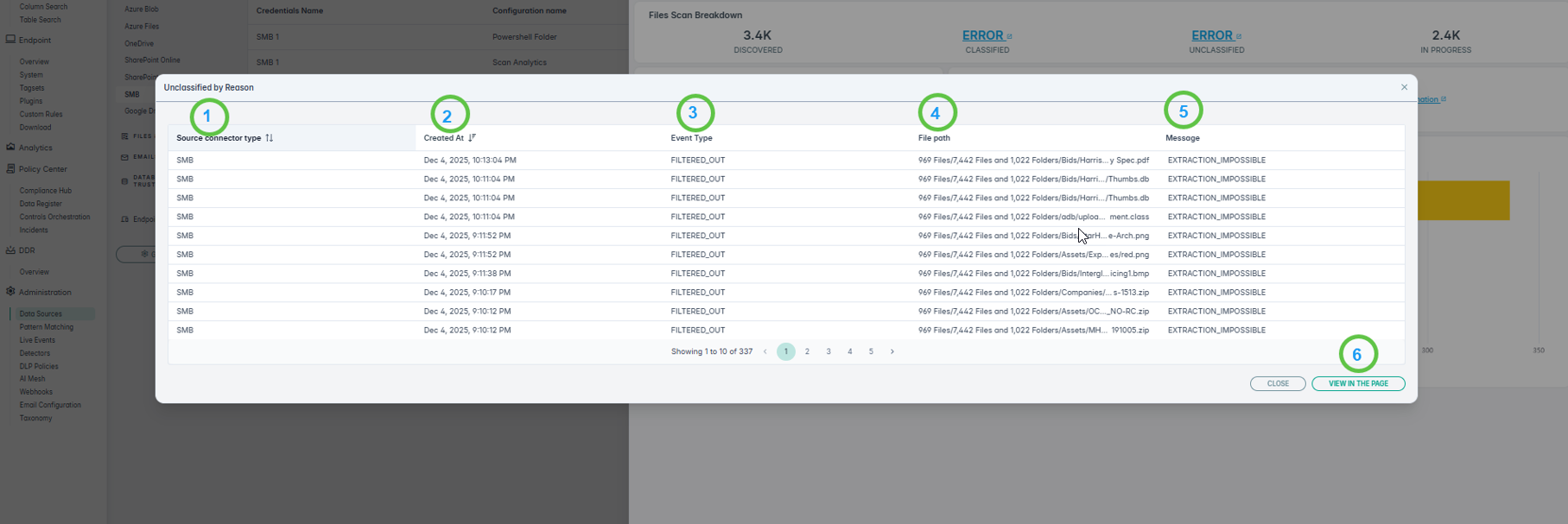
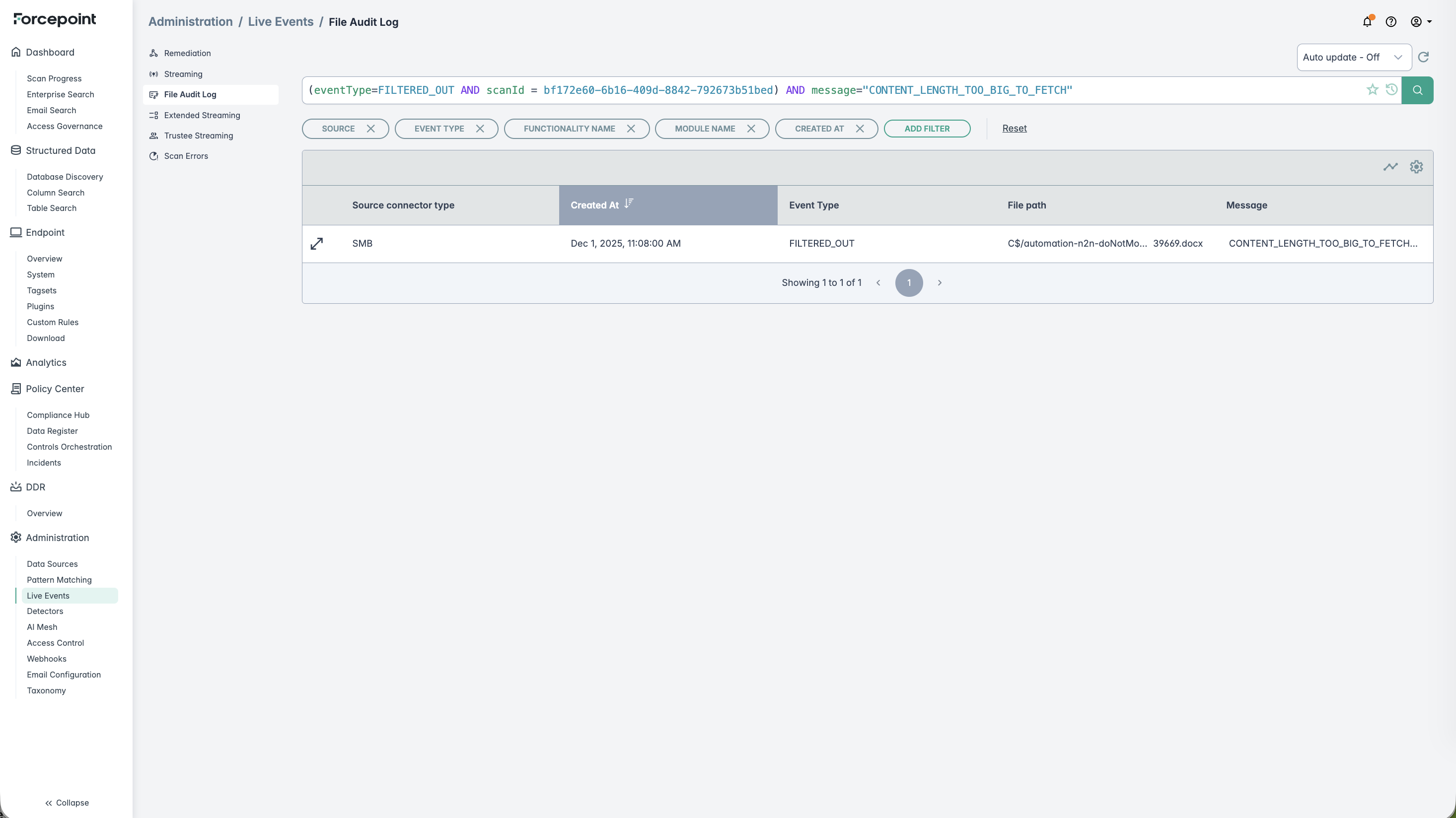
1 Datasource connector type. 2 Shows the date and time when the file was last classified. 3 Event showing why the file was not classified (Filtered Out or Not Classified). 4 Path to the discovered file. 5 Specific reason the file was not classified, for example "Content length too big to fetch". 6 View detailed list of all files that were not classified due to specific reason. - Click on the View in the page to view the file audit log filtered by (not classified) events, the specific scan and the specific reason:
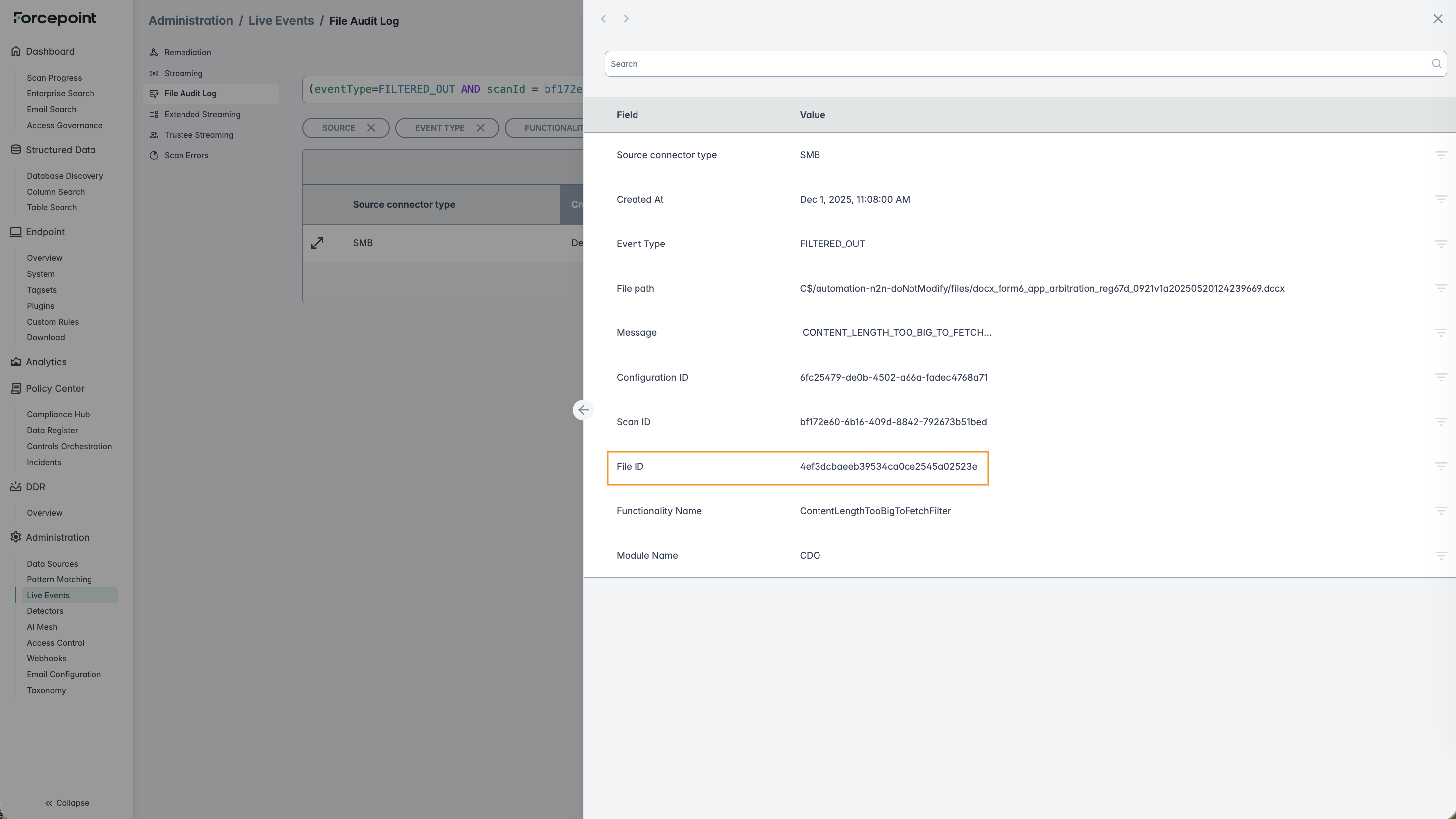
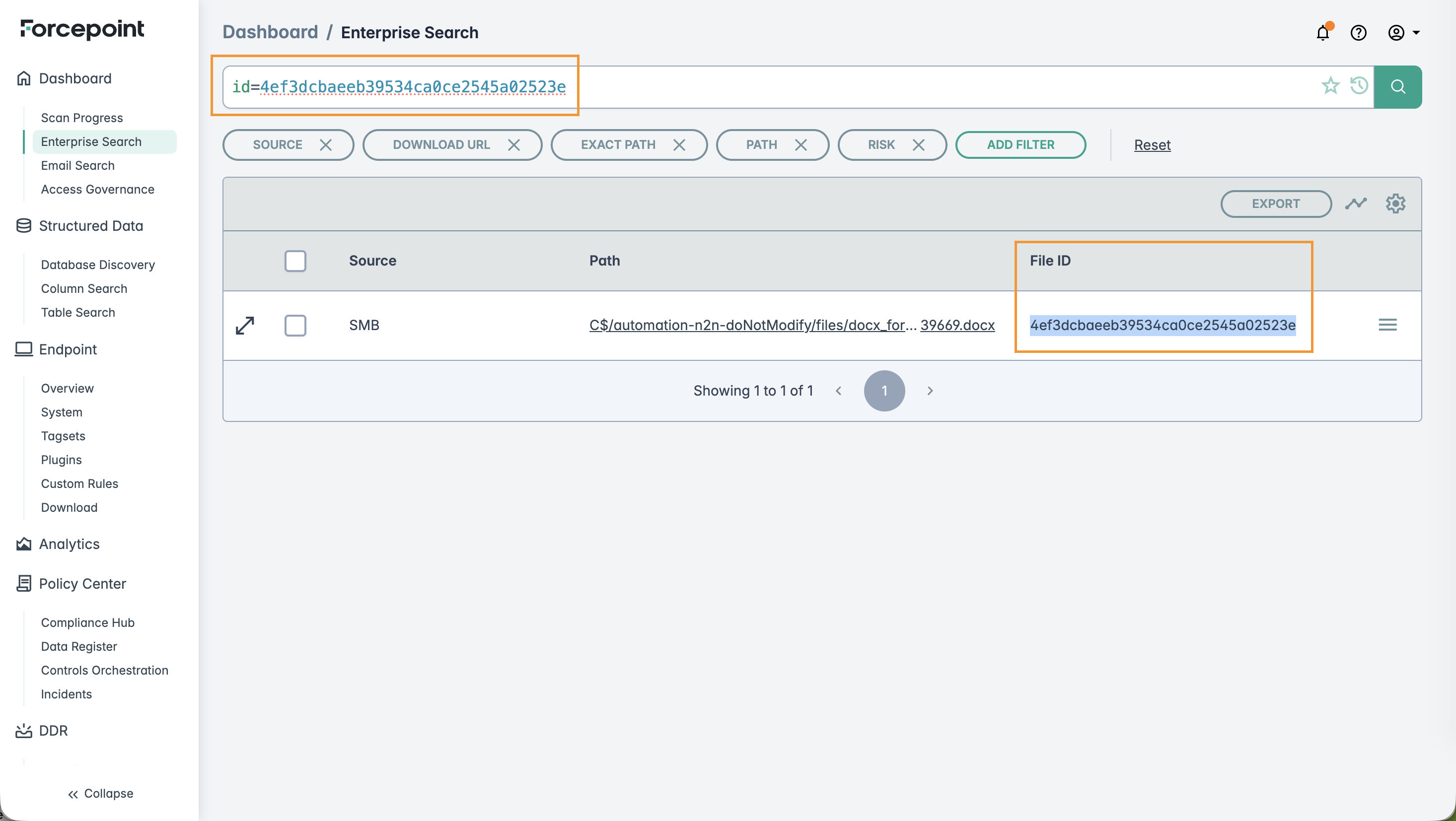
You can also view the file from Enterprise Search using the ID. An example, is shown below:
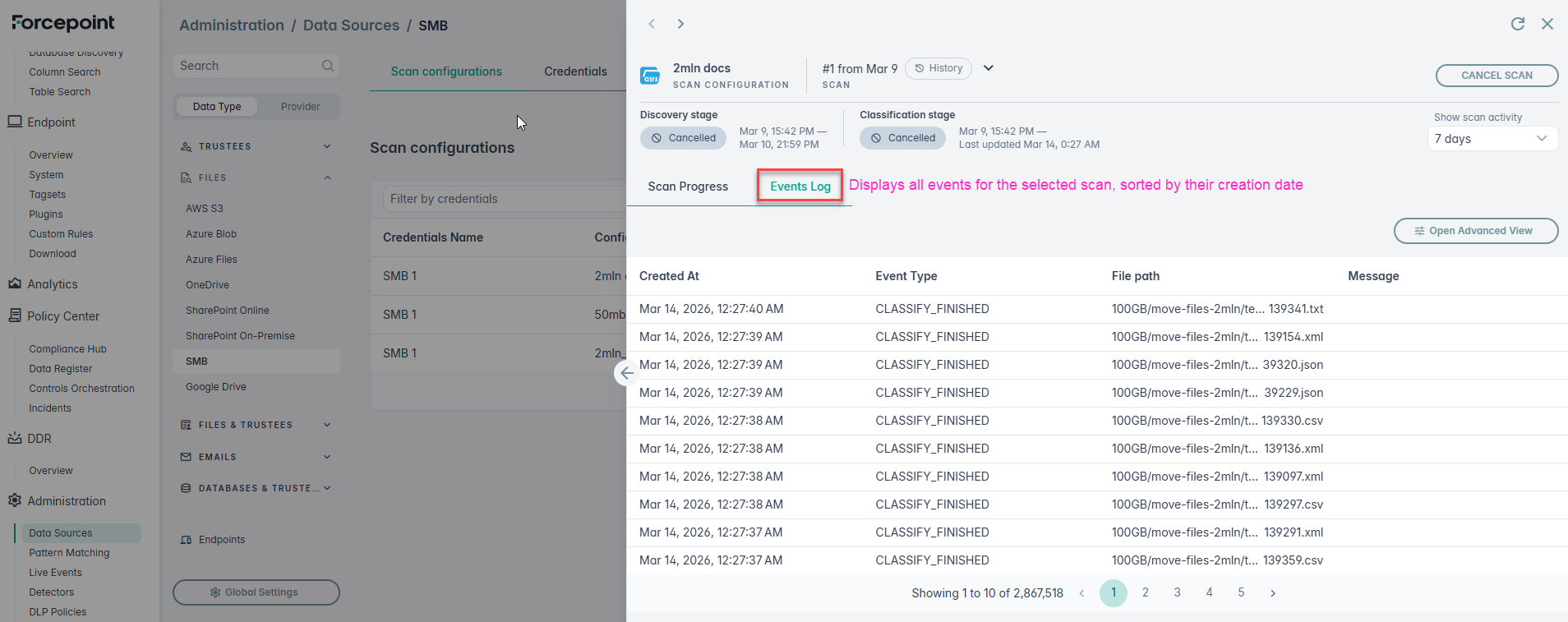
- The screen shot below explains the Event Log tab of the scan analytics sidebar: