Setting up the Scan Configuration
- If the connection succeeds, the New Scan Configuration page appears. Enter a Name and select the specific credential from drop
down.
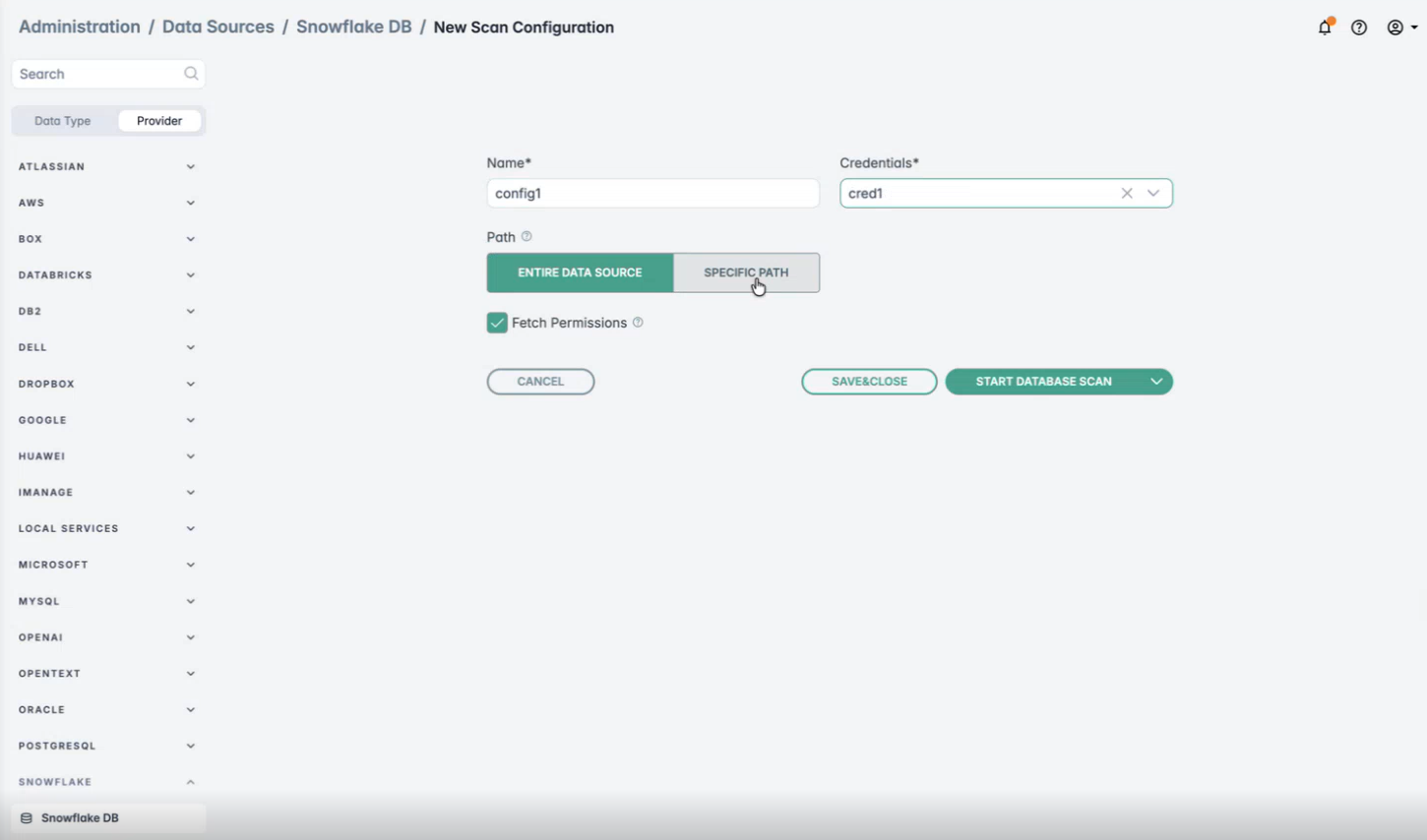
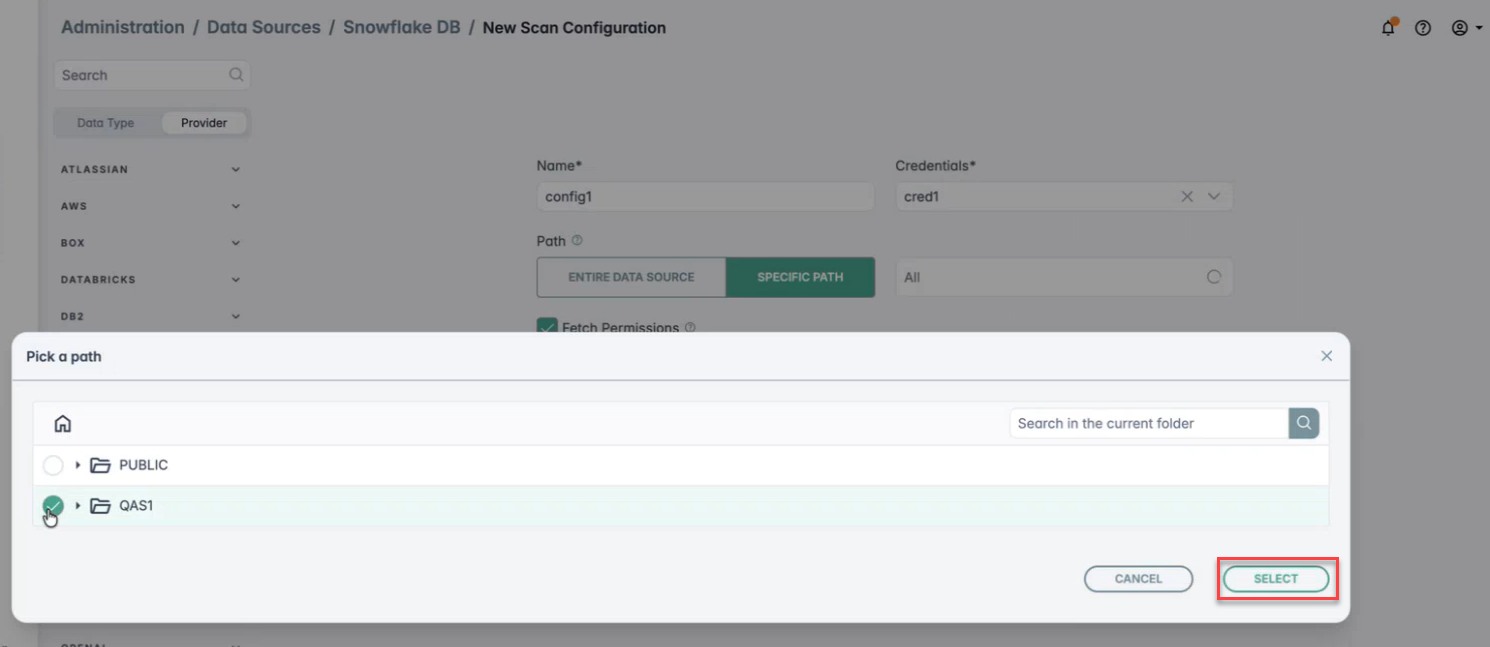
- Next, you can either choose to scan the entire data source by clicking Entire Data Source or select Specific Path to scan specific schema
in the window that opens. If you have selected Specific Path then you will be able to select the folder path on the window that opens. You can also use the
Search box to either schema or specific tables in a schema. Based on the table name searched for, the tables will be listed. Next, you can select the
specific tables from the displayed list that you want to include in the scan and click Select.
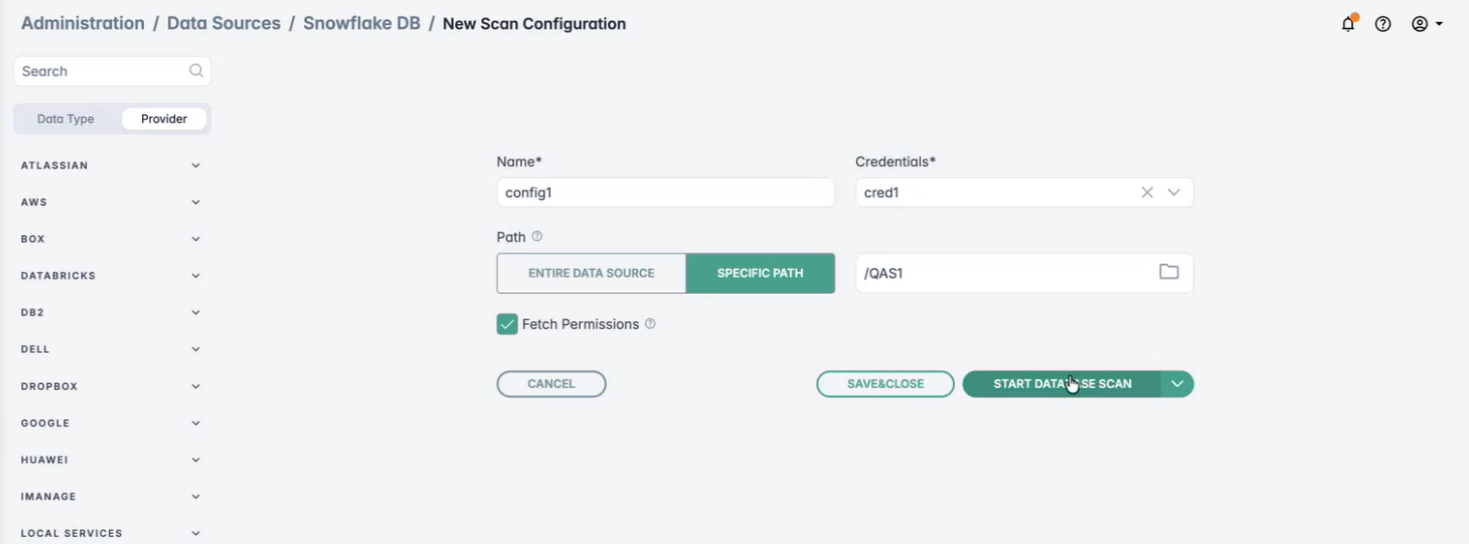
- On the next screen, you can either select SAVE & CLOSE to save the configuration for future scans, or you can click START DATABASE
SCAN to start a scan.
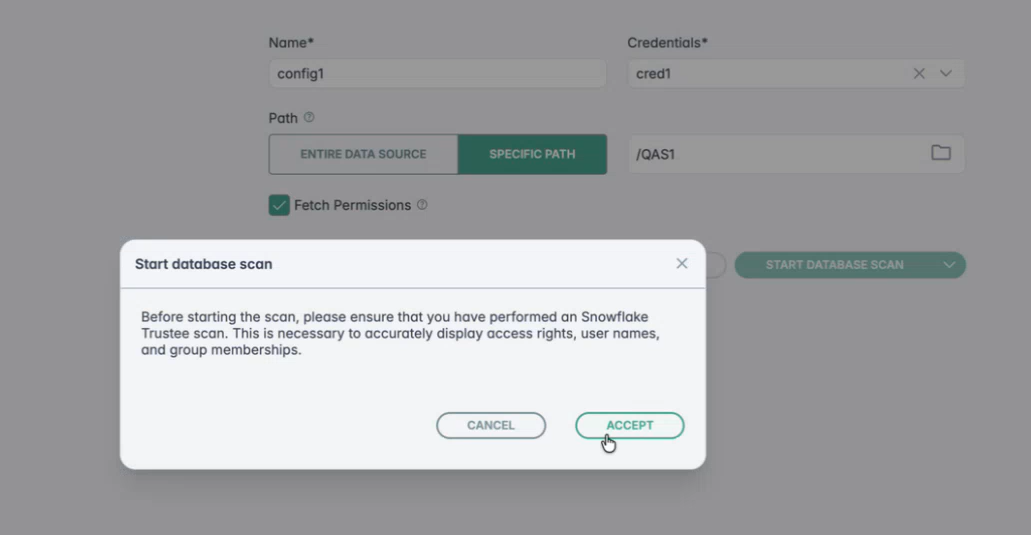
- If you have selected START DATABASE SCAN in previous step, then you will need to confirm if the scan can be started. Click ACCEPT to start
the scan.
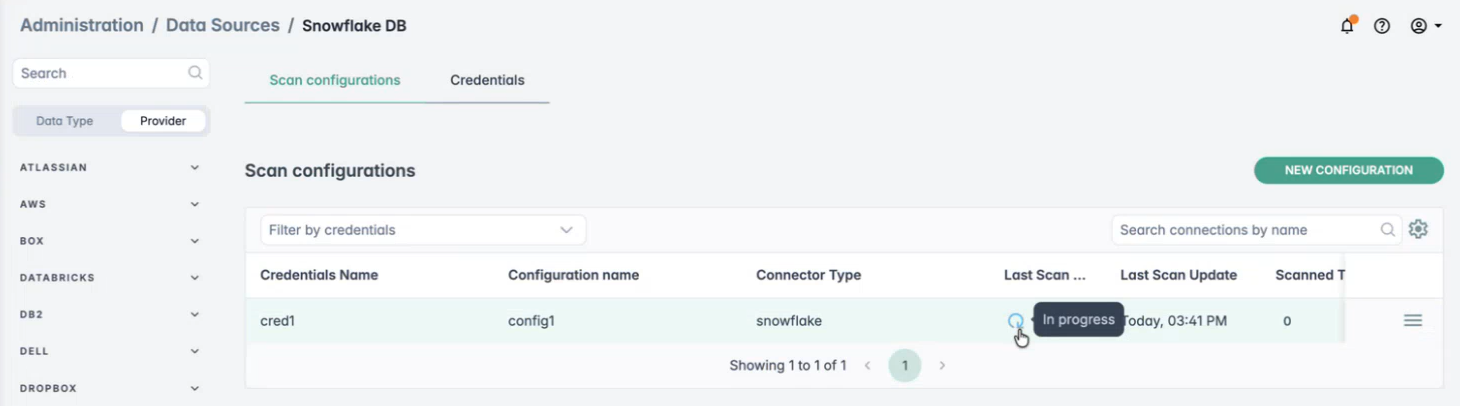
After the scan starts, hovering over it displays the status “In progress” as shown below.
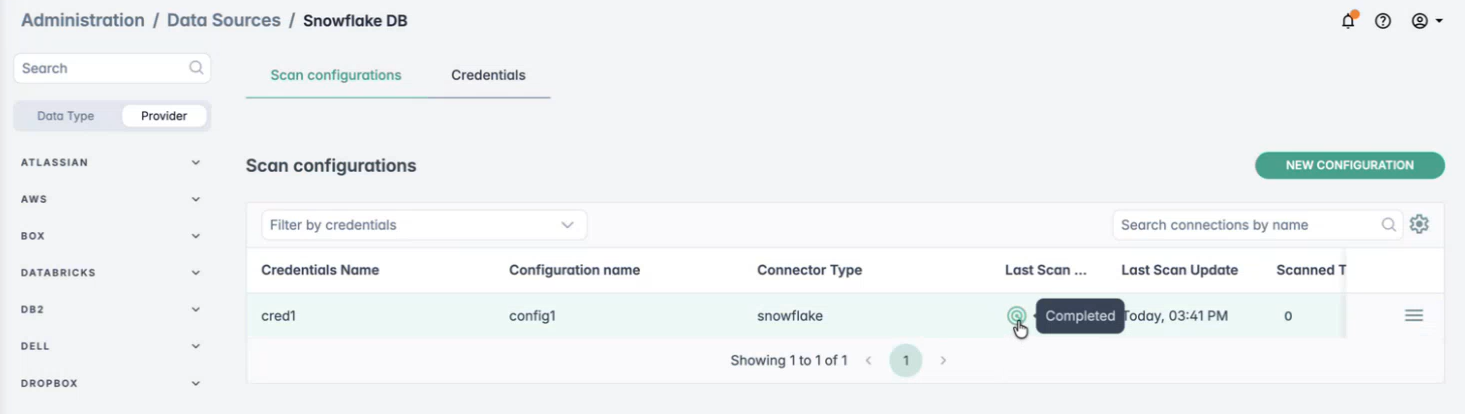
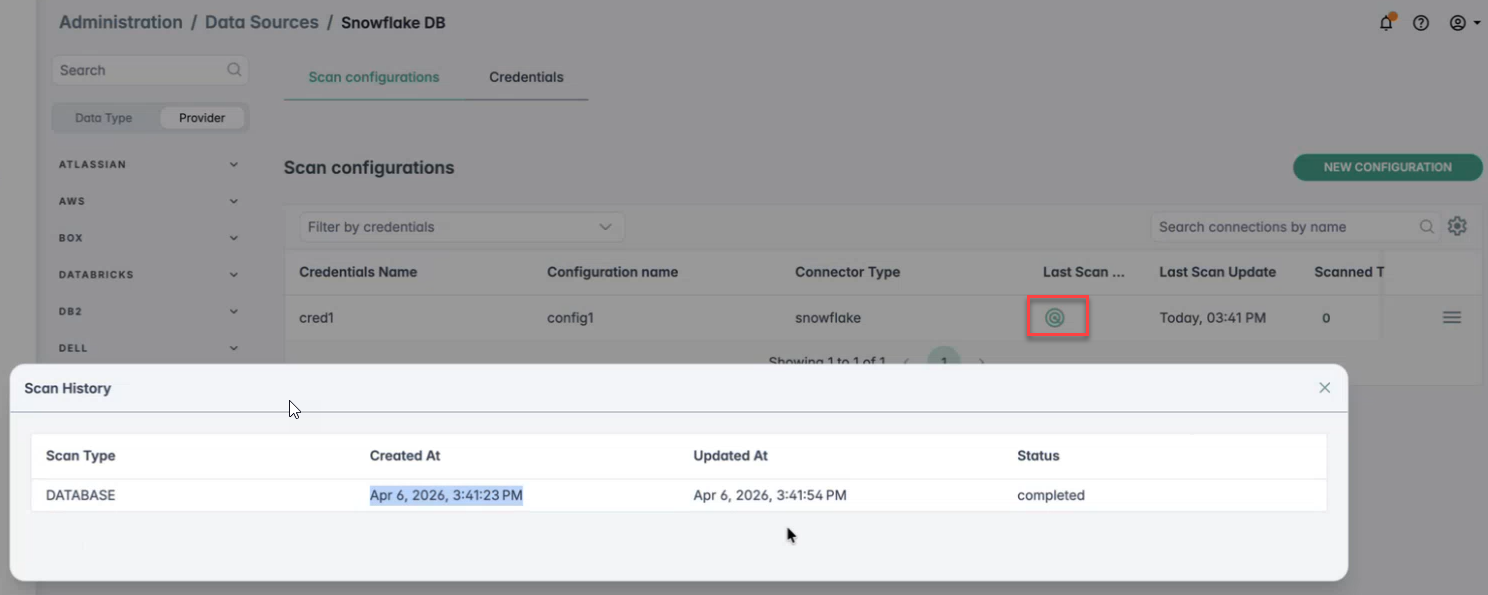
- Once the scan gets completed, click on "Completed" to view the below details.
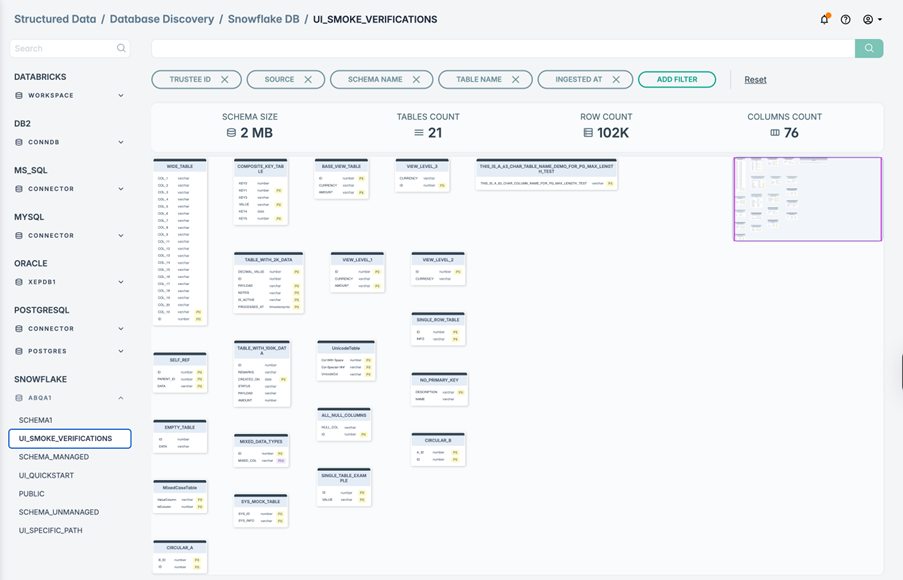
- Navigate to the corresponding database through as shown below.
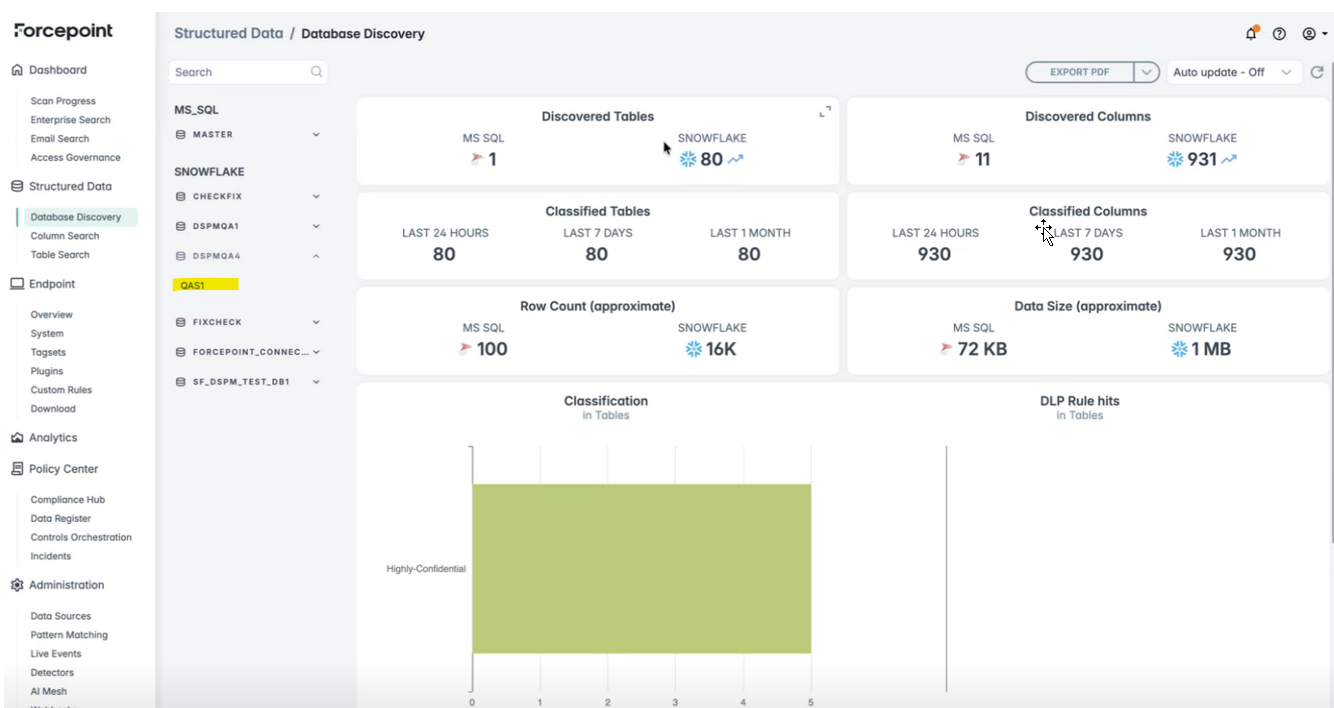
This view provides information on Discovered Tables, Discovered Columns, Classified Tables, Classified Columns, approximate Row Count, Data Size etc.
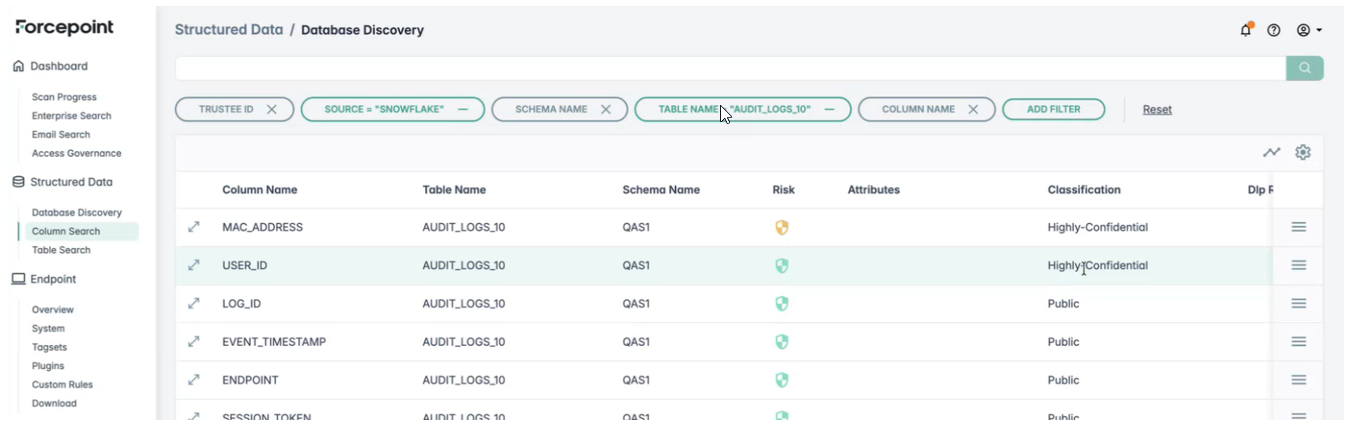
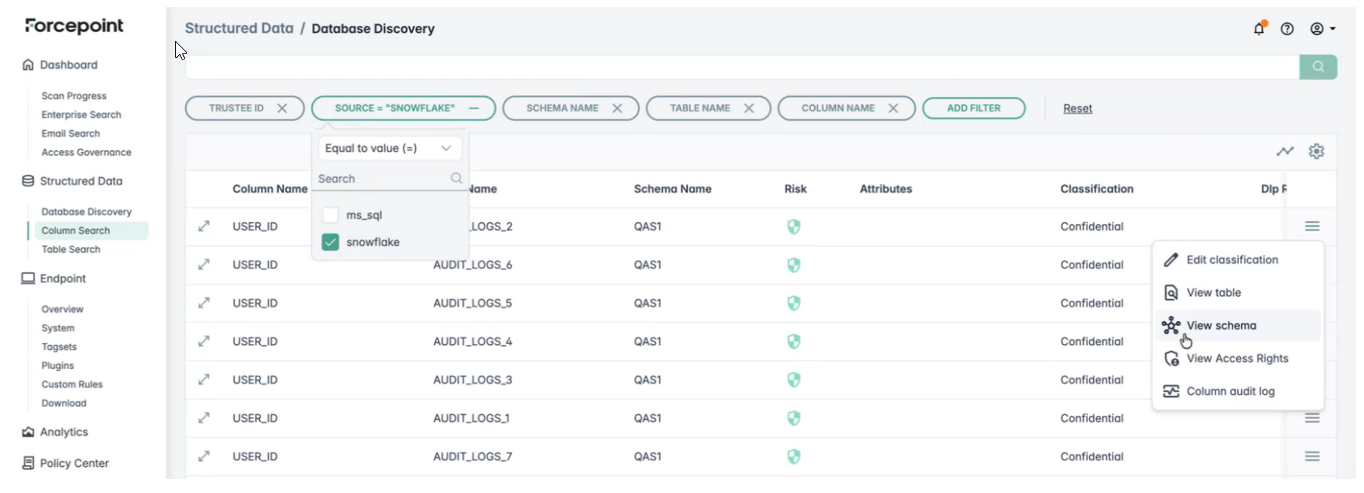
- Navigate to Column Search to view detailed column information for every configured data source and its associated scans.
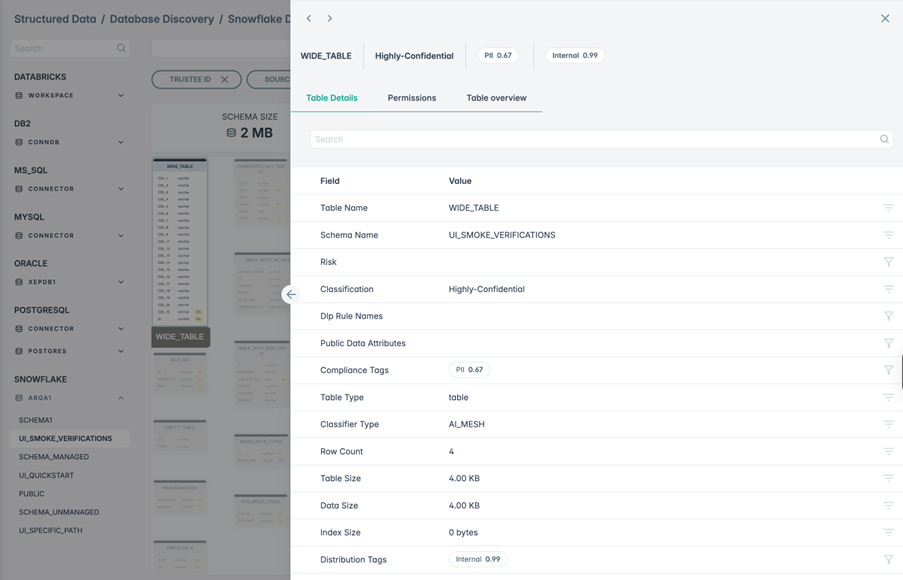
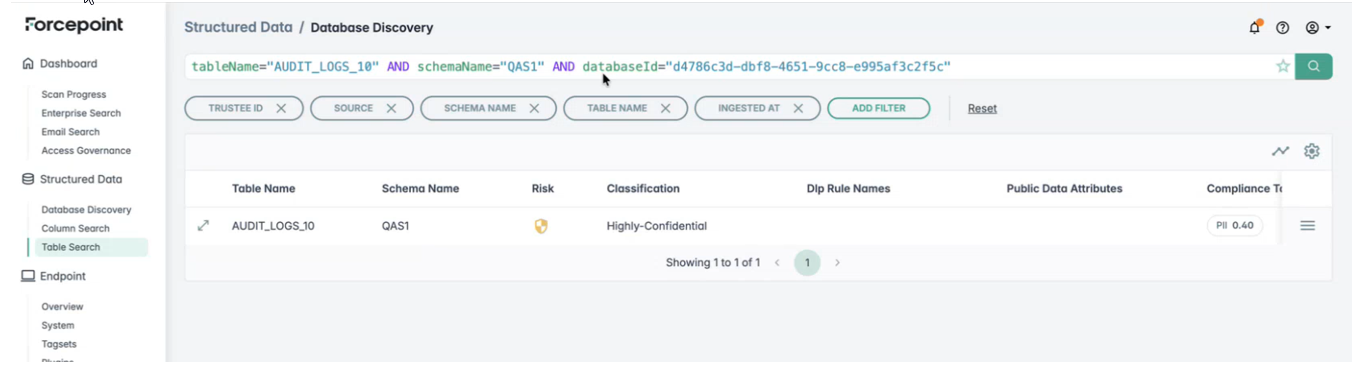
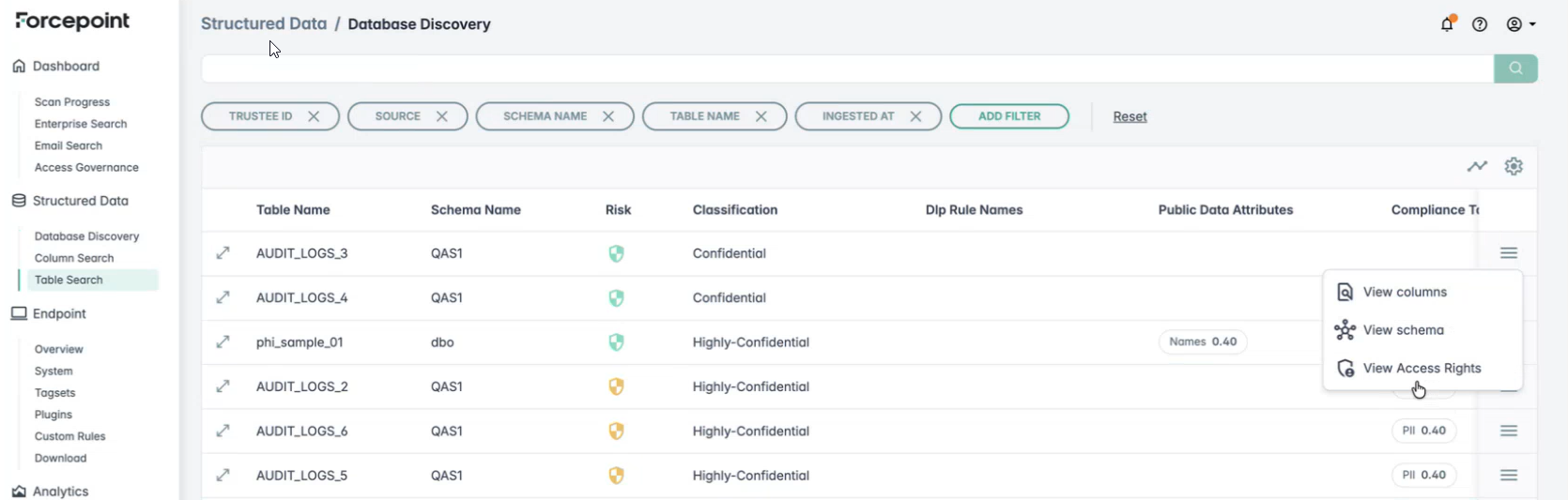
- Navigate to Table Search to view detailed table information for every configured data source and its associated scans.
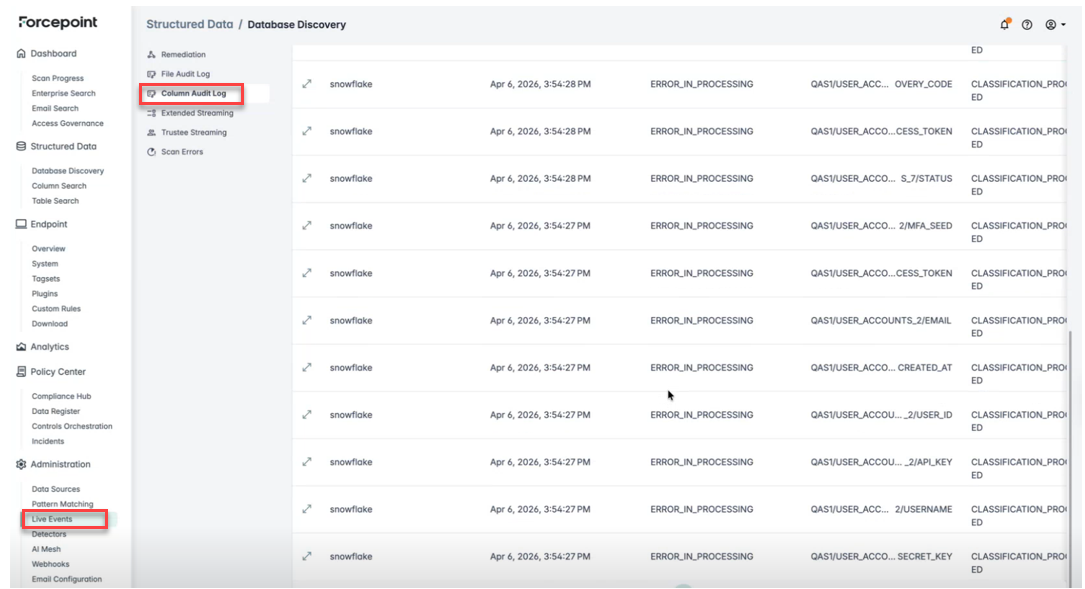
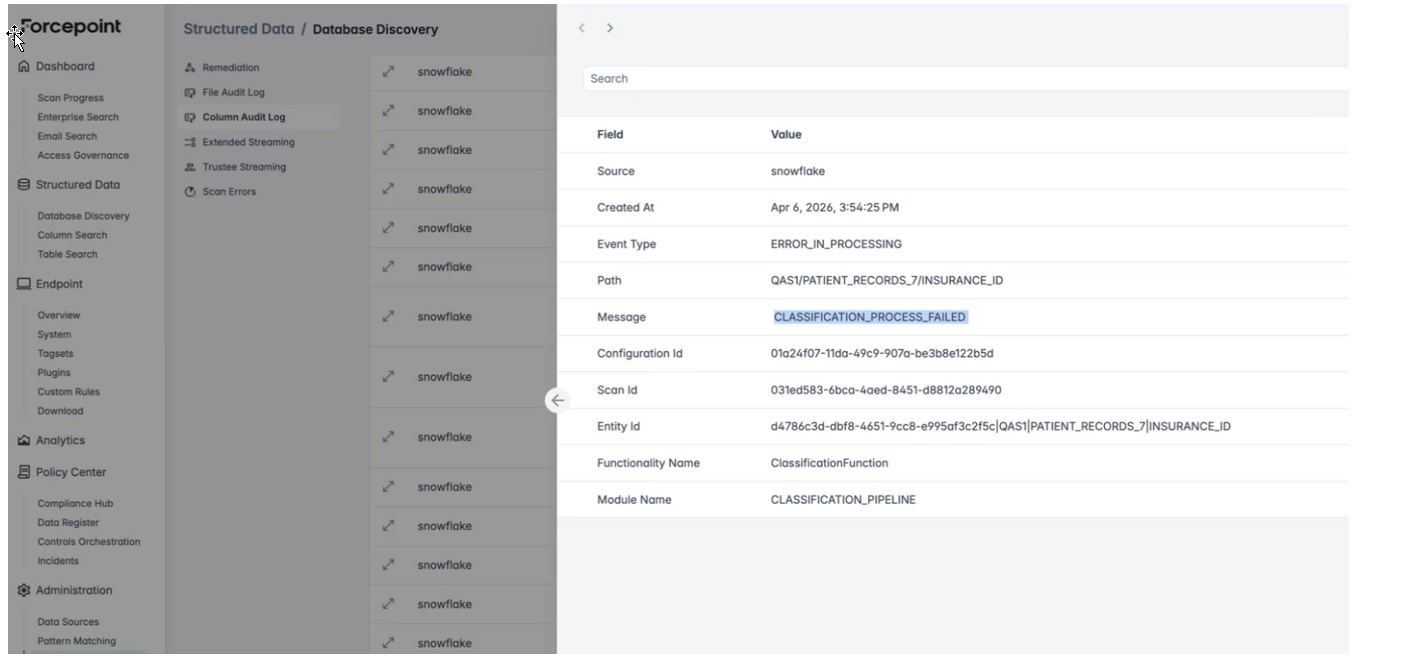
- Navigate to Column Audit Log through .
The Column Audit Log lists all events from discovery to catalog classification.
 Note: Pre-scan validation of scan size is not enabled by default for this connector. Very large scans may fail after they start. To enable validation, contact Forcepoint Support or your account team. See Structured data scan limitations.