Dell ECS
The Forcepoint DSPM Dell ECS Connector discovers, classifies, and governs sensitive information stored in Dell ECS object storage.
Overview
Discover, classify, and govern sensitive information stored in Dell ECS.
The Forcepoint DSPM Dell ECS Connector discovers, classifies, and governs sensitive information stored in Dell ECS (Elastic Cloud Storage) — an S3-compatible, on-premises or private-cloud object store. It scans objects across ECS buckets, classifies their content, surfaces who can access them, and lets an operator act on a finding directly from the DSPM portal.
Dell ECS is an unstructured (object) data source only. It has no structured SQL, table, or field surface, so field-level discovery does not apply. Because the store is S3-compatible, the connector reuses the platform's AWS S3 connector components and authenticates with an ECS access key and secret over the S3 endpoint.
The connector delivers three core areas of capability:
- Unstructured discovery and classification — Find and classify sensitive files across ECS buckets.
- Access governance — Understand who and what can access a sensitive file, through object permissions and trustees.
- Remediation — Act on a finding from the DSPM portal — tag, move or stub, delete, or revoke access.
Capabilities
Capabilities grouped by area, as they ship today.
"Supported" means implemented in the connector (Yes) versus not applicable or not implemented for this data source (No).
Unstructured discovery and classification (files)
Discovers objects stored in ECS buckets and hands their content to the platform's classification pipeline.
Object storage has no folders in the strict sense — "folders" are key prefixes.
| Capability / Feature | Description | Supported |
|---|---|---|
| Bucket / object discovery | Scans objects across ECS buckets. A scan can target an entire bucket (root) or a specific prefix ("folder") path within it. | Yes |
| Folder / prefix selection | The scan configuration can be scoped to the whole bucket or a chosen prefix path. | Yes |
| Container search / filter | Object and container listing supports name search and filtering during browsing. | Yes |
| Sensitive data classification and PII / DLP detection | File bytes are fetched (content-stream) and inspected by the platform's OCR and ML classifiers to detect PII and DLP-policy matches across common document and image formats (PDF, Office, images, text). | Yes |
| File metadata capture | Captures object name, path, size, last-modified, content type, and existing S3 object tags (surfaced as cloud labels). | Yes |
| Risk scoring | Each discovered file is assigned a Low / Medium / High risk rating by the DSPM pipeline, based on classification plus access. | Yes |
Access governance
Reports what a credential can do, and who has access to scanned data, using S3 object ACLs and the ECS IAM identity store.
| Capability / Feature | Description | Supported |
|---|---|---|
| Operation permissions (get-permissions) | Reports whether the configured credential can scan, tag, and remediate. Verified functionally against the S3 endpoint with a real bucket-list probe rather than by AWS IAM policy introspection, which ECS does not serve on the S3 endpoint. | Yes |
| Per-file / path permissions (path-permissions) | Reads the S3 ACL grants (read / write / delete) on a specific object or path. | Yes |
| Trustee discovery (scan-trustees) | Enumerates identities (users and groups) via two parallel identity systems - legacy Object Users and modern IAM Users, so access grants can be attributed to trustees regardless of which identity model the namespace uses. | Yes |
| Single trustee lookup (get-trustee) | Fetches a single user or group, optionally with group memberships and attached policies. | Yes |
Remediation
From a finding in the DSPM portal, an operator can act on a file in ECS.
All remediation actions run against the S3 API with the configured credential.
| Capability / Feature | Description | Supported |
|---|---|---|
| Cloud-only tagging (write-metadata) | Applies classification and compliance labels as native S3 object tags (PutObjectTagging). Tags live in the object store. | Yes |
| Persistent tagging (write-metadata, hard) | Downloads the file, embeds the label in the file's own metadata, and re-uploads it so the label travels with the file. | Yes |
| Bulk tagging | Tagging can be applied in bulk across a set of discovered files. | Yes |
| Move files / stubbing (upload-file) | Moves a file as a remediation action, optionally leaving a stub in place of the original. | Yes |
| Delete object (delete-object) | Deletes an object from the bucket as a remediation action. | Yes |
| Revoke permissions (update-permissions) | Modifies S3 ACLs on an object to revoke access grants. | Yes |
Real-time change detection (DDR)
DDR keeps findings current between scans by reacting to change events from the source. Dell ECS provides no such mechanism.
| Capability / Feature | Description | Supported |
|---|---|---|
| Real-time change events (DDR) | Detect object create, update, or delete between scans via provider notifications. Dell ECS does not support S3 bucket notifications or any event / audit API at the data layer, so DDR is not available for this connector. | No |
| Extended DDR events | Extended real-time monitoring variant. Not available for the same reason. | No |
Authentication and connection
Dell ECS uses S3-compatible access-key authentication.
The connector signs each request with the AWS SDK; no token exchange is involved.
| Capability / Feature | Description | Supported |
|---|---|---|
| S3 access key (HMAC Signature V4) | Authenticates with an ECS access key ID and secret access key (namespace object user or IAM user). Requests are signed per call; there is no OAuth or token exchange. | Yes |
| Service URL over HTTPS | Connects to the ECS S3 endpoint over HTTPS using a resolvable hostname (for example https://ecs-hostname:9021) using path-style addressing (ForcePathStyle). | Yes |
| Namespace resolution | The access key's object or IAM user resolves the ECS namespace (tenant) automatically for authenticated requests. | Yes |
| Whole-bucket (root) and prefix scans | Credentials can be scoped to an entire bucket or a specific prefix path. | Yes |
| OAuth2 / token-based auth | Not applicable. Dell ECS uses access-key auth; there is no OAuth2 flow. | No |
Trustee models
A trustee returned by a Dell ECS scan is either an Object User or an IAM User — never both, never interchangeable.
| Aspect | Object Users (legacy) | IAM Users (modern) |
|---|---|---|
| Authentication | Login profile and password, administered like a traditional account. | Access keys only. There is no password or login-profile concept for IAM Users. |
| Administered via | Management API (port 4443). | IAM-compatible API (port 4443). |
| "Enabled" / "Active" signal | The account's lock / unlock state, set explicitly in the ObjectScale console. | Whether the user holds at least one Active access key. No lock state exists to read instead. |
| Discovery gaps | — | Some credential types (for example a legacy Object User credential) are structurally barred from listing IAM users or groups. The scan returns an empty roster rather than an error. |
Configuration workflow
Configure Dell ECS and the Forcepoint DSPM portal to scan a Dell ECS data source.
Complete the procedures in the Dell ECS (ObjectScale) portal first, then in the Forcepoint DSPM portal.
In the Dell ECS (ObjectScale) portal
Create the access key that Forcepoint DSPM uses to connect to Dell ECS.
Sign in. Sign in to the ObjectScale console with an administrative account.
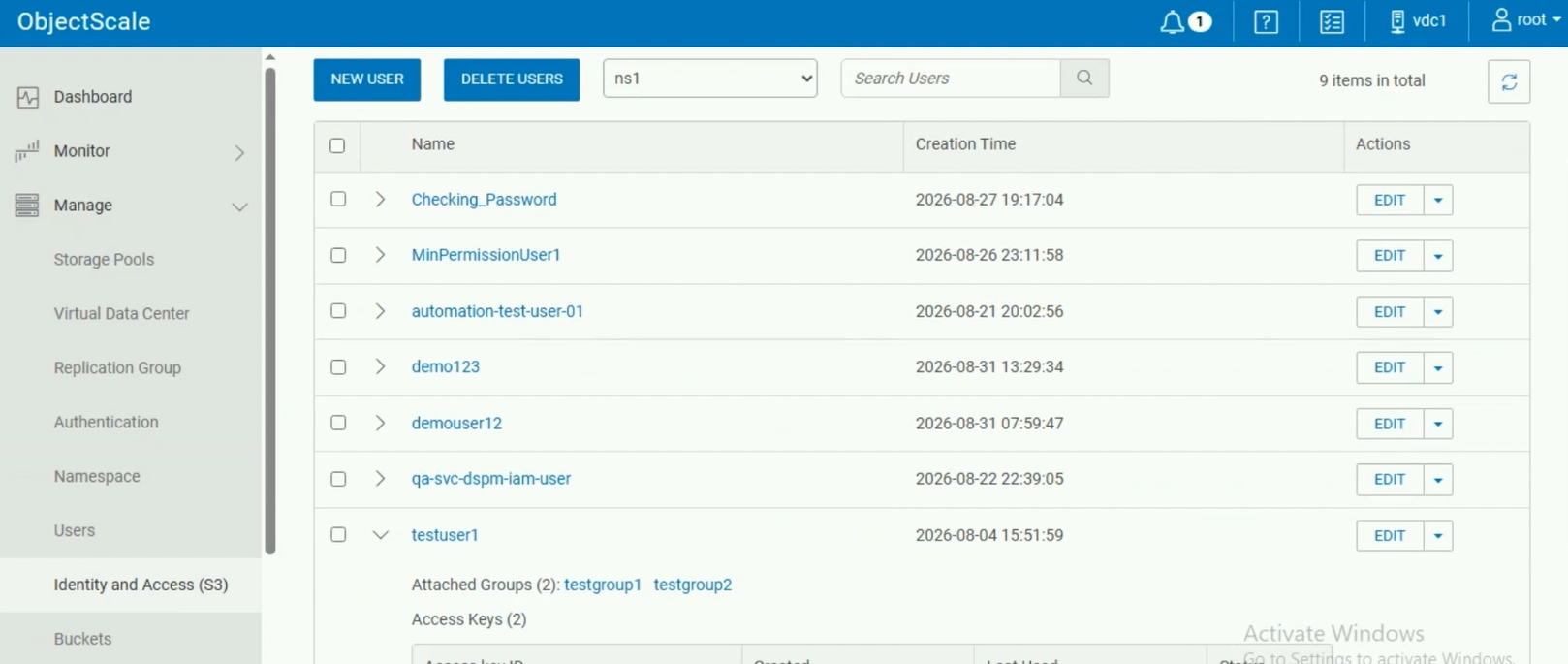
Select the namespace and user. Go to , select the target namespace (for example ns1), and either create a new user or open the existing service user intended for DSPM.
Figure: ObjectScale › Manage › Identity and Access (S3): users in the selected namespace
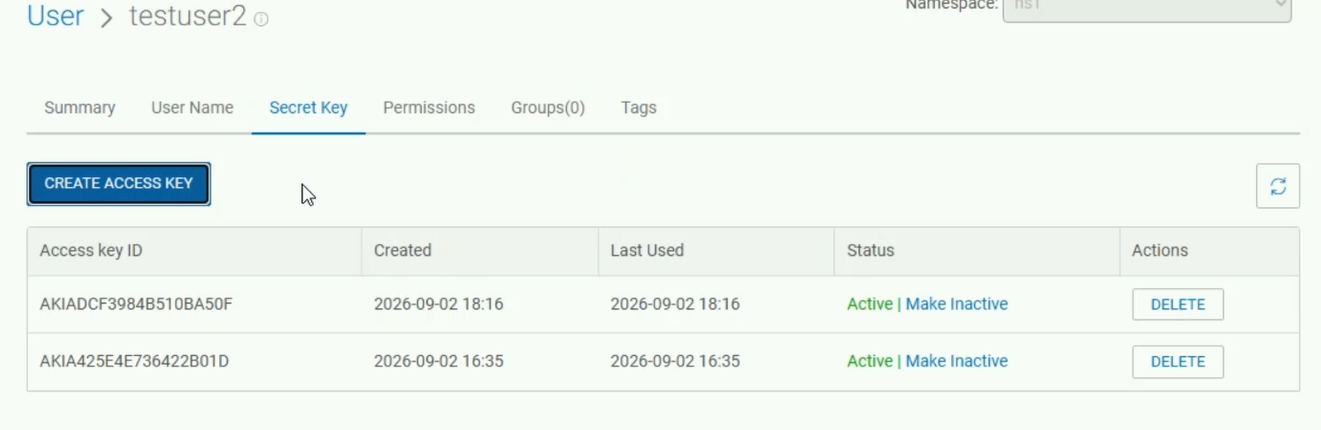
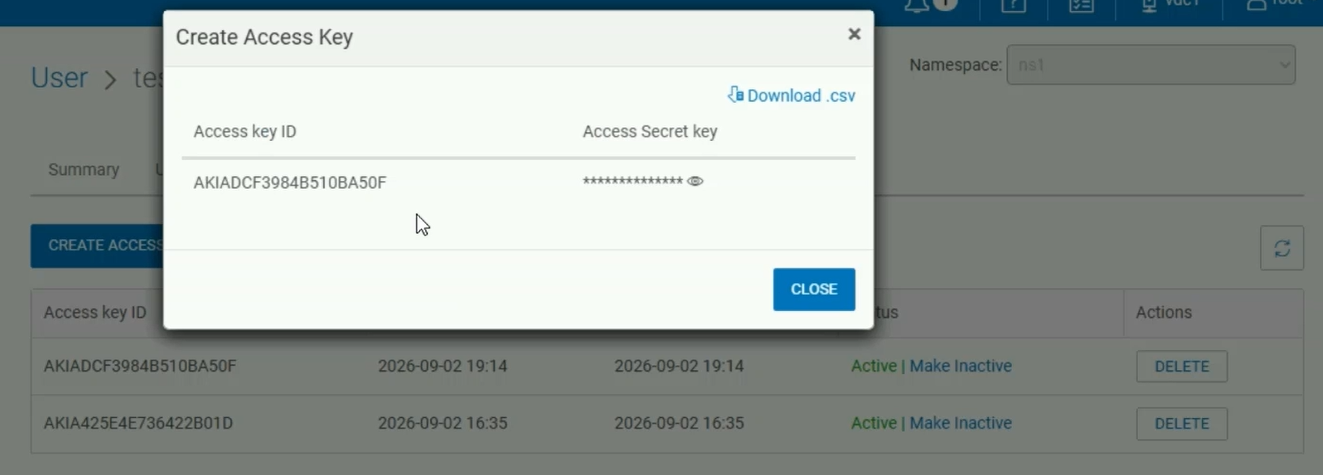
Create an access key. Open the user's Secret Key tab and choose CREATE ACCESS KEY. The dialog returns an Access key ID and an Access Secret key.
Figure: The user's Secret Key tab, listing existing access keys and their status
Store the secret immediately. The secret access key is displayed only once. Download the .csv or copy the value to a secure store before closing the dialog — it cannot be retrieved again.
Figure: The Create Access Key dialog. The secret is shown once — download the .csv before closing
In the Forcepoint DSPM portal
Add Dell ECS as a data source, configure a scan, and start it.
Add the data source. Go to , open the Files & Trustees group, and select Dell ECS.
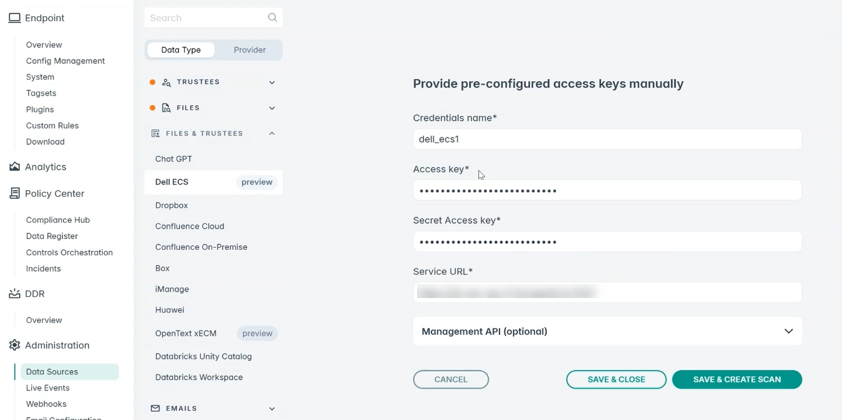
Enter the credentials. Choose to provide pre-configured access keys manually and supply a credentials name, the Access key, the Secret Access key, and the Service URL of the ECS S3 endpoint (for example https://ecs-node:9021). Management API details can be added under the optional section where Object User administration is required.
Figure: Administration › Data Sources › Dell ECS: supplying the access key, secret, and Service URL
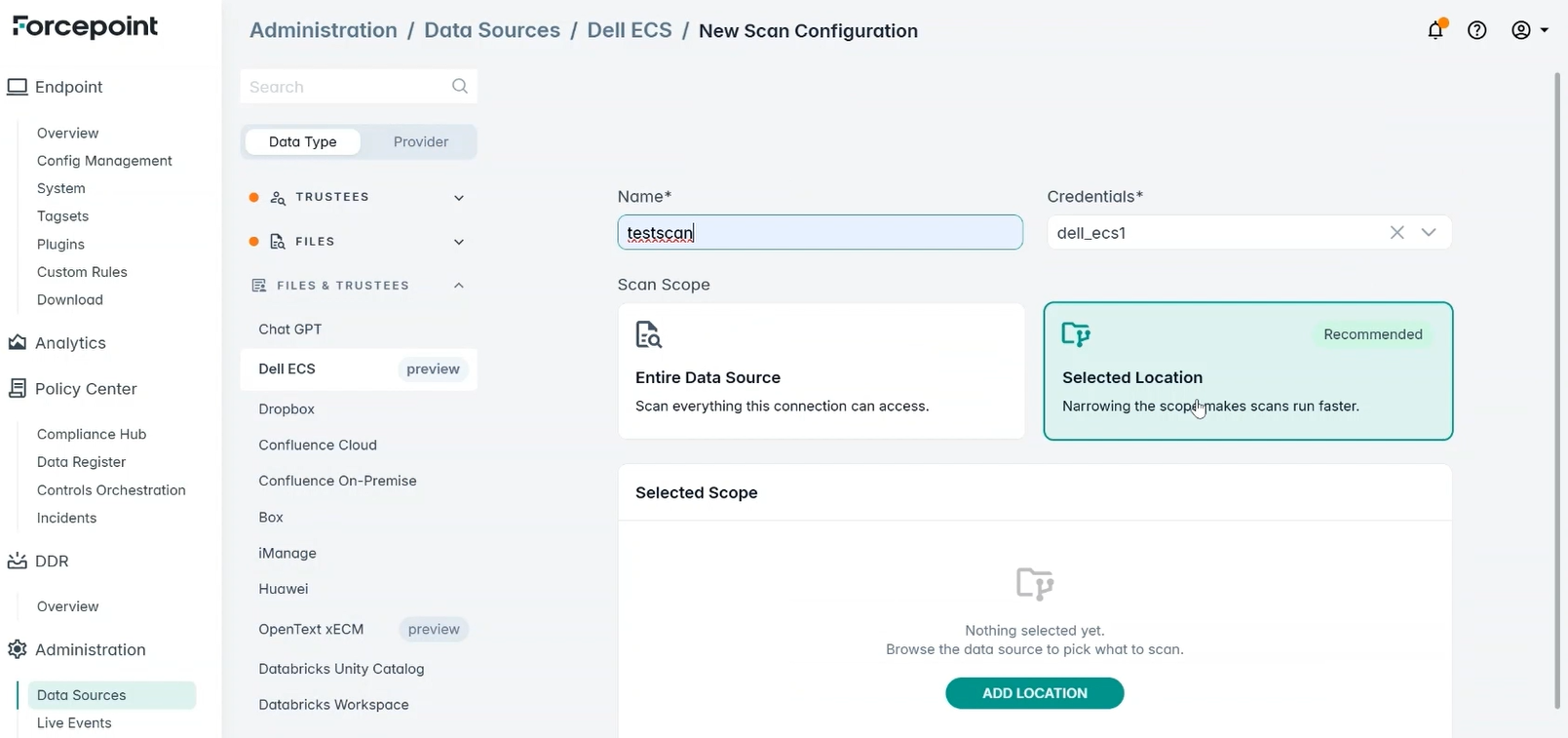
Create a scan configuration. Select SAVE & CREATE SCAN, name the scan, and pick the credential set. For Scan Scope, choose Entire Data Source or the recommended Selected Location, then use ADD LOCATION to browse to a bucket or prefix.
Figure: New Scan Configuration: naming the scan, selecting credentials, and choosing the scan scope
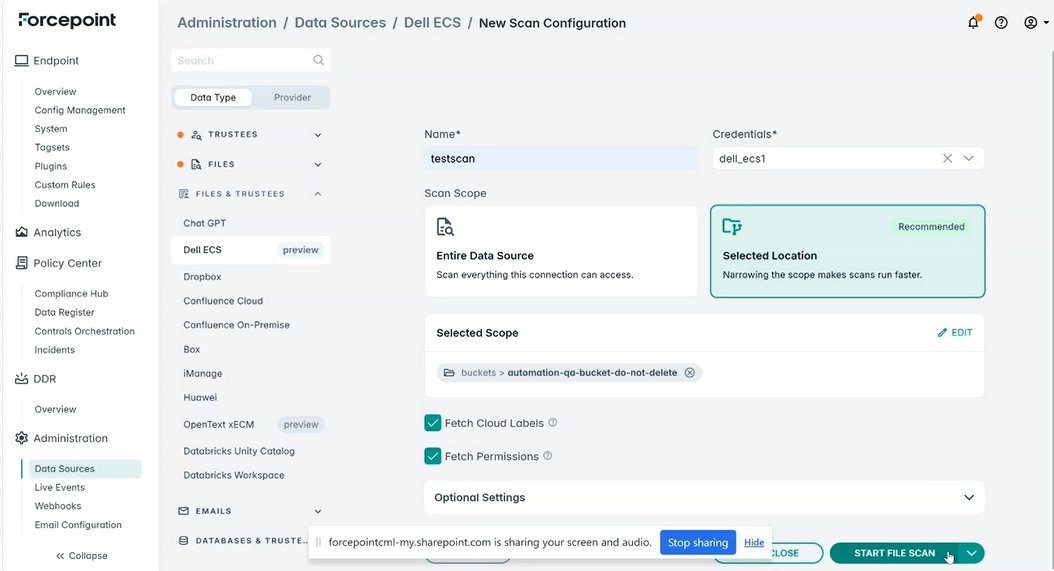
Set the scan options. Enable Fetch Cloud Labels to read existing S3 object tags and Fetch Permissions to collect ACL and trustee data, then review Optional Settings.
Start the scan. Select START FILE SCAN. Progress can be followed under .
Figure: A bucket selected as the scope, with Fetch Cloud Labels and Fetch Permissions enabled
Working with findings
Review scan results in Enterprise Search and act on discovered files.
Once the scan completes, go to and filter on SOURCE = "DELL_ECS". Results list each object's path, risk rating, classification, compliance tags, data attributes, keyword hits, and last-modified date. The row action menu exposes the per-file operations:
Figure: Dashboard › Enterprise Search filtered to SOURCE = "DELL_ECS", showing path, risk, and classification
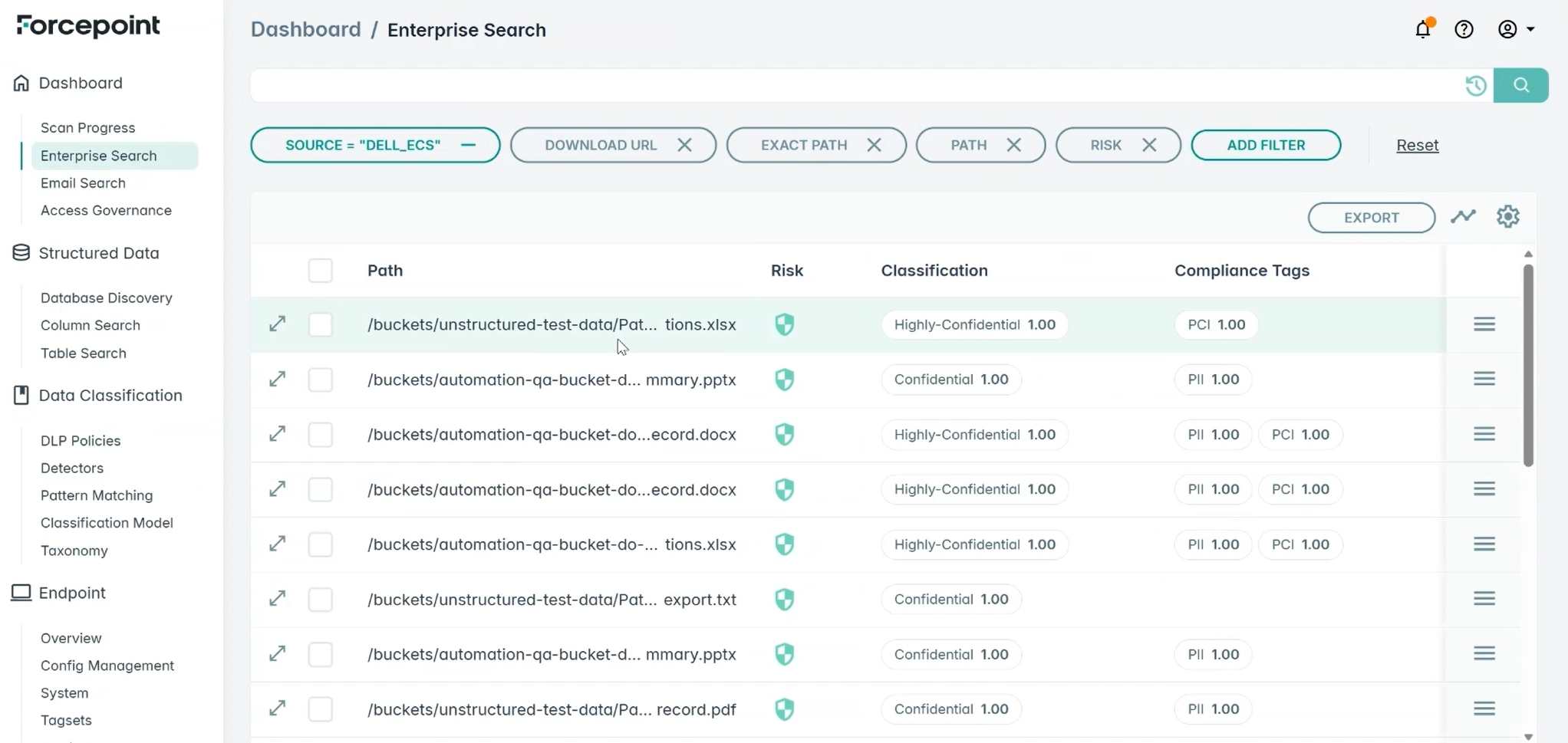
Figure: The per-row action menu available on every discovered file
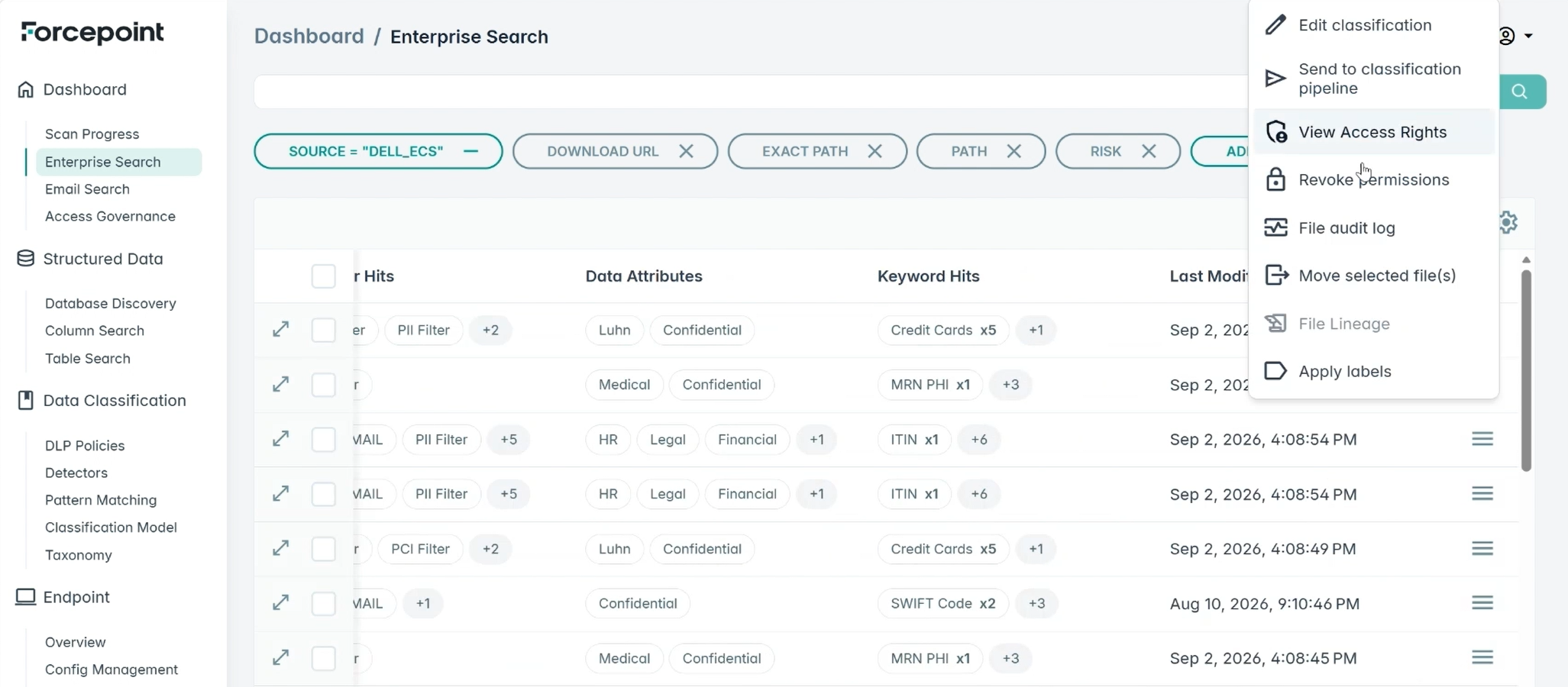
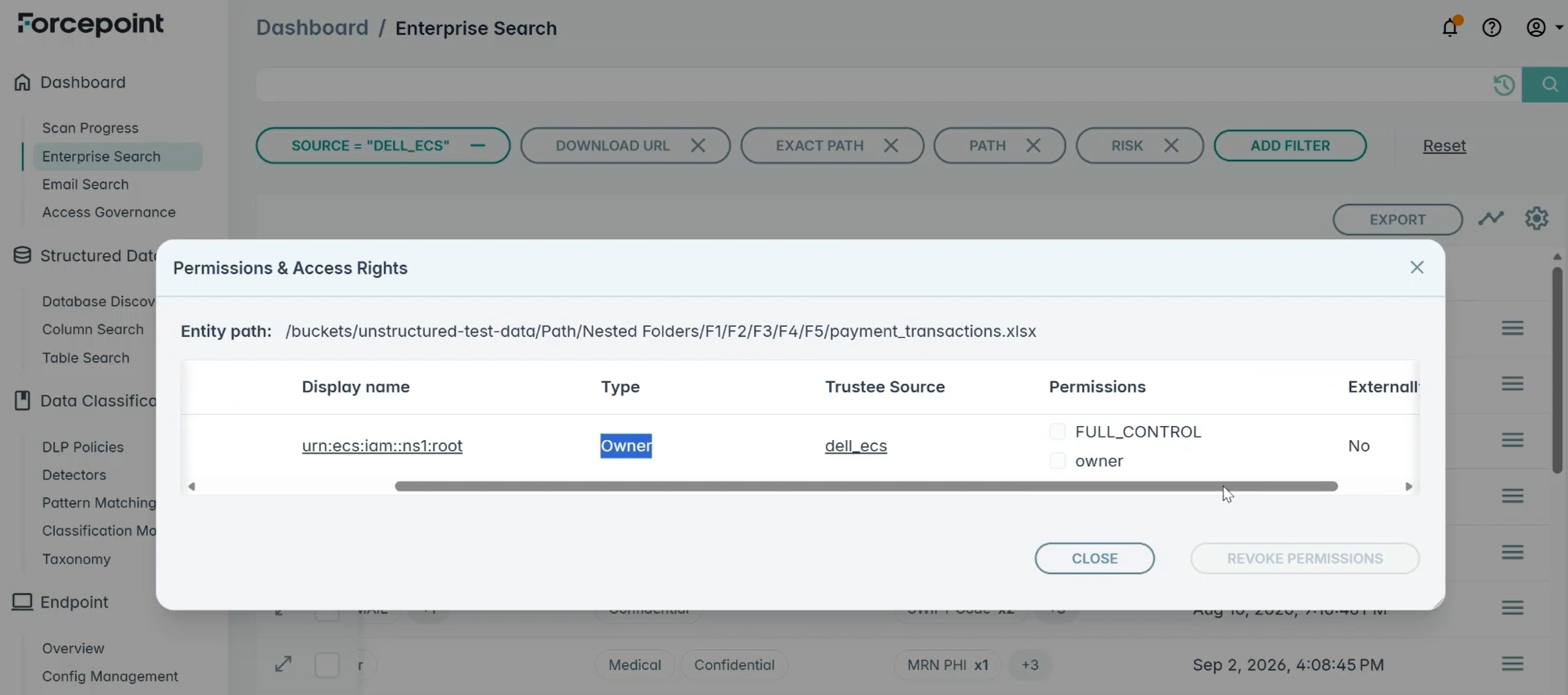
- View Access Rights — Opens the Permissions & Access Rights dialog for the object, showing each grantee's display name, type, trustee source, and granted permissions (for example FULL_CONTROL, owner).
Figure: Permissions & Access Rights for a single object, listing each grantee and its trustee source
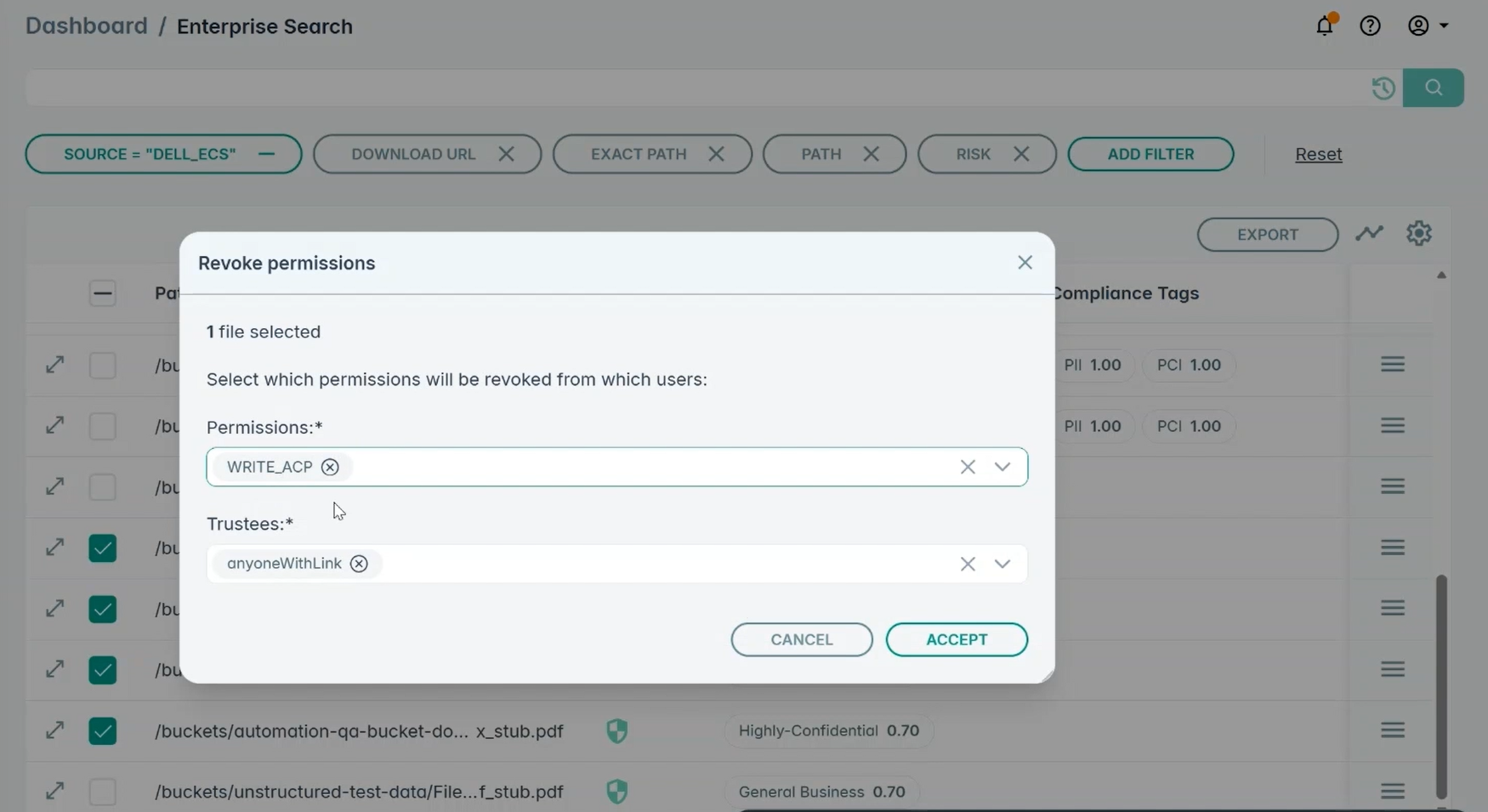
- Revoke permissions — Select the permissions to remove (for example WRITE_ACP) and the trustees to remove them from, then accept. The request is queued and may take some time to complete.
Figure: Revoke permissions: selecting which grants to remove and from which trustees
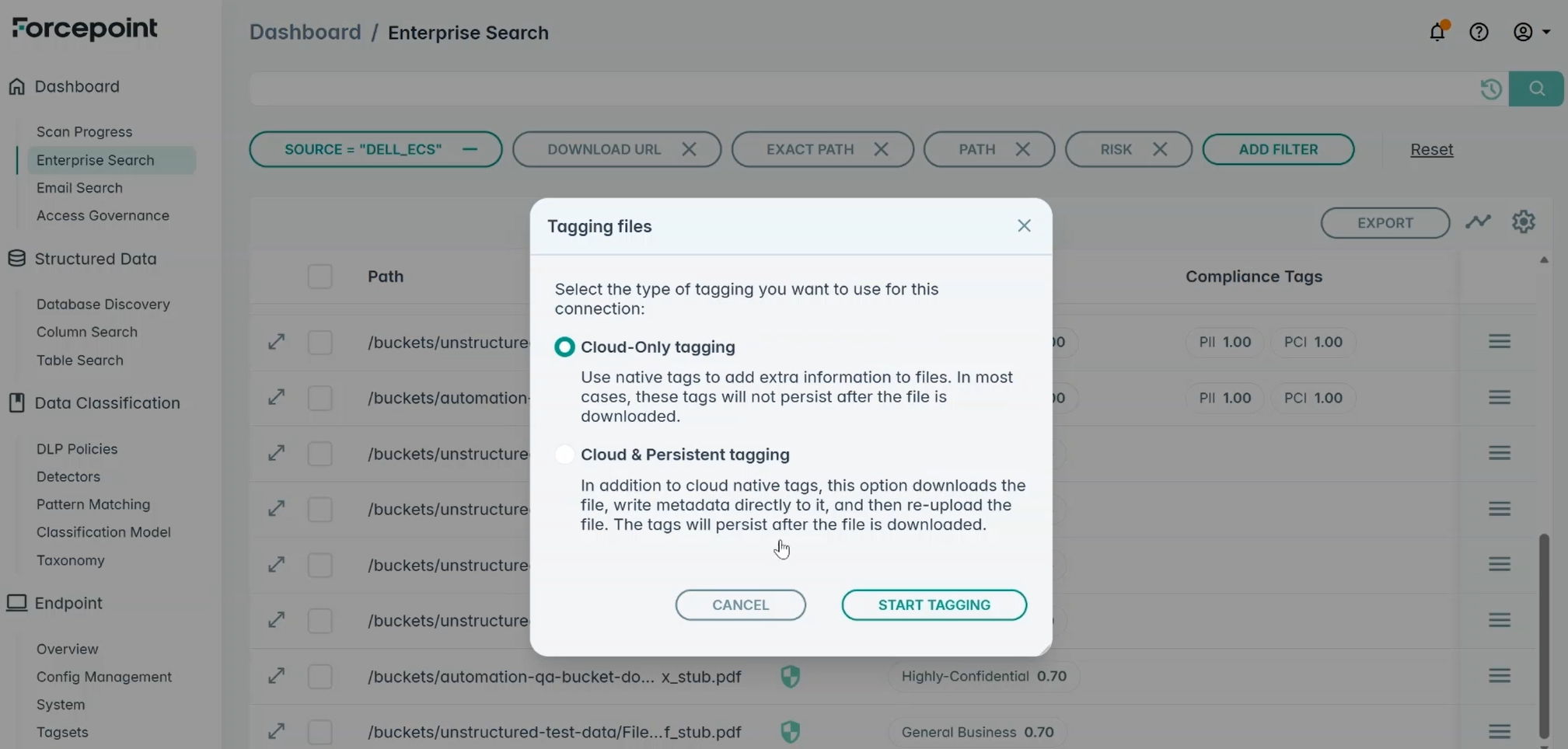
- Apply labels — Choose Cloud-Only tagging to write native S3 object tags, or Cloud & Persistent tagging to download the file, write the metadata into it, and re-upload so the label survives download.
Figure: Tagging files: cloud-only tags versus cloud and persistent tags embedded in the file
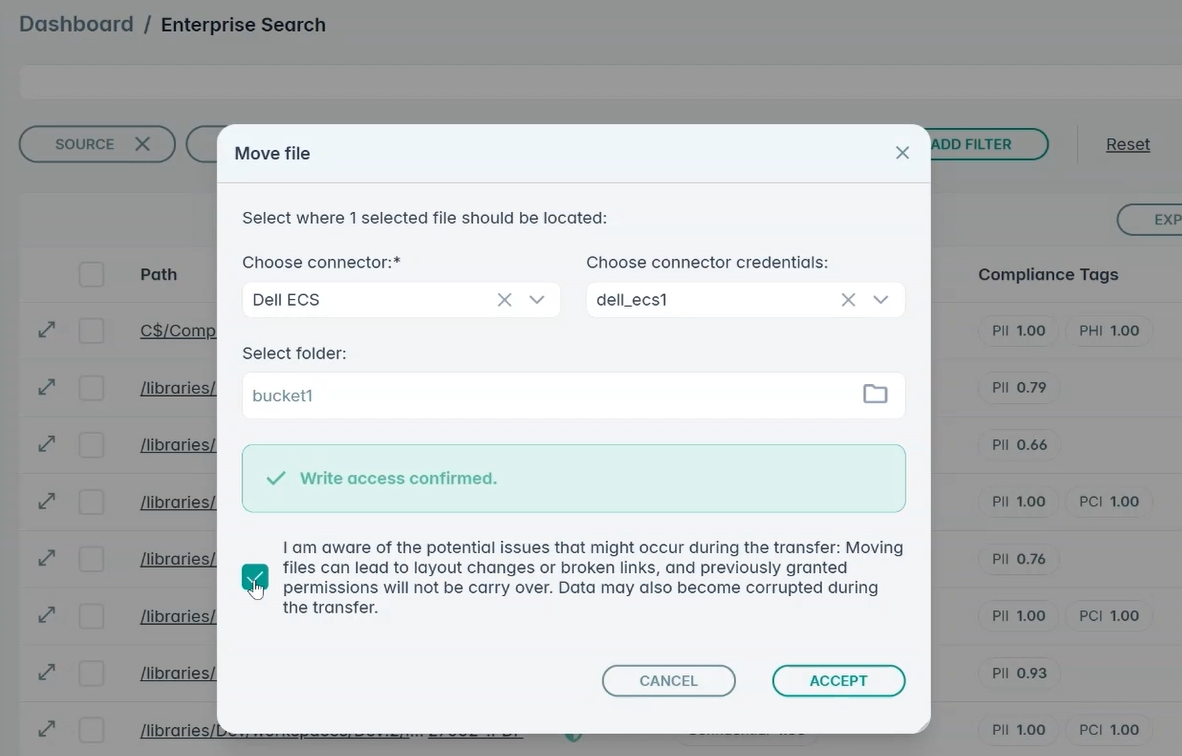
- Move selected file(s) — Choose the destination connector, credentials, and target bucket. Write access is verified before the move, and the operator must acknowledge that layout, links, and previously granted permissions do not carry over. Progress is tracked in the Move Files Log on the remediation page.
Figure: Move file: Choosing the destination connector, credentials, and bucket, with write access verified
- Edit classification, Send to classification pipeline, and File audit log — Available from the same menu for classification review and audit.
Known limitations
Permanent, by-design constraints and current gaps.
- Real-time change detection (DDR) is not available — Dell ECS exposes no S3 bucket-notification, event, or data-layer audit API. This is a platform limitation, by design.
- Structured (SQL / table / field) discovery does not apply — Dell ECS is object storage only.
- Object tagging depends on store support — Cloud and persistent tagging require the target ECS store to support the S3 object-tagging API. On an endpoint without full PutObjectTagging support, tagging can fail with a store-side error even though the connector's request is correct.
- Trustee discovery has one structural gap, by design — Both identity systems are now covered — Object Users via the Management API and IAM Users via the IAM-compatible API, including graceful handling of credentials that ECS itself blocks from listing users or groups (an empty roster is returned rather than a failed scan). The one remaining gap is permanent: some ECS credential types are structurally barred by ECS from calling the IAM API at all, regardless of permissions. See Trustee models for the same distinction.
- Email, OAuth2, and native classification labels are not applicable — These concepts do not apply to object storage and are not implemented.
- File-moved remediation notifications may misattribute ownership — Group grantees (for example AllUsers) may be listed as a file's owner when they hold full-control access, rather than only the actual owner.
- Full-control access is not revocable for non-owner or group grantees — Full-control access could not be revoked for non-owner or group grantees via the Permissions dialog.
- Only full-control is protected when revoking an owner's access — When revoking an object owner's permissions, only full-control access is currently protected — the owner's other permissions remain individually revocable.