Setting up the Databricks Datasource Connector
Prerequisites
- The datasource must be reachable from the network where the product is deployed (for example, via a private DNS name or a routable IP address).
- If a firewall is in place, ensure the required port is open.
- Create a user account with read access to database metadata (schemas, tables, and views) with access to system tables data (required for users, permissions, and metrics extraction) for the product to run the scanning process. The classification process requires access to run "SELECT * queries" for all user tables and columns.
Creating Database Credentials
- Navigate to and select Databricks from the left-hand menu.
- Click Add Credentials to create new Databricks connection credentials.
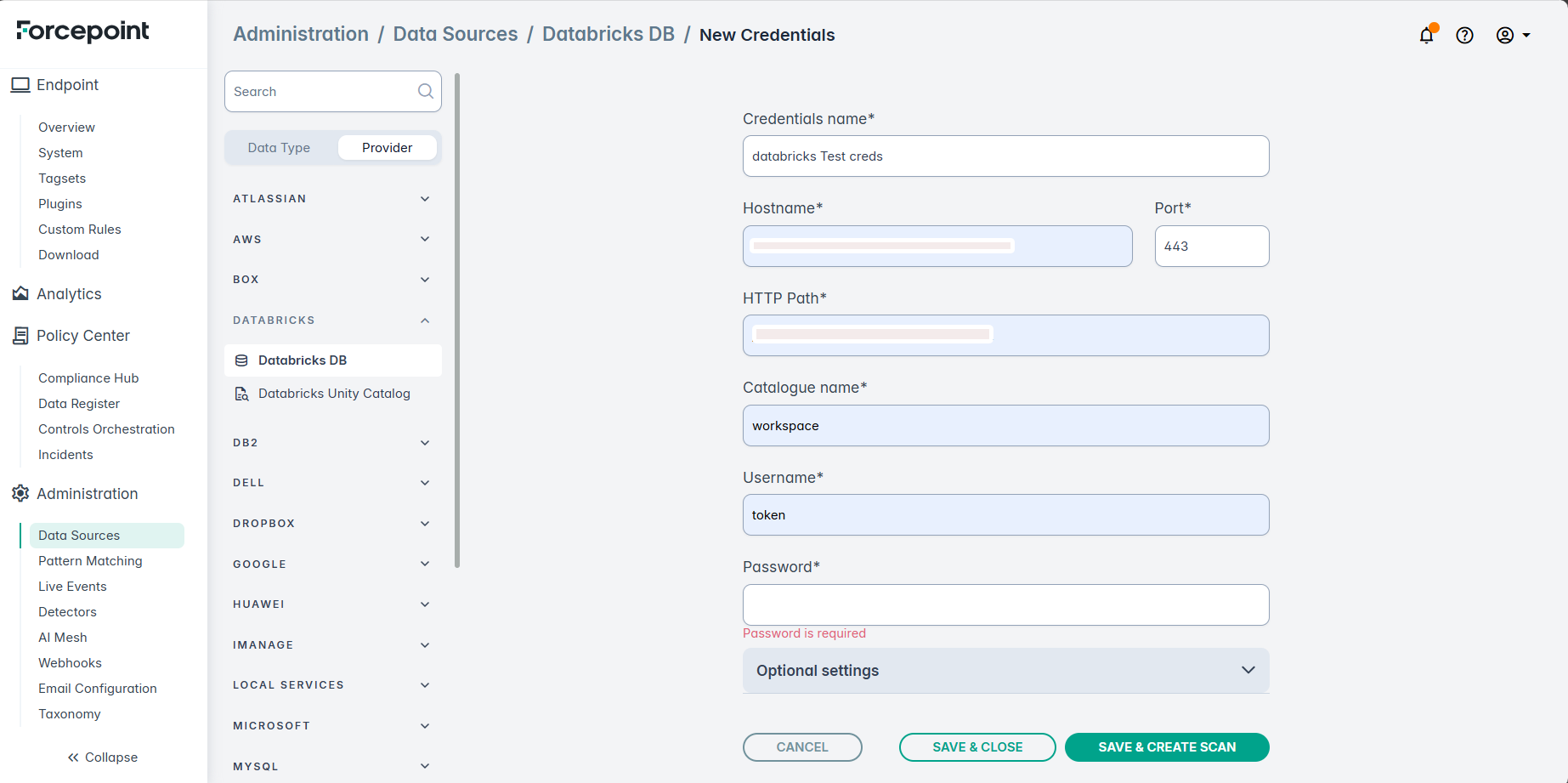
- Gather the required connection details and fill in values them in the respective fields:
Collect the Personal Access Token (PAT) for authentication - generated from Databricks workspace under . If you do not have a PAT, check the following link to generate one. Also, collect the database/schema name to test the connection (e.g., test_db).
- Credentials name — any unique name, e.g., `Databricks_datasource1`
- Hostname — The hostname of your Databricks workspace (e.g., dbc-72ddb01d-2b04.cloud.databricks.com) - found in your workspace URL
- Port: HTTPS port for secure connection (always 443 for cloud Databricks)
- HTTP Path: SQL warehouse or cluster HTTP path for JDBC/ODBC connections - found in SQL Warehouse > Connection Details tab
- Catalog name: Unity Catalog name for three-level namespace (e.g., dspm) - required when using Unity Catalog governance.
- Username: Authentication username (always "token" when using Personal Access Token authentication).
- Password — Any password e.g., `hrdb_password`. This will be token generated (Access Token).
- Click Save & Create Scan to save the credentials and proceed to the scan configuration. The system will attempt to connect and will display an error if the connection
fails:
