Setting up the SAP ASE Datasource Connector for Structured Data
Steps
-
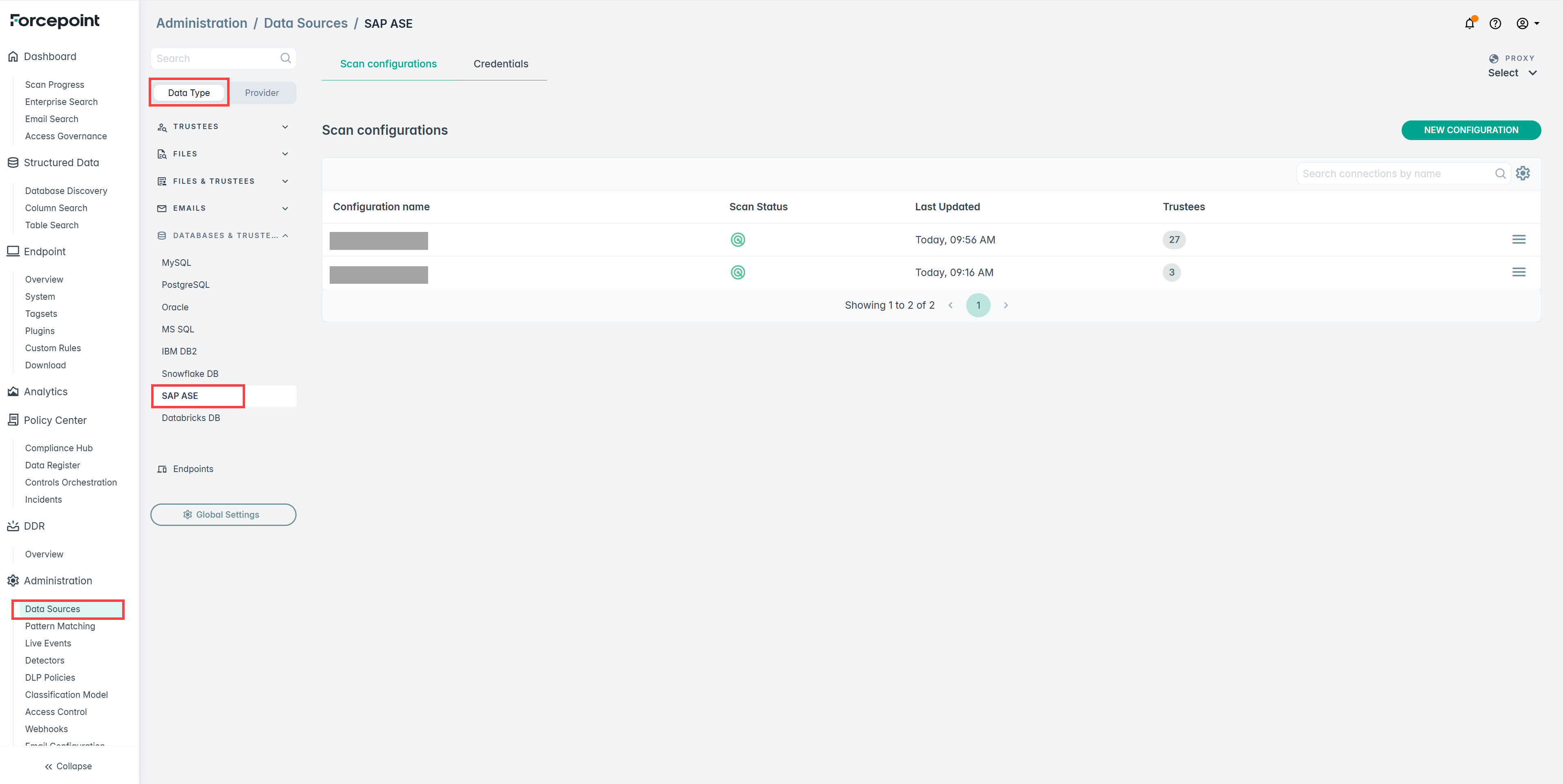
Navigate to and select SAP ASE under Data Type.
-
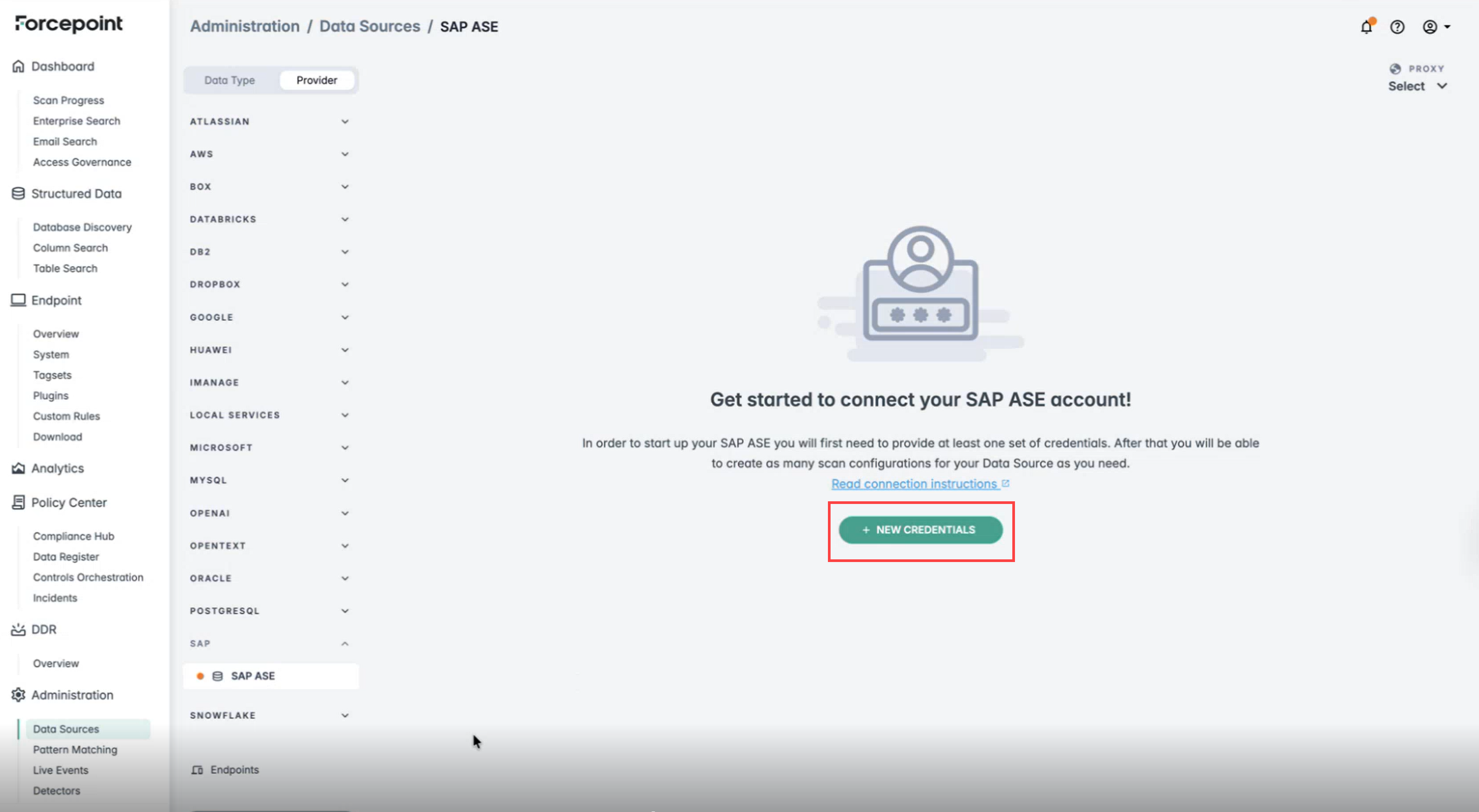
The Get started with SAP ASE account screen appears. Click NEW CREDENTIALS to create new SAP ASE database credentials.
-
Gather the required connection details and provide them in the relevant fields:
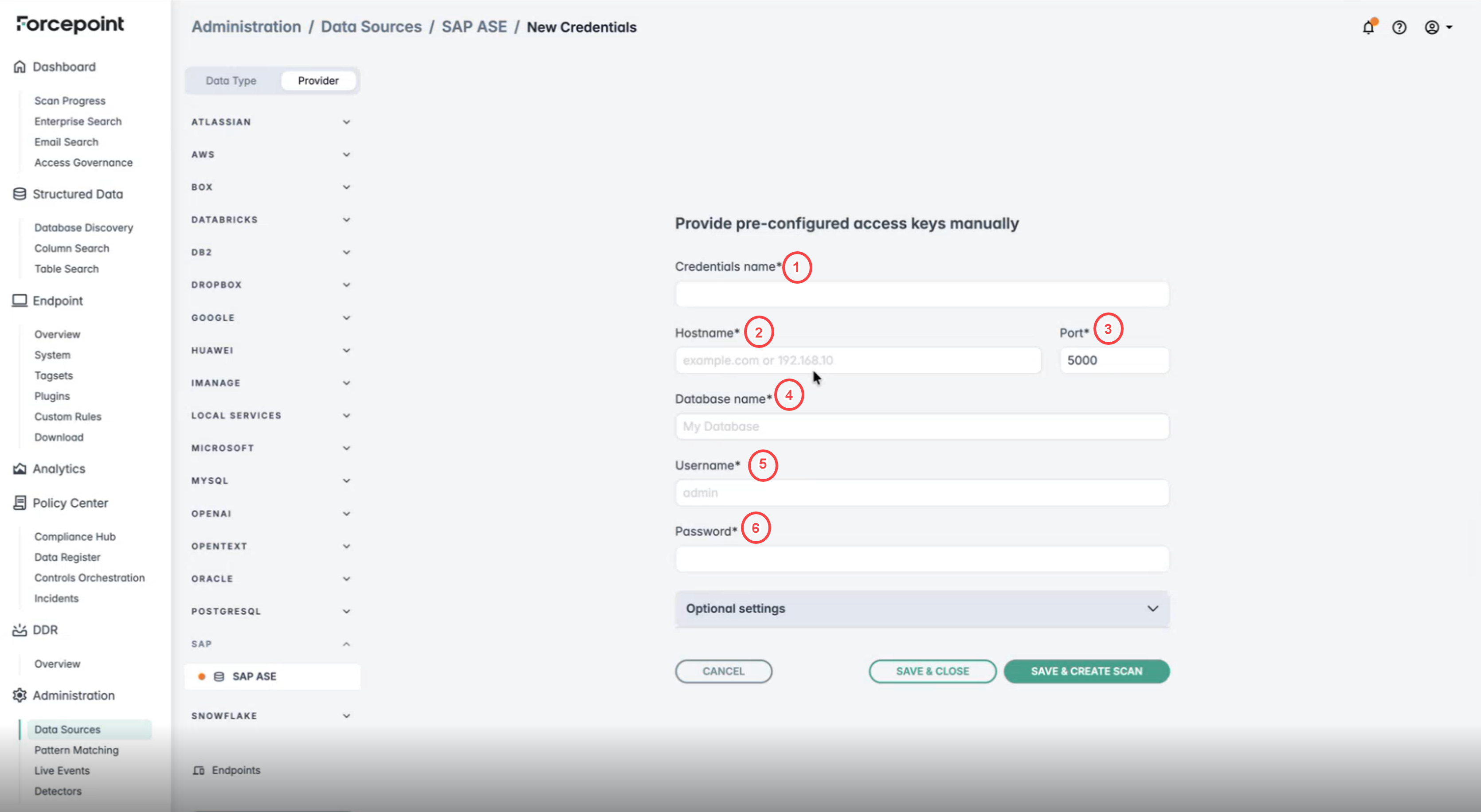
Table 1. SAP ASE connection details # Field Description 1 Credentials name * Any unique name to identify this credential set. 2 Hostname * Use the fully qualified domain name (FQDN) of your SAP ASE server (e.g., ase-prod.companyname.com). Ensure the hostname is resolvable via your organization's DNS. If your organization does not use DNS or the hostname is not resolvable, use the static IP address of the SAP ASE server instead. 3 Port * The port on which SAP ASE is listening. Default port is 5000. 4 Database name * The specific SAP ASE database to target for this credential. 5 Username * Authentication username with read access to the target database. 6 Password * Password for the specified user account. -
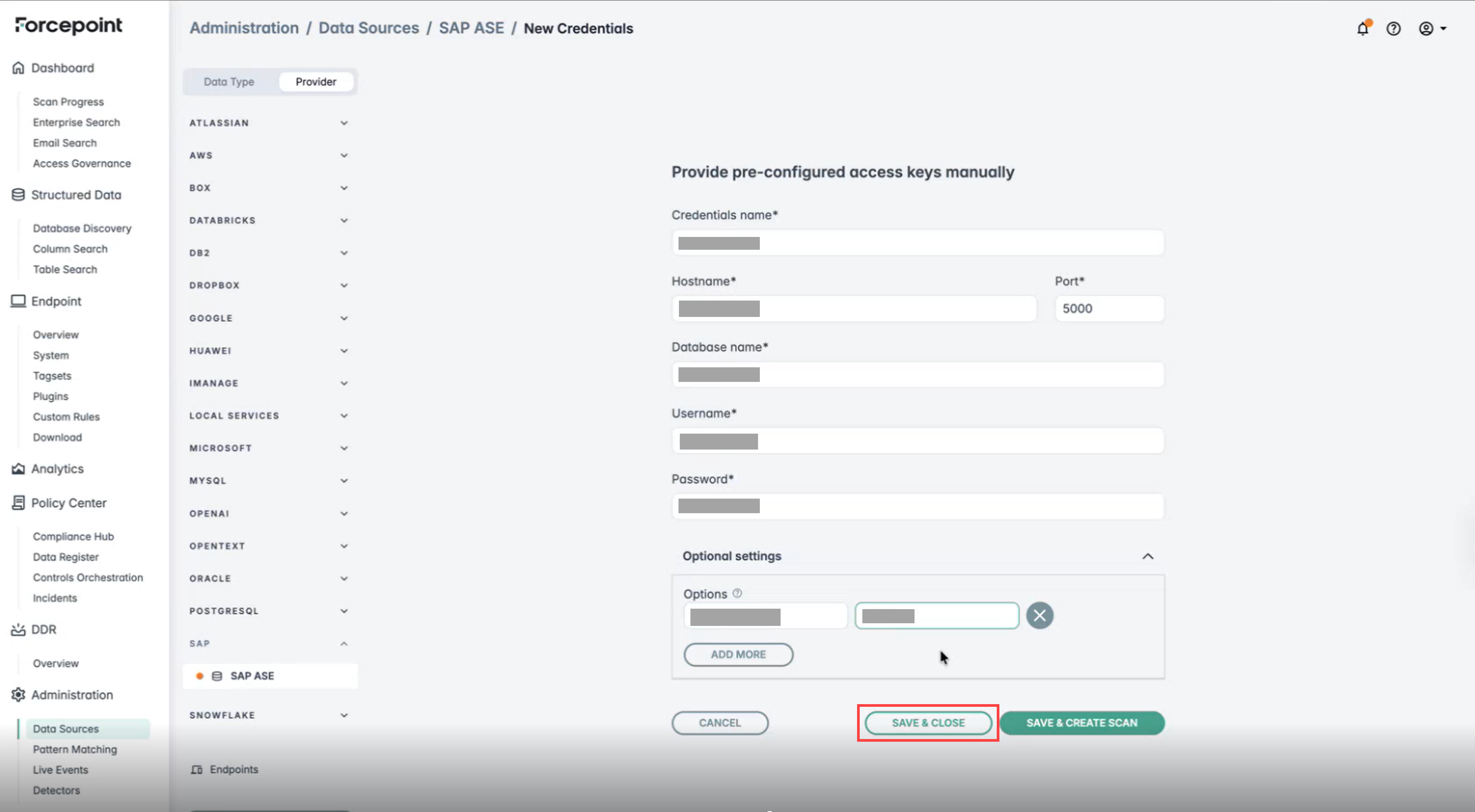
Click SAVE & CLOSE to save the credentials and proceed to the scan configuration. Alternatively, if you click on SAVE & CREATE
SCAN, it will redirect you to the New Scan Configuration page.