Setting up the Oracle Exadata Datasource Connector for Structured Data
Before you begin
Before you begin, ensure the following:
- The datasource must be reachable from the network where the product is deployed (for example, via a private DNS name or a routable IP address).
- If a firewall is in place, ensure the required port is open.
- Create a user account with read access to database metadata (schemas, tables, and views) with access to system tables data (required for users, permissions, and metrics extraction) for the product to run the scanning process. The classification process requires access to run "SELECT * queries" for all user tables and columns.
The following steps describe how to create the Oracle Exadata database credentials required to connect the datasource connector for structured data.
Steps
-
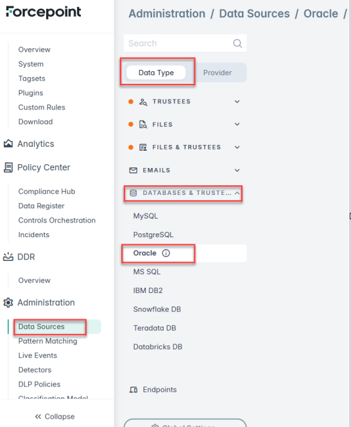
Navigate to and select Oracle under DATABASES & TRUSTEES.
-
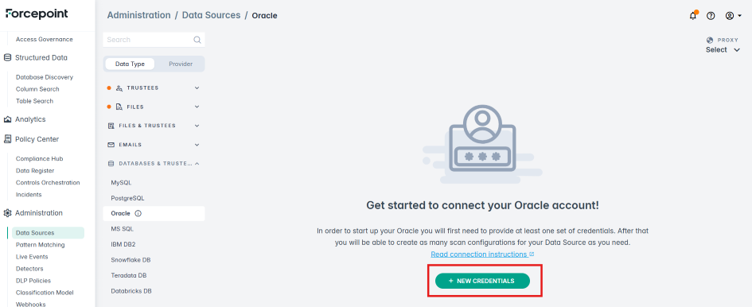
Click New Credentials to create new Oracle Exadata DB credentials.
-
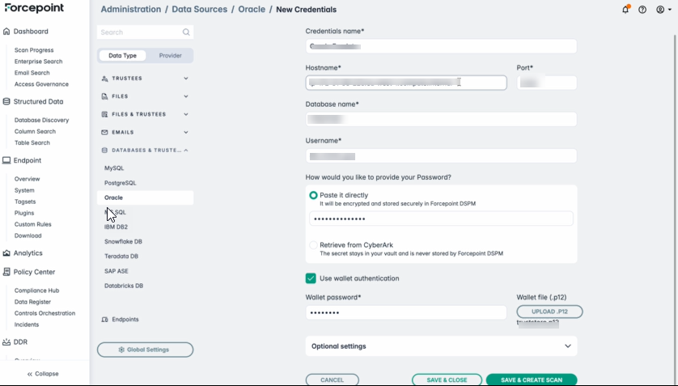
Gather all needed connection details and input them in the relevant fields:
-
Credentials name (required): A label you assign to this credential set so you can identify and reuse it later within the platform. Purely an internal name; it does not affect the connection.
-
Hostname (required): The server address of the Oracle database, entered as either a domain name (for example, example.com) or an IP address (for example, 192.168.10.x). This is where the database listener is reachable.
- Port (required, default 1521): The TCP port the Oracle listener accepts connections on. 1521 is the Oracle default; change it only if your DBA configured a different port.
- Database name (required): The Oracle service name or SID you are connecting to. This identifies the specific database instance on the host.
- Username (required): The Oracle database account used to log in (for example, a schema/user with read access for scanning).
- Password (required): The password for that database account. Either paste it directly or retrieve it from CyberArk.
- Use wallet authentication (checkbox): Enables Oracle Wallet (mTLS) authentication. When checked, the Wallet password and Wallet file fields appear. Used for Autonomous Database / Exadata Cloud connections that require certificate-based secure connections.
- Wallet password (required when wallet is enabled): The password that decrypts the .p12 wallet keystore. Set when the wallet bundle was generated in Oracle Cloud; not the same as the database password above.
- Wallet file (.p12): Upload button for the ewallet.p12 keystore from your Oracle wallet bundle, containing the TLS client certificate and private key.
The expanded Optional settings panel contains the following:- Options (with a help/tooltip icon): A section for supplying additional Oracle connection parameters as key-value pairs. These are advanced, non-required settings that get passed to the database connection. Hovering over the "?" icon shows guidance on accepted parameters.
- Key: The name of the connection parameter you want to set (for example, a JDBC/connection property like a connection timeout, encryption setting, or other Oracle driver option).
- Value: The corresponding value for that parameter.
- Add More: Adds another empty Key/Value row, letting you specify multiple parameters.
-
-
Click SAVE & CREATE SCAN to save the credentials and proceed to the scan configuration.
The system attempts to connect and displays an error if the connection fails.
