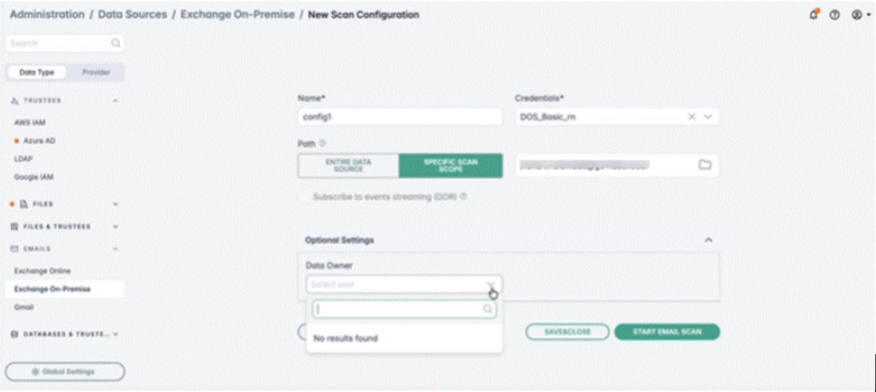
Creating a Scan Configuration
A scan configuration defines exactly what you want to scan. To create one:
- Select New configuration.
- Enter a name for the configuration (for example, Config 1).
- Select the credential for the Exchange server you want to scan.
- Choose the scan scope (see below).
- Optionally set a data owner.
- Select Save and close to add the configuration to the list or Start email scan to save it and begin scanning immediately.
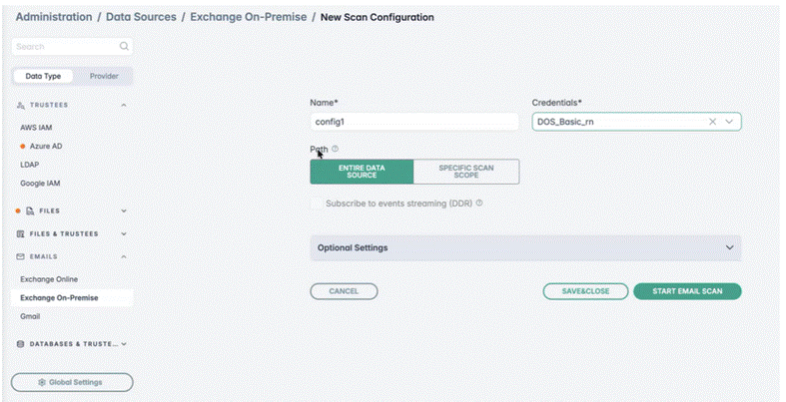
Choosing the Scan Scope
You have two options for scope:
- Entire data source — scans all mailboxes on that Exchange server.
- Specific mailbox — scans a single mailbox that you select. You can search for a mailbox by name to find it more quickly.
Note: Within a single scan configuration, you can select only one specific mailbox — there is no multi-select. To scan two mailboxes individually, either use Entire data source or create a
separate configuration for each. Unlike file connectors, there is no folder/subfolder tree to drill into; for email you select at the mailbox level only.
Optional Data Owner
The Data Owner is an optional setting. The list of available users comes from the platform's identity store (Keycloak), which an administrator manages. The user you select is shown as the data owner for the scan.