Reviewing Scanned Emails
Opening the Results
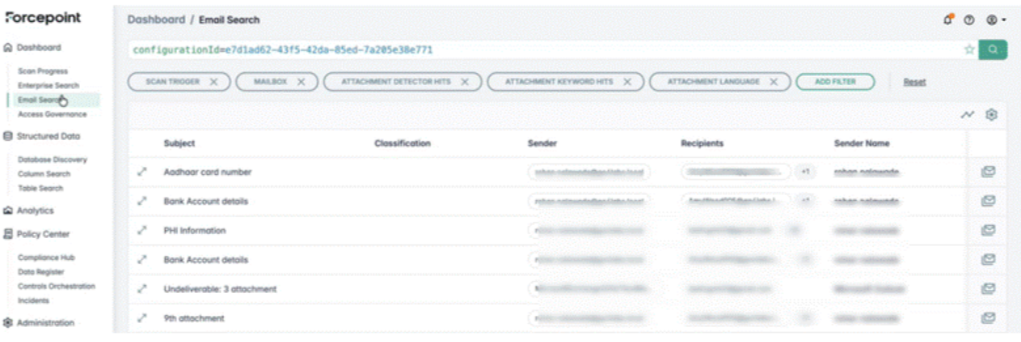
Selecting a scan shows a window with a limited set of columns. To see the full detail, select View in the page. This opens the Email Search section, filtered by the scan's configuration ID so you see only the emails from that scan.
Use Settings in the Email Search view to add or remove columns. Adding all columns lets you see the full detail captured for each email.
Email Columns Explained
| Column | What it shows |
|---|---|
| Subject | The subject line of the email. |
| Classification | The sensitivity assigned by the active classifier (for example Public, Confidential or Highly Confidential). Classification is not instant — it can take some time after the scan completes, depending on how many scans are running or queued. |
| Sender | The email address of the sender. |
| Recipients | All recipients, including those in CC and BCC. |
| Sender Name | Name of the sender. |
| Created At | When the email was created. |
| Compliance tag | Derived from classification. |
| Mailbox | The email address of the mailbox the email was found in. |
| Source | Shows the connector name. |
| Sender is External | If 'yes', shows tick mark. |
| Recipient is external | If 'yes', shows tick mark. |
| Ingested At | When the email was discovered and ingested into the platform (that is, when the scan ran). |
| Risk | High or low, derived from a defined logic — broadly, whether the content is critical or sensitive and whether the sender or recipient is external. |
| Critical / Sensitive | A tick indicates the email (or its attachment) is critical or sensitive. |
| Languages | The languages detected in the email and its attachments — for example, an English email with a Chinese attachment is flagged accordingly. |
| Distribution tag | Specifies who is intended to view this email. |
| Keyword hits / Detector Hits | Lists specific patterns, phrases, or keywords detected in the content / Highlights detectors that were triggered by the content. |
| Public Data Attributes | Identifies business-domain attributes found by AI. |
| Path/Full Path | Reference path used by the system to store or identify this email / Internal location used by the system to store or identify this email. |
| Type | Type of the email. |
| Content length | The size of the email content. |
| Attachments | Unique identifier for this email. |
| IDs (Email ID, Thread ID, Scan Id, Scan configuration ID) | Identifiers you can use to build queries. |
Viewing an Email Thread
Select Email thread on an email to view the entire conversation. The thread view shows the subject, classification, sender, recipients and creation time for every email in the thread. This view is self-contained — you cannot open the messages in an external mail client or forward them from here.
Viewing Attachment Detail
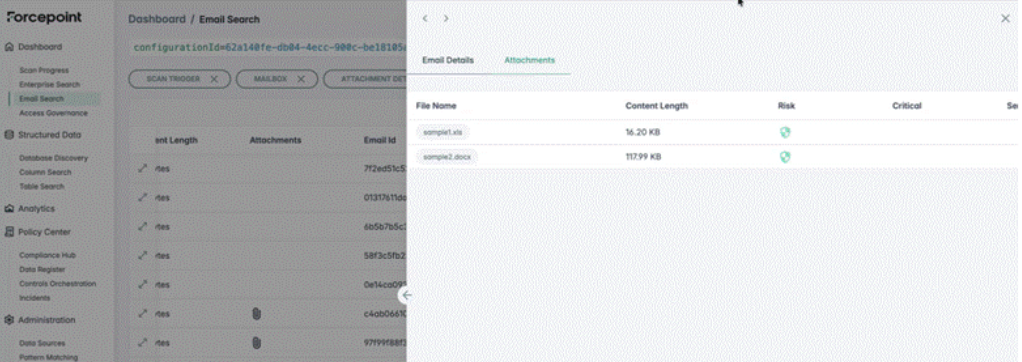
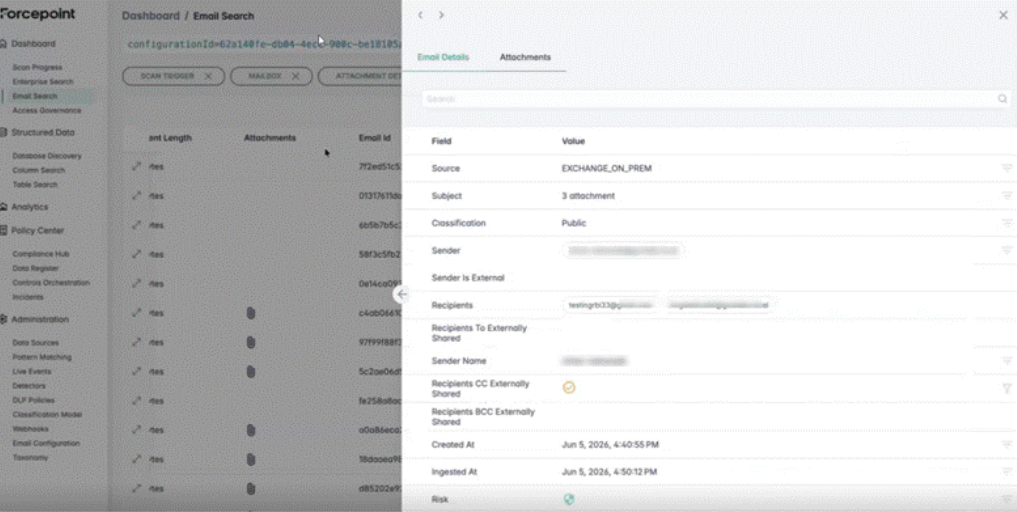
Expand an email to open a drawer view. Most fields mirror the columns already described. In addition, the drawer lists the attachments, showing for each one the file name, content length, risk, critical/sensitive flags and keyword hits.